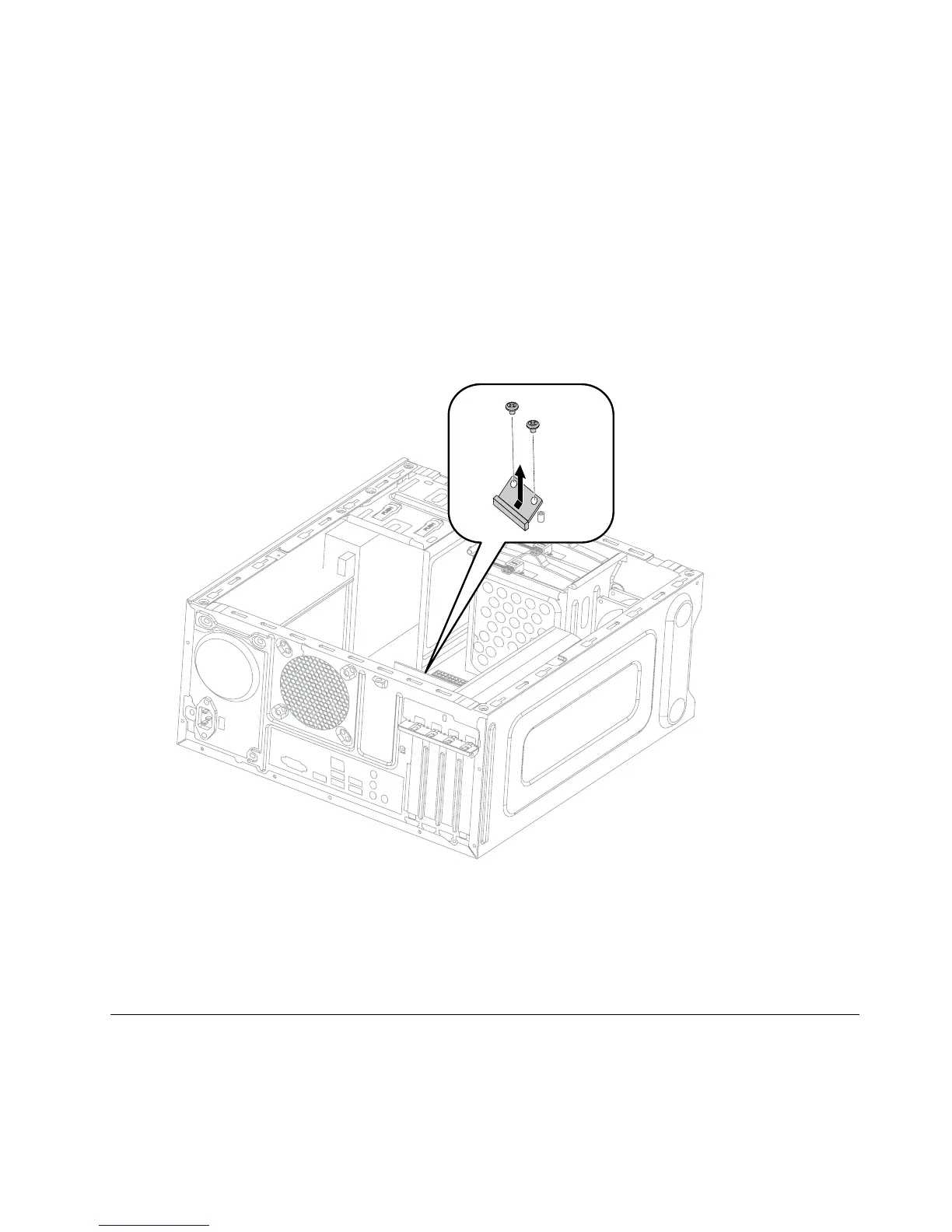
ToreplacetheWi-Ficard:
Step1.Removeanymedia(disks,CDs,DVDs,ormemorycards)fromthedrives,shutdowntheoperating
system,andturnoffthecomputerandallattacheddevices.
Step2.Unplugallpowercordsfromelectricaloutlets.
Step3.Disconnectallcablesattachedtothecomputer.Thisincludespowercords,input/output(I/O)
cables,andanyothercablesthatareconnectedtothecomputer.Referto“Leftandrightview”
and“Rearview”forhelpwithlocatingthevariousconnectors.
Step4.Removethecomputercover.Referto“Removingthecomputercover”.
Step5.Disconnectthe2antennacablesfromtheWi-Ficard.
Step6.Removethe2screwsthatsecuretheWi-Ficardtothemotherboard.
Step7.PulltheWi-Ficardupwardtoremoveitfromthecardport.
Step8.InstallthenewWi-Ficard:
a.LineupthenewWi-Ficard,theninsertitintothesamecardport.
b.SecuretheWi-Ficardtothemotherboardwiththe2screws.
c.Connectthe2antennacablestothenewWi-Ficard.
Step9.Reattachthecomputercover.
Replacingthemotherboard
Note:Forthisprocedure,ithelpstolaythecomputerflat.
Toreplacethemotherboard:
Chapter8.Replacinghardware37







 To Next Page