Chapter 5. Function keys
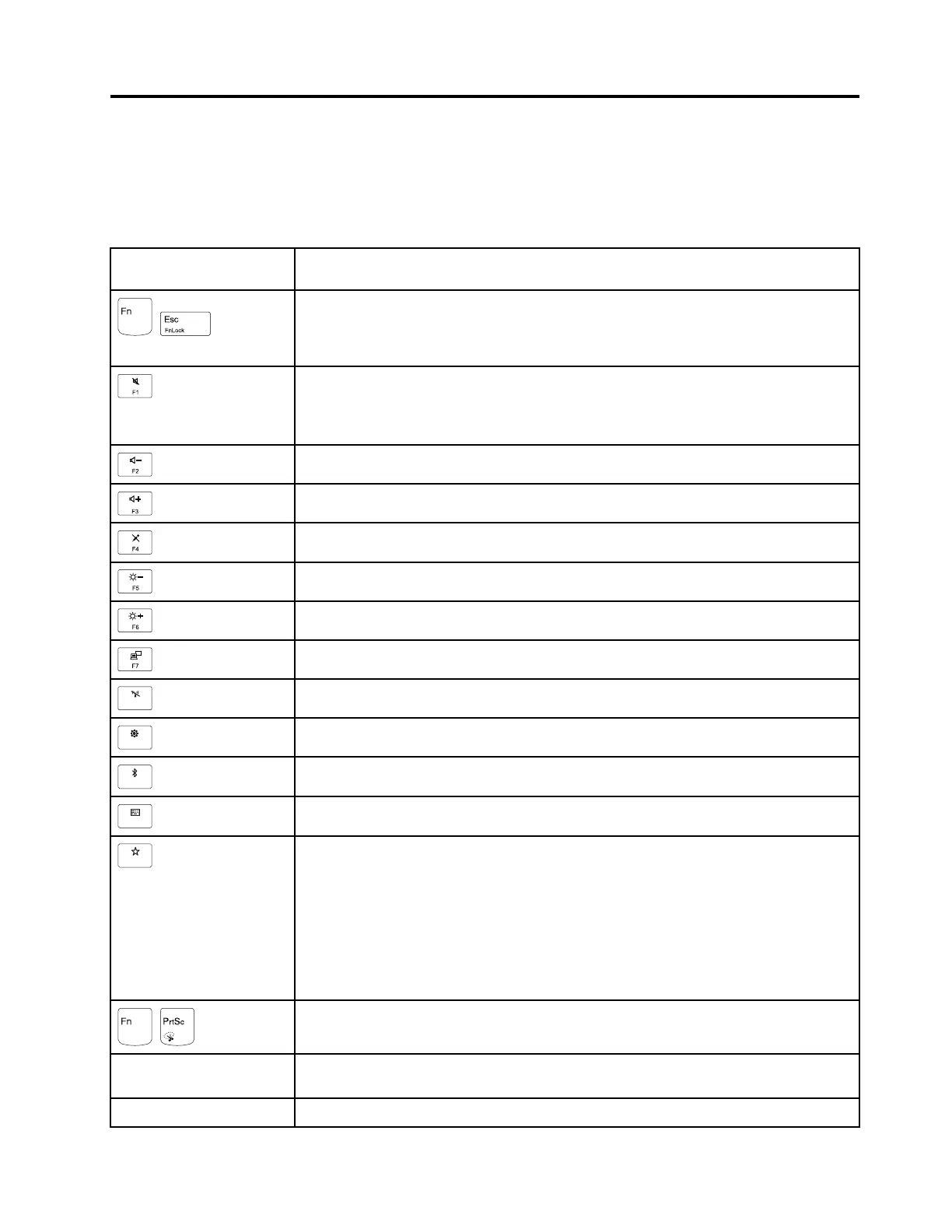
The following table describes the functions of function keys and key combinations.
Table 6. Function keys
Function key and key
combination
Description
+
Switch the key function between the standard F1–F12 function and the special function
printed as an icon on each key. When the Fn Lock indicator is off, you can use the
default function. You can change the default function in the Keyboard Properties
window.
Mute or unmute the speakers.
If you mute the sound and turn off your computer, the sound will remain muted when you
turn on your computer again. To turn on the sound, press F2 or F3.
Decrease the speaker volume.
Increase the speaker volume.
Mute or unmute the microphones.
Darken the computer display.
Brighten the computer display.
Manage external displays.
Enable or disable the built-in wireless features.
Open a keyboard setting page.
Enable or disable the built-in Bluetooth features.
Open a keyboard setting page.
Invoke the function defined by yourself:
1. Open the start menu and click Lenovo Vantage.
2. Click Hardware Settings and then click Input.
3. Locate the Keyboard: User-defined Key section and follow the instructions on the
screen to complete the setting.
On this setting page, you can also define different functions for the key combinations
with F12, such as Shift+F12, Alt+F12, or Ctrl+F12.
+
Open the Snipping Tool program.
Fn+4 Puts your computer into sleep mode. To return to normal operation, press the Fn key or
the power button.
Fn+B Has the same function as the Break key on a conventional keyboard.
© Copyright Lenovo 2018 43















 To Next Page