2.Removethecomputercover.See“Removingthecomputercover”onpage32.
3.Locatethebattery.See“Locatingpartsonthesystemboard”onpage11.
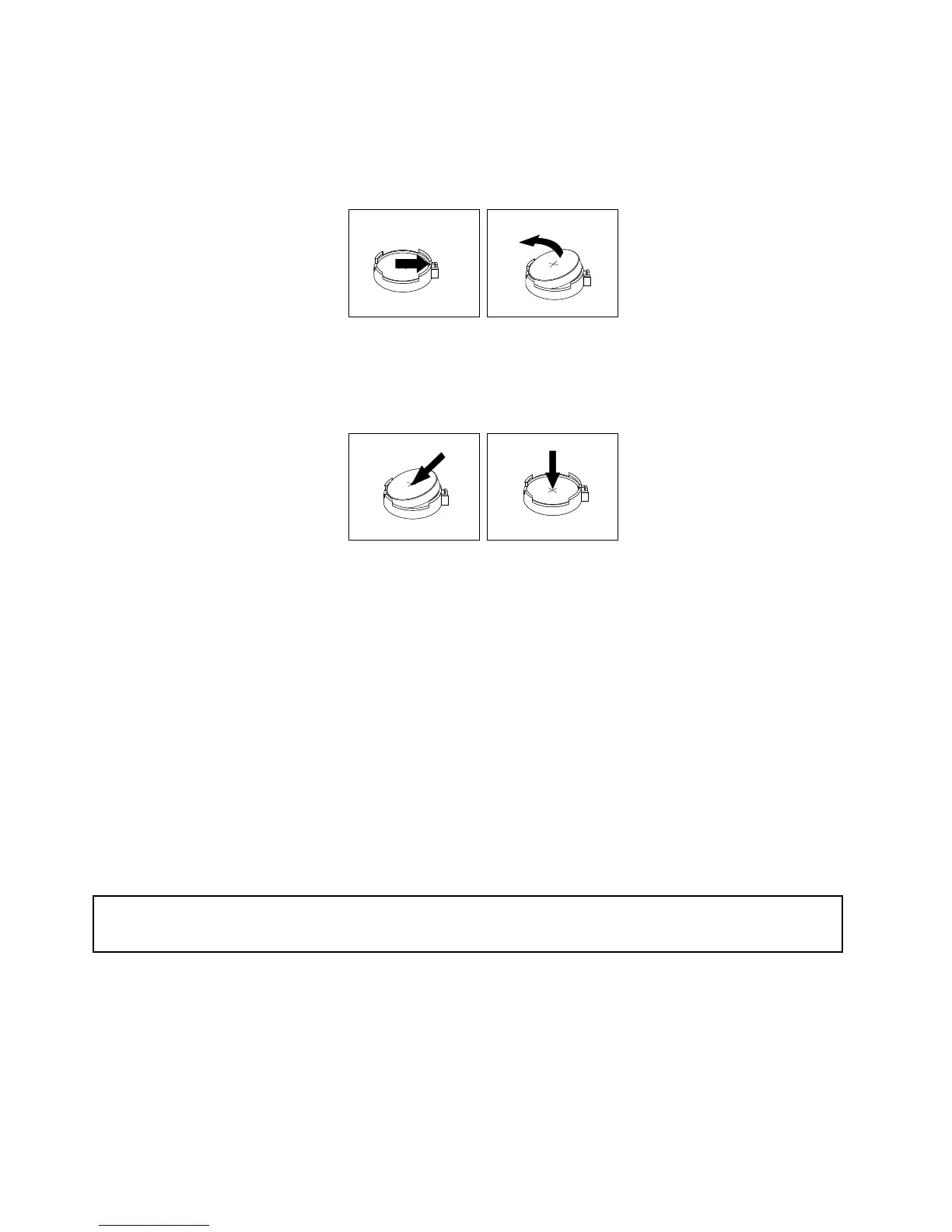
4.Removetheoldbattery.
Figure19.Removingtheoldbattery
5.Installanewbattery.
Figure20.Installinganewbattery
6.Reinstallthecomputercoverandconnectthecables.See“Completingthepartsreplacement”on
page61.
Note:Whenthecomputeristurnedonforthersttimeafterreplacingthebattery,anerrormessage
mightbedisplayed.Thisisnormalafterreplacingthebattery.
7.Turnonthecomputerandallattacheddevices.
8.UsetheSetupUtilityprogramtosetthedate,time,andanypasswords.SeeChapter7“UsingtheSetup
Utilityprogram”onpage71.
Whattodonext:
•Toworkwithanotherpieceofhardware,gototheappropriatesection.
•Tocompletetheinstallationorreplacement,goto“Completingthepartsreplacement”onpage61.
Installingthesolidstatedrive
Attention:
Donotopenyourcomputerorattemptanyrepairbeforereadingandunderstandingthe“Importantsafetyinformation”
onpagev
.
Thissectionprovidesinstructionsonhowtoinstallthe2.5-inchsolidstatedrive.
Toinstallthesolidstatedrive,dothefollowing:
40ThinkCentreUserGuide






 To Next Page