Toreplacethemouse,dothefollowing:
1.Removeallmediafromthedrives.Then,turnoffallattacheddevicesandthecomputer.
2.Disconnectallpowercordsfromelectricaloutlets.
3.Disconnecttheoldmousecablefromthecomputer.
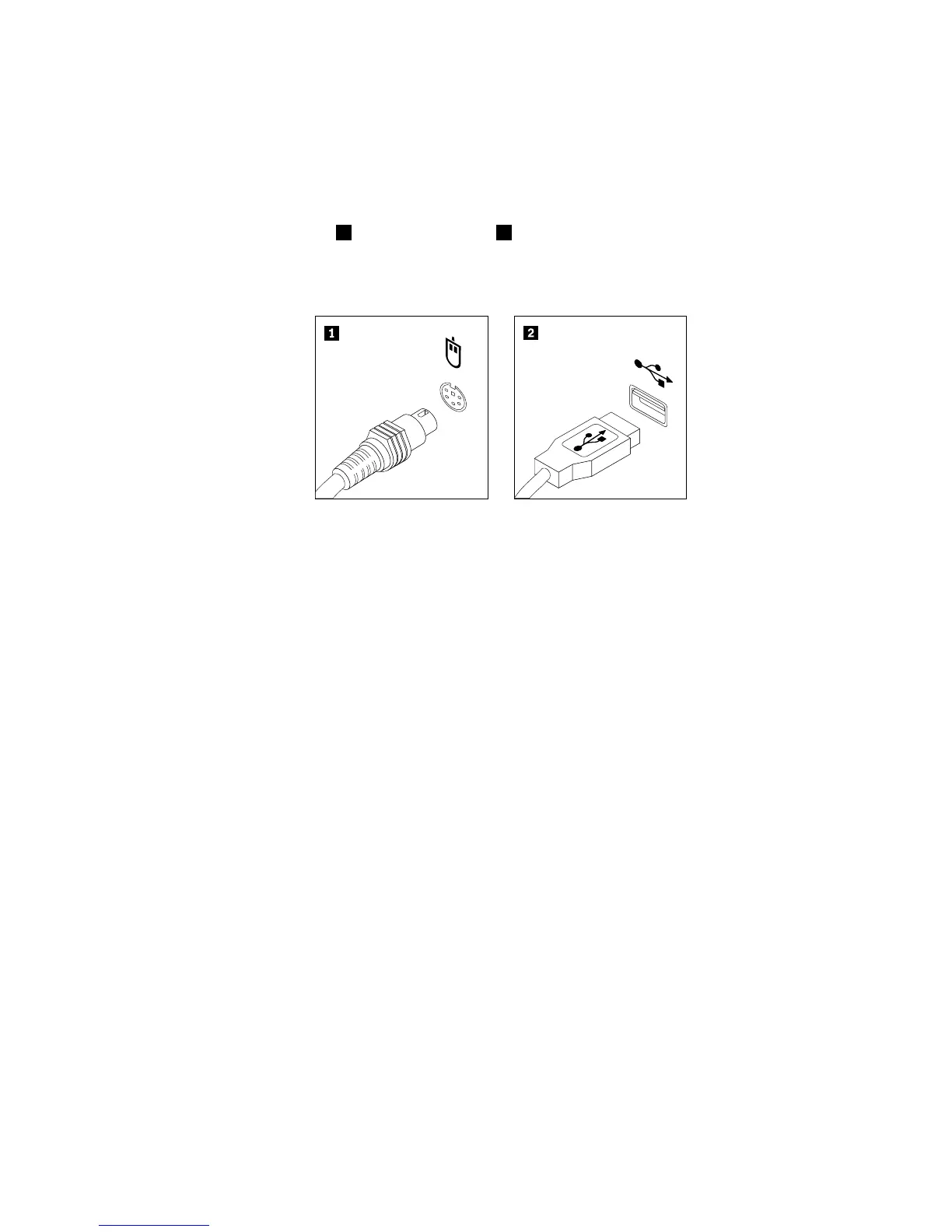
4.Connectanewmousetotheappropriateconnectoronthecomputer.Yourmousemightbeconnected
toaPS/2mouseconnector1oraUSBconnector2.Dependingonwhereyouwanttoconnectyour
mouse,see“Locatingconnectors,controls,andindicatorsonthefrontofyourcomputer”onpage8
or“Locatingconnectorsontherearofyourcomputer”onpage9.
Figure46.Mouseconnectors
Whattodonext:
•Toworkwithanotherpieceofhardware,gototheappropriatesection.
•Tocompletethereplacement,goto“Completingthepartsreplacement”onpage61.
Completingthepartsreplacement
Aftercompletingtheinstallationorreplacementforallparts,youneedtoclosethecomputercoverand
reconnectcables.Dependingonthepartsyouinstalledorreplaced,youmightneedtoconrmtheupdated
informationintheSetupUtilityprogram.RefertoChapter7“UsingtheSetupUtilityprogram”onpage71.
Toreinstallthecomputercoverandreconnectcablestoyourcomputer,dothefollowing:
1.Makesurethatallcomponentshavebeenreassembledcorrectlyandthatnotoolsorloosescrews
areleftinsideyourcomputer.See“Locatingcomponents”onpage10forthelocationsofvarious
componentsinyourcomputer.
2.Makesurethatthecablesareroutedcorrectly.Keepcablesclearofthehingesandsidesofthe
computerchassistoavoidinterferencewithclosingthecomputercover.
3.Lowerthedrivebayassembly.See“Accessingthesystemboardcomponentsanddrives”onpage34.
4.Ifyouhaveremovedthefrontbezel,reinstallit.Toreinstallthefrontbezel,alignthethreetabson
thefrontbezelwiththecorrespondingholesinthechassisandpivotthefrontbezelinwardsuntil
itsnapsintoposition.
Chapter5.Installingorreplacinghardware61






 To Next Page