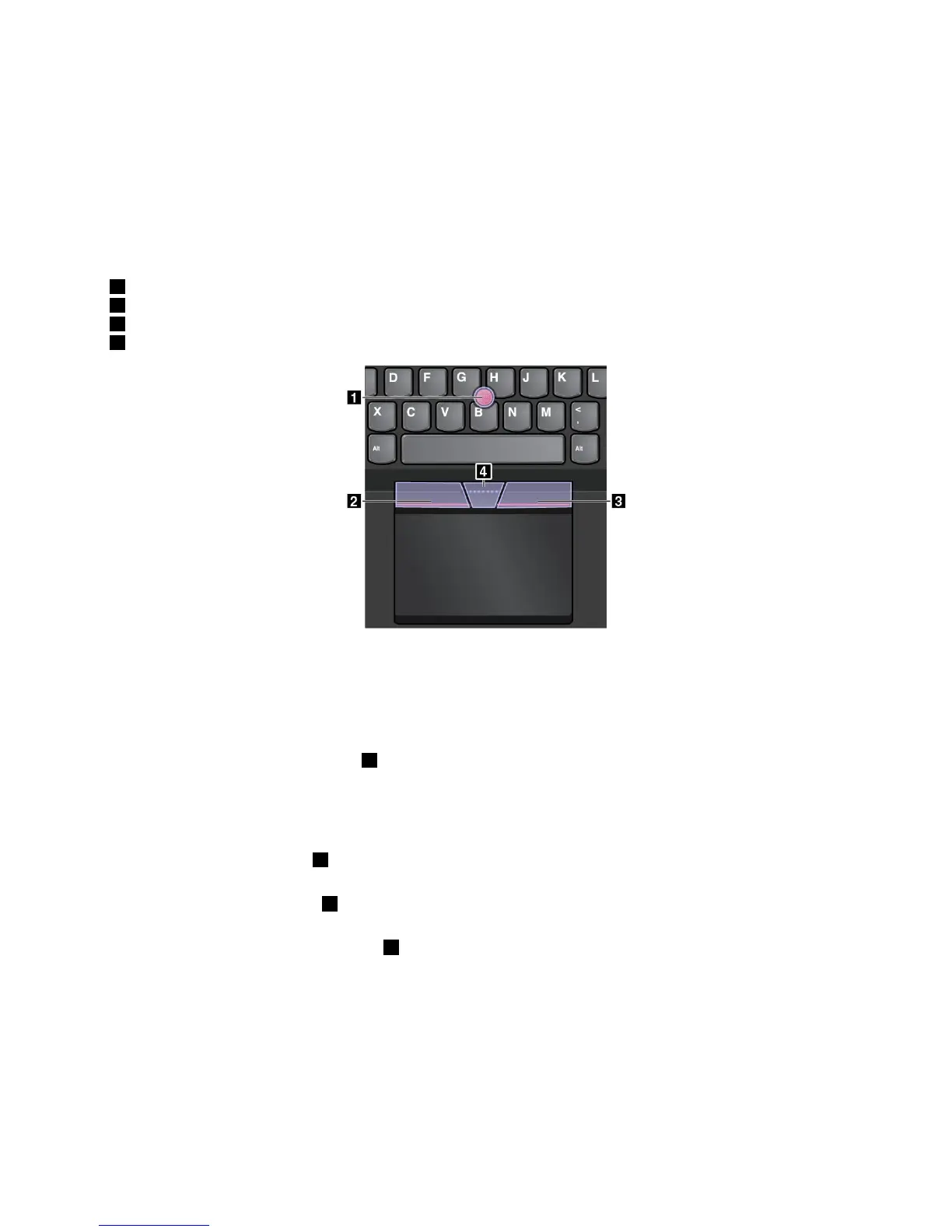
Bydefault,boththeTrackPointpointingdeviceandthetrackpadareactivewiththetouchgesturesenabled.
Tochangethesettings,see“CustomizingtheThinkPadpointingdevice”onpage26
.
TrackPointpointingdevice
TheTrackPointpointingdeviceenablesyoutoperformallthefunctionsofatraditionalmouse,suchas
pointing,clicking,andscrolling.
TheTrackPointpointingdeviceconsistsofaTrackPointpointingstickandasetofTrackPointbuttons:
1TrackPointpointingstick
2Left-clickbutton(Primary-clickbutton)
3Right-clickbutton(Secondary-clickbutton)
4Scrollbar
TousetheTrackPointpointingdevice,refertothefollowinginstructions:
Note:Placeyourhandsinthetypingpositionanduseyourindexfingerormiddlefingertoapplypressureto
thepointing-sticknonslipcap.Useeitherthumbtopresstheleft-clickbuttonorright-clickbutton.
•Point
UsetheTrackPointpointingstick1tomovethepointeronthescreen.Tousethepointingstick,apply
pressuretothepointing-sticknonslipcapinanydirectionparalleltothekeyboard.Thepointermoves
accordinglybutthepointingstickitselfdoesnotmove.Thespeedatwhichthepointermovesdepends
ontheamountofpressureyouapplytothepointingstick.
•Left-click
Presstheleft-clickbutton
2toselectoropenanitem.
•Right-click
Presstheright-clickbutton3todisplayashortcutmenu.
•Scroll
Pressandholdthedottedscrollbar4whileapplyingpressuretothepointingstickintheverticalor
horizontaldirection.Thenyoucanscrollthroughthedocument,Website,orapps.
Trackpad
Theentiretrackpadissensitivetofingertouchandmovement.Youcanusethetrackpadtoperformallthe
pointing,clicking,andscrollingfunctionsofatraditionalmouse.
Chapter2.Usingyourcomputer21











 To Next Page