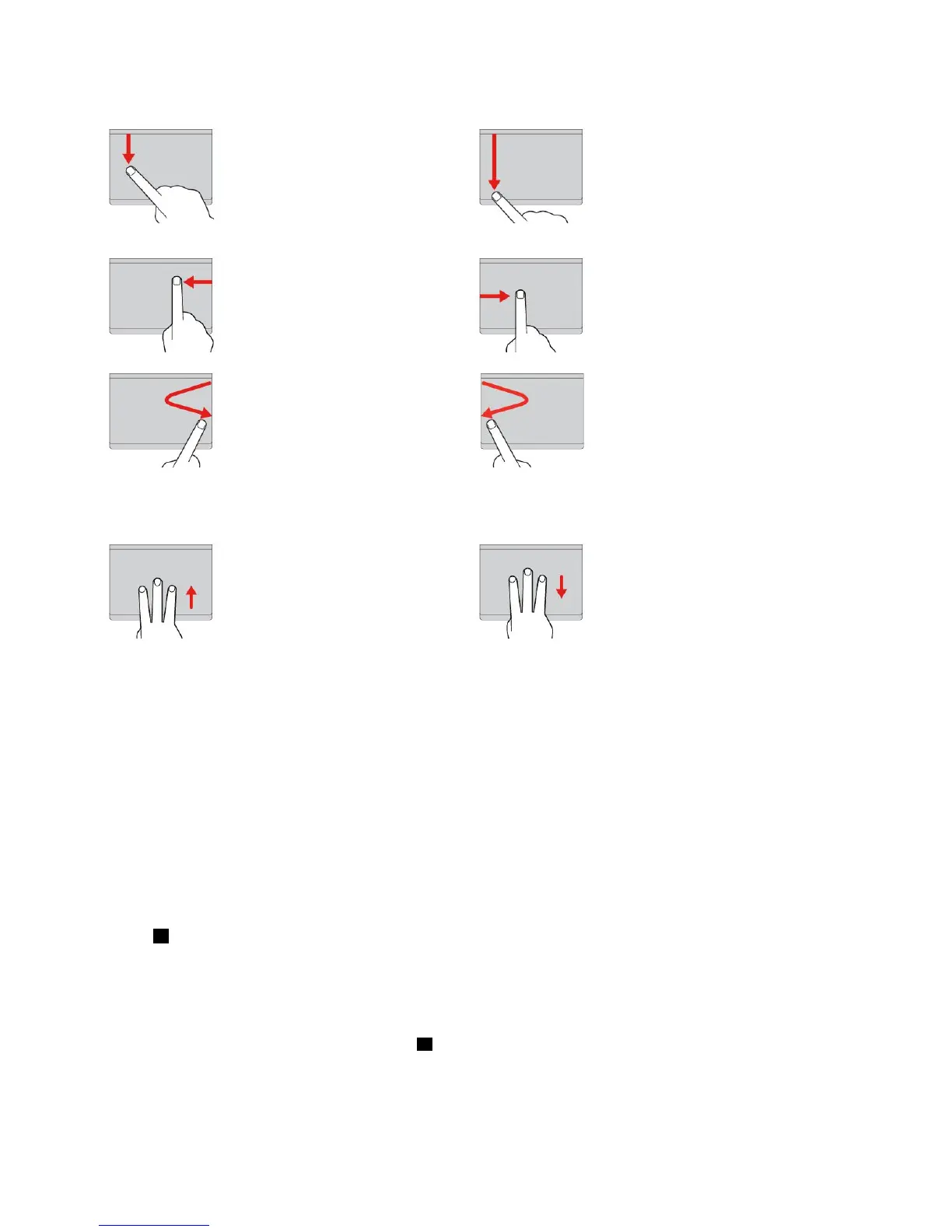
Swipefromthetopedge
FromtheStartscreenorthe
currentapp,swipeinfrom
thetopedgeofthetrackpad
withonefingertodisplaythe
commandmenu.
Swipefromthetoptothebottom
edge
Swipefromthetoptothebottom
edgeofthetrackpadwithone
fingertoclosethecurrentapp.
Performingthisgestureonthe
desktopclosesthedesktopand
displaystheStartscreen.
Swipefromtherightedge
Swipeinfromtherightedgeof
thetrackpadwithonefingerto
displaythecharms.
Swipefromtheleftedge
Swipeinfromtheleftedgeofthe
trackpadwithonefingertoshow
thepreviouslyusedapp.
Swipeinandoutfromtheright
edge
Swipeinandoutfromtheright
edgeofthetrackpadwithone
fingertohidethecharms.
Swipeinandoutfromtheleft
edge
Swipeinandoutfromtheleftedge
ofthetrackpadwithonefingerto
displayallthecharms.
ThefollowingsectionintroducessometouchgesturesontheWindows10operatingsystem.
Swipethreefingersup
Putthreefingersonthetrackpad
andmovethemuptoopenthe
taskviewtoseeallyouropen
windows.
Swipethreefingersdown
Putthreefingersonthetrackpad
andmovethemdowntoshowthe
desktop.
CustomizingtheThinkPadpointingdevice
YoucancustomizetheThinkPadpointingdevicesoyoucanuseitmorecomfortablyandefficiently.For
example,youcanchoosetoenabletheTrackPointpointingdevice,thetrackpad,orboth.Youalsocan
disableorenablethetouchgestures.
TocustomizetheThinkPadpointingdevice,dothefollowing:
1.GotoControlPanel.
2.ClickHardwareandSound➙Mouse.TheMousePropertieswindowisdisplayed.
3.IntheMousePropertieswindow,followtheinstructionsonthescreentocompletethecustomization.
ReplacingthecapoftheTrackPointpointingstick
Thecap1ontheendoftheTrackPointpointingstickisremovable.Afteryouusethecapforaperiodof
time,youmightconsiderreplacingthecapwithanewone.
Togetanewcap,contactLenovo.ForinformationaboutcontactingLenovo,seeChapter11“Getting
support”onpage125
.
Note:Ensurethatyouuseacapwithgroovesaasshowninthefollowingillustration.
26UserGuide











 To Next Page