6Powerconnector
Usethe65Wacpoweradaptershippedwiththedocktoprovidepowertothetabletandchargethebattery.
UsingtheBluetoothkeyboard
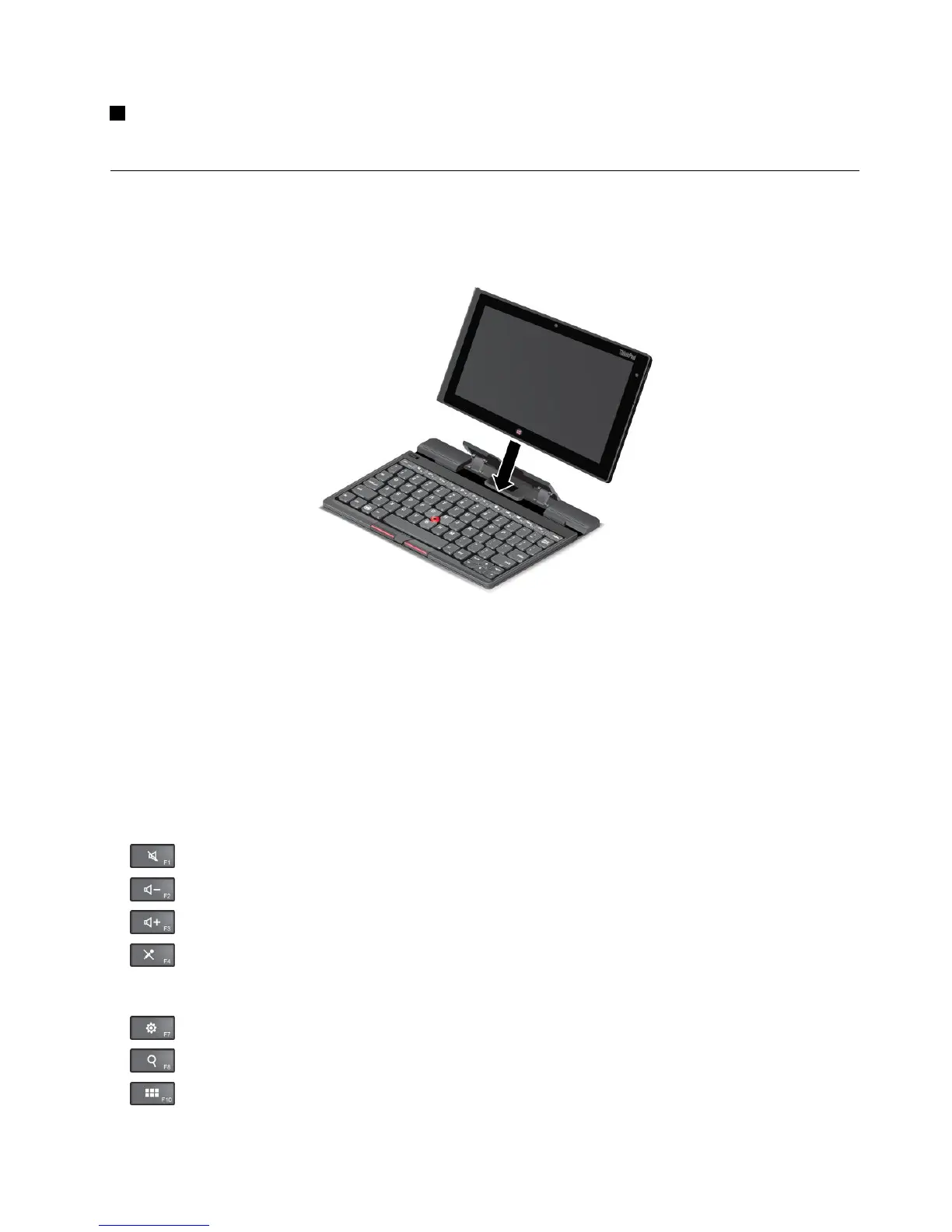
TousetheBluetoothkeyboard,installyourtabletintothekeyboardfirst,asshowninthefollowingillustration.
Ensurethatthetabletissecuredinplace.
Figure8.InstallingthetabletintotheBluetoothkeyboard
Then,pairtheBluetoothkeyboardwithyourtablet.See“UsingBluetoothdevices”onpage16.
Note:Tosavebatterypower,turnofftheBluetoothkeyboardwhenitisnotinuse.Forinformationabout
howtoturnofftheBluetoothfeature,see“Extendingthebatterylifebetweencharges”onpage20
.
Usingthehotkeys
TheBluetoothkeyboardhasseveralhotkeys.Pressahotkeytoquicklycontroltheassociatedfunction.To
locatethehotkeys,see“ThinkPadTablet2BluetoothKeyboardwithStand”onpage31.
Volumeandmutecontrol
•
Speakermute
•Speakervolumedown
•Speakervolumeup
•Microphonemute
Applicationcontrol
•OpentheSettingscharm
•OpentheSearchcharm
•Viewallapplications
Chapter6.ThinkPadTablet2options33









 To Next Page