EasyManua.ls Logo

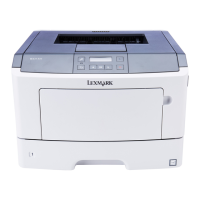
Lexmark MS312 - User Manual

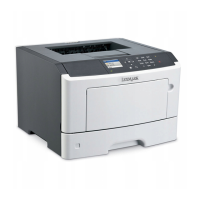
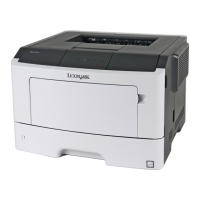
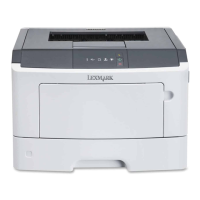
Lexmark MS312
226 pages
Print Icon
To Next Page IconTo Next Page
Loading...
MS312, MS315, and MS415
User's Guide
July 2014 www.lexmark.com
Machine type(s):
4514
Model(s):
330, 335, 530

Table of Contents

Other manuals for Lexmark MS312

Questions and Answers

  • M
    Matthew CunninghamAug 25, 2025
    Why is my Lexmark All in One Printer printing blank pages?
    • A
      Alexis GarrisonAug 25, 2025
      Your Lexmark All in One Printer might be printing blank pages because of the following reasons: - There may be packing material left on the imaging unit. - The toner in the imaging unit may need to be redistributed. Please, check these possibilities.
  • J
    John CrosbySep 3, 2025
    What to do if Lexmark MS312 Printer says too many trays attached?
    • D
      don61Sep 4, 2025
      To resolve the 'Too many trays attached' error on your Lexmark Printer, turn off the printer, unplug the power cord from the electrical outlet, remove the extra trays, connect the power cord to a properly grounded electrical outlet, and then turn the printer back on.
  • S
    Sandra RichSep 3, 2025
    What to do if Lexmark MS312 says too many trays?
    • C
      Christina RobinsonSep 3, 2025
      To resolve the 'Too many trays. Remove some.' error on your Lexmark Printer, turn off the printer, unplug the power cord from the electrical outlet, remove the extra trays, connect the power cord back to the electrical outlet, and then turn the printer back on.
  • A
    Ashley StuartSep 3, 2025
    How to fix standard network software error on Lexmark MS312 Printer?
    • T
      Todd FarrellSep 3, 2025
      To address the 'Standard network software error' on your Lexmark Printer, you can press on the printer control panel to confirm. You can also try unplugging the router, waiting for 30 seconds, and then plugging it back in. Additionally, turn off the printer and then turn it back on. You might also need to update the network firmware in the printer or the print server. For more information, visit the Lexmark website.
  • A
    Ashley HansenSep 2, 2025
    How to solve insufficient memory to support resource save feature on Lexmark MS312 Printer?
    • C
      Christina PayneSep 2, 2025
      To resolve the 'Insufficient memory to support Resource Save feature' error on your Lexmark Printer, you can press on the printer control panel to disable Resource Save, clear the message, and continue printing. You can also install additional printer memory.
  • M
    Matthew CurrySep 2, 2025
    How to solve insufficient memory for flash memory defragment operation on Lexmark MS312 Printer?
    • O
      omelendezSep 2, 2025
      To resolve the 'Insufficient memory for Flash Memory Defragment operation' error on your Lexmark Printer, you can press on the printer control panel to stop the defragmentation and continue printing. You can also delete fonts, macros, and other data in the printer memory by navigating to Settings > Settings > Print Settings > Utilities Menu > Format Flash > Yes on the printer control panel. Alternatively, install additional printer memory.
  • W
    Wesley GrahamSep 2, 2025
    How to solve insufficient memory to collate job on Lexmark Printer?
    • B
      Brian TaylorSep 2, 2025
      To resolve the 'Insufficient memory to collate job' error on your Lexmark Printer, you can press on the printer control panel to print the portion of the job already stored and begin collating the rest of the print job. Alternatively, you can cancel the current print job.
  • J
    Jill JacksonSep 1, 2025
    How to fix not enough free space in flash memory for resources on Lexmark MS312 Printer?
    • N
      Nicholas GarciaSep 1, 2025
      To resolve the 'Not enough free space in flash memory for resources' error on your Lexmark Printer, you can press on the printer control panel to clear the message and continue printing. You can also delete fonts, macros, and other data stored in the flash memory by navigating to Settings > Settings > Print Settings > Utilities Menu > Format Flash > Yes on the printer control panel. Alternatively, use a larger capacity flash memory card.
  • S
    Sandra Morrow MDSep 1, 2025
    How to fix flash memory full error on Lexmark MS312?
    • C
      Christian GarciaSep 1, 2025
      To resolve the 'Flash memory full' error on your Lexmark Printer, you can press on the printer control panel to clear the message and continue printing. You can also delete fonts, macros, and other data stored in the flash memory by navigating to Settings > Print Settings > Utilities Menu > Format Flash > Yes on the printer control panel. Alternatively, use a larger capacity flash memory card.

Summary

Safety Information

Learning About the Printer

Finding Information about the Printer

Guides users on where to find specific printer setup and usage information.

Additional Printer Setup

Installing Internal Options

Details the process for installing internal components like memory or cards.

Installing Hardware Options

Guides users on how to install additional paper trays for expanded capacity.

Setting Up the Printer Software

Installing the Printer

Outlines the steps for installing the necessary printer software on a computer.

Networking

Preparing to Set Up the Printer on an Ethernet Network

Details the information needed before setting up the printer on an Ethernet network.

Preparing to Set Up the Printer on a Wireless Network

Lists the information required for configuring the printer on a wireless network.

Connecting the Printer to a Wireless Network

Using the Printer Software

Instructions for setting up the MS312 on a wireless network via software.

Using the Embedded Web Server

Explains how to configure wireless network settings via the Embedded Web Server.

Verifying Printer Setup

MS312 Menu and Network Setup Pages

How to print and review printer settings and network configuration pages.

Using MS312

Using the Printer Control Panel

Overview of the printer's control panel buttons and their functions.

Installing the Local Printer Settings Utility

Using the Local Printer Settings Utility

Using MS315 and MS415

Using the Control Panel

Overview of the control panel buttons and their functions for MS315/MS415.

Accessing the Embedded Web Server

Loading Paper and Specialty Media

MS312 Paper Size and Type Setup

Steps to set the paper size and type for the MS312 printer.

Loading Trays

Step-by-step instructions for loading paper into the printer trays.

Loading the Multipurpose Feeder

Detailed steps for loading various paper types into the multipurpose feeder.

Linking and Unlinking Trays

MS312 Tray Linking

Explains how to link and unlink trays for paper feeding on MS312.

Paper and Specialty Media Guide

Unacceptable Paper

Lists paper types that are not recommended for use with the printer.

Selecting Paper

Tips for choosing and using paper to prevent jams and ensure quality.

Supported Paper Sizes, Types, and Weights

Supported Paper Sizes

Table detailing supported paper sizes across different trays and duplex mode.

Printing

Printing a Document

Step-by-step instructions for printing a document from Windows or Macintosh.

MS312 Toner Darkness Adjustment

How to adjust toner darkness settings via Embedded Web Server for MS312.

Saving Money and the Environment

Conserving Supplies

How to enable and use the two-sided (duplex) printing feature.

Managing the Printer

Restoring Factory Default Settings

Steps to restore printer settings to their original factory defaults.

Saving Energy

How to use Eco-Mode to reduce energy, paper, or specialty media usage.

Securing the Printer

Statement of Volatility

Information about the types of memory in the printer and data storage.

Erasing Non-Volatile Memory

Steps to erase non-volatile memory on MS312 and MS315/MS415 models.

Understanding the Printer Menus

Paper Menu

How to set the default paper source for print jobs on MS312.

Clearing Jams

Avoiding Jams

Tips and instructions for properly loading paper to prevent jams.

MS312 Jams

How to interpret jam messages and locate jams on the MS312.

Maintaining the Printer

Cleaning the Printer

Step-by-step instructions for cleaning the exterior and interior of the printer.

Replacing Supplies

Step-by-step instructions for replacing the toner cartridge.

Troubleshooting

Understanding the Printer Messages

Explains common error messages for the MS312 and how to resolve them.

Network Error, Port [x] [54]

Troubleshooting steps for network errors related to port [x].

Print Jobs Do Not Print

Troubleshooting steps when print jobs are not being sent to the printer.

Print Quality Problems

Troubleshooting steps when pages or images are clipped.

Embedded Web Server Does Not Open

Troubleshooting steps when the Embedded Web Server fails to open.

Contacting Customer Support

How to contact customer support, including information needed and available methods.

Notices

Product Information

Basic product details like name, machine type, and model numbers.

Power Consumption

Product Power Consumption

Table documenting power consumption in various modes (Printing, Ready, Sleep, Hibernate).

Sleep Mode

Hibernate Mode

Statement of Limited Warranty for Lexmark Laser Printers, Lexmark LED Printers, and Lexmark Multifunction Laser Printers

Limited Warranty

Lexmark's warranty terms regarding manufacturing defects and workmanship.

Lexmark MS312 Specifications

General IconGeneral
Print TechnologyMonochrome Laser
Print SpeedUp to 35 ppm
Print Resolution1200 x 1200 dpi
Monthly Duty CycleUp to 50, 000 pages
Standard Memory128 MB
Processor Speed800 MHz
ConnectivityUSB 2.0, Ethernet
Input Capacity250 sheets
Operating Systems SupportedWindows, Mac OS, Linux
Warranty1-year limited warranty
Recommended Monthly Page Volume500 to 2, 500 pages
Media Types SupportedCard Stock, Envelopes, Labels, Plain Paper, Transparencies
First Page Out6.5 seconds
Supported Media SizesA4, A5, A6, Letter, Legal, Executive, Folio
Supported Media TypesCard Stock, Envelopes, Labels, Plain Paper, Transparencies
Output Capacity150 sheets

Videos

How to Replace Pickup Roller on Lexmark MS312

Related product manuals