EasyManua.ls Logo

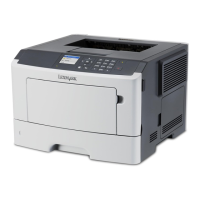
Lexmark MS415dn - User Manual

Lexmark MS415dn
111 pages
Print Icon
To Next Page IconTo Next Page
Loading...
MS310d/dn, MS312dn, MS315dn,
MS410d/dn, MS415dn, MS510dn,
MS610dn/dtn/de/dte, MX310dn,
MX410de, MX510de,
MX511de/dhe, MX610de,
MX611de/dhe
Technical Reference
May 2014 www.lexmark.com

Table of Contents

Questions and Answers

  • Y
    ywardAug 29, 2025
    What to do if Lexmark MS415dn complex page may misprint?
    • T
      Thomas MartinAug 29, 2025
      To resolve the 'Complex page may misprint' error on your Lexmark Printer, you can press on the printer control panel to clear the message and continue printing. Alternatively, reduce the number and size of fonts, the number and complexity of images, and the number of pages in the print job. You can also cancel the print job or install additional printer memory.
  • T
    tranmelissaAug 29, 2025
    How to troubleshoot network error on Lexmark Printer?
    • M
      Melanie CrossAug 29, 2025
      To resolve a 'Network error, port [x]' message on your Lexmark Printer, you can press on the printer control panel to clear the message and continue printing. You can also try unplugging the router, waiting 30 seconds, and then plugging it back in. Additionally, turn off the printer, wait 10 seconds, and then turn it back on. Finally, you may need to update the network firmware in the printer or the print server. For more information, visit the Lexmark website.
  • A
    andersonjamieAug 30, 2025
    How to fix flash memory full error on Lexmark Printer?
    • S
      simmonsaliciaAug 30, 2025
      To resolve the 'Flash memory full' error on your Lexmark Printer, you can press on the printer control panel to clear the message and continue printing. You can also delete fonts, macros, and other data stored in the flash memory by navigating to Settings > Print Settings > Utilities Menu > Format Flash > Yes on the printer control panel. Alternatively, use a larger capacity flash memory card.
  • B
    Breanna SpencerAug 30, 2025
    How to fix not enough free space in flash memory for resources on Lexmark MS415dn?
    • R
      Ryan RichardsonAug 30, 2025
      To resolve the 'Not enough free space in flash memory for resources' error on your Lexmark Printer, you can press on the printer control panel to clear the message and continue printing. You can also delete fonts, macros, and other data stored in the flash memory by navigating to Settings > Settings > Print Settings > Utilities Menu > Format Flash > Yes on the printer control panel. Alternatively, use a larger capacity flash memory card.
  • W
    William CampbellAug 31, 2025
    How to solve insufficient memory to collate job on Lexmark MS415dn Printer?
    • T
      Tiffany WoodAug 31, 2025
      To resolve the 'Insufficient memory to collate job' error on your Lexmark Printer, you can press on the printer control panel to print the portion of the job already stored and begin collating the rest of the print job. Alternatively, you can cancel the current print job.
  • A
    Amanda ThomasAug 25, 2025
    How to fix paper too short error on Lexmark Printer?
    • A
      April BrennanAug 25, 2025
      To resolve the 'Paper too short' message on your Lexmark Printer, try the following: * Load the correct size of paper in the tray. * You can press on the printer control panel to clear the message and print using a different tray. * Check the tray length and width guides to ensure the paper is loaded properly. * Make sure the correct paper size and type are specified in Print Properties or the Print dialog, as well as in the Paper menu on the printer control panel. * Ensure the paper size is correctly set. For example, if the MP Feeder Size is set to Universal, make sure the paper is large enough for the data being printed. * As a last resort, cancel the print job.
  • P
    Phillip LynchSep 1, 2025
    How to solve insufficient memory to support resource save feature on Lexmark Printer?
    • S
      Stephanie MortonSep 1, 2025
      To resolve the 'Insufficient memory to support Resource Save feature' error on your Lexmark Printer, you can press on the printer control panel to disable Resource Save, clear the message, and continue printing. You can also install additional printer memory.
  • A
    Alexis MeyersSep 1, 2025
    How to fix standard network software error on Lexmark MS415dn?
    • T
      Taylor SchmidtSep 1, 2025
      To address the 'Standard network software error' on your Lexmark Printer, you can press on the printer control panel to confirm. You can also try unplugging the router, waiting for 30 seconds, and then plugging it back in. Additionally, turn off the printer and then turn it back on. You might also need to update the network firmware in the printer or the print server. For more information, visit the Lexmark website.
  • R
    rjohnstonSep 2, 2025
    What to do if Lexmark Printer says too many trays?
    • K
      Kevin SavageSep 2, 2025
      To resolve the 'Too many trays. Remove some.' error on your Lexmark Printer, turn off the printer, unplug the power cord from the electrical outlet, remove the extra trays, connect the power cord back to the electrical outlet, and then turn the printer back on.
  • E
    ecameronSep 2, 2025
    What to do if Lexmark MS415dn Printer says too many trays attached?
    • T
      Tony BergSep 2, 2025
      To resolve the 'Too many trays attached' error on your Lexmark Printer, turn off the printer, unplug the power cord from the electrical outlet, remove the extra trays, connect the power cord to a properly grounded electrical outlet, and then turn the printer back on.

Lexmark MS415dn Specifications

General IconGeneral
Print TechnologyLaser
Print SpeedUp to 40 ppm
Print Resolution1200 x 1200 dpi
Processor Speed800 MHz
Duplex PrintingYes
Maximum Paper Size8.5 x 14 inches
Operating System CompatibilityWindows, Mac OS, Linux
Memory256 MB
Input Capacity250 sheets
ConnectivityUSB, Ethernet
Dimensions10.3 x 15.7 x 15.0 inches

Videos

How to Remove drum and toner of Lexmark MS415dn

Related product manuals