EasyManua.ls Logo

Lexmark X5470 - User Manual

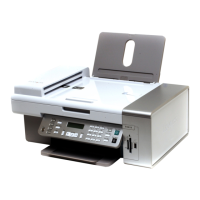
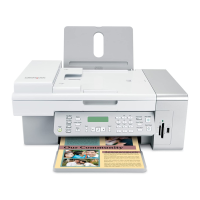
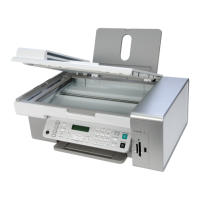
Lexmark X5470
202 pages
Print Icon
To Next Page IconTo Next Page
Loading...
X5400 Series User's Guide
2007 www.lexmark.com

Table of Contents

Other manuals for Lexmark X5470

Questions and Answers

  • J
    Justin WillisAug 17, 2025
    What to do if my Lexmark All in One Printer cannot send or receive a fax?
    • C
      Christine CooperAug 17, 2025
      If your Lexmark All in One Printer is unable to send or receive faxes, try the following: check for any messages, ensure the printer is powered on, verify cable connections, and inspect the telephone wall jack. Review the digital phone service checklist and confirm the dial tone. Temporarily disconnect other equipment, check for paper jams, and temporarily disable call waiting. Determine if you have voice mail service, check the country code, and see if your printer memory is full.
  • M
    michaelpetersAug 19, 2025
    How to fix Lexmark All in One Printer software that does not install?
    • N
      nmorrisAug 19, 2025
      If the software for your Lexmark All in One Printer is not installing, you can try the following steps: check your operating system and system requirements. Also, check the USB connection and try reinstalling the software. Ensure the power supply is connected, disable any anti-virus programs, and uninstall and then reinstall the software.
  • J
    Jared JonesAug 22, 2025
    Why my Lexmark X5470 All in One Printer can send but not receive faxes?
    • R
      Robert VasquezAug 22, 2025
      If your Lexmark All in One Printer can send faxes but not receive them, make sure that paper is loaded, check the auto answer button, and check the ink. Also, check whether fax forwarding is selected.
  • C
    Cody GrahamAug 25, 2025
    How to fix Lexmark X5470 All in One Printer that can receive but not send faxes?
    • D
      Daniel SimpsonAug 26, 2025
      If your Lexmark All in One Printer can receive faxes but not send them, check the mode selection and document placement. Also, check the Dial Prefix setting, the Speed Dial number, and be sure that the printer is detecting a dial tone.
  • T
    Tiffany JohnsonAug 27, 2025
    What to do if the power button is not lit on Lexmark All in One Printer?
    • B
      Brian WelchAug 28, 2025
      If the power button on your Lexmark All in One Printer is not lit, try pressing the power button. If that does not work, disconnect and then reconnect the power cord.
  • M
    Mr. Steven FisherAug 30, 2025
    How to troubleshoot phone line error on Lexmark All in One Printer?
    • D
      David HickmanAug 30, 2025
      To troubleshoot a phone line error on your Lexmark All in One Printer, review the digital phone service checklist, check the phone line, and check the cable connections.
  • D
    david97Sep 2, 2025
    Why does the received fax have poor print quality on my Lexmark X5470?
    • P
      Paige RobersonSep 2, 2025
      If a received fax has poor print quality on your Lexmark All in One Printer, you should review the checklist for the sender and check the ink.
  • A
    Amy Young DDSSep 4, 2025
    What to do if my Lexmark X5470 receives a blank fax?
    • K
      Kristin JacksonSep 4, 2025
      If your Lexmark All in One Printer is receiving blank faxes, check the original document, check the ink, and check the cartridges.
  • T
    tapiajamesSep 7, 2025
    How to resolve Remote Fax Error on Lexmark All in One Printer?
    • M
      morrismichaelSep 8, 2025
      To resolve a remote fax error on your Lexmark All in One Printer, check the phone line and lower the transmission speed.
  • D
    Dr. Crystal MaldonadoSep 12, 2025
    Why is Caller ID information not displayed on my Lexmark X5470?
    • H
      heather40Sep 12, 2025
      If Caller ID information is not displayed on your Lexmark All in One Printer, the caller ID pattern may not be set correctly. Switch the pattern for the printer to display Caller ID information.

Summary

Safety information

Setting up the printer

Setting up the printer for standalone use

Step-by-step guide for unpacking and setting up the printer for independent operation.

Getting the printer ready to fax

Instructions for connecting the printer for fax functionality.

Copying

Making a copy

Basic steps to create a copy of a document.

Scanning

Scanning a document

Basic steps to scan a document to a destination.

Faxing

Sending a fax

How to send faxes, including entering numbers and using software.

Maintaining the printer

Replacing print cartridges

Step-by-step guide for installing and removing print cartridges.

Troubleshooting

Page does not print

Troubleshooting steps when no pages are printed.

Jams and misfeeds troubleshooting

Steps to clear existing paper jams and prevent future ones.

Cannot send or receive a fax

Troubleshooting steps when unable to send or receive faxes.

Lexmark X5470 Specifications

General IconGeneral
Envelopes sizes7 3/4, 9, 10, DL
Maximum print size216 x 297 mm
Paper tray media typesCard stock, Coated paper, Envelopes, Labels, Plain paper, Transparencies
Non-ISO print media sizesa2 baronial, Executive (184 x 267mm), hagaki card, index card, l, Legal (media size), Letter (media size), Statement (140 x 216mm)
ISO A-series sizes (A0...A9)A4, A5, A6
ISO B-series sizes (B0...B9)B5
Maximum ISO A-series paper sizeA4
Print technologyInkjet
Maximum resolution4800 x 1200 DPI
Print speed (black, normal quality, A4/US Letter)15 ppm
Print speed (color, normal quality, A4/US Letter)5 ppm
Digital senderNo
Maximum duty cycle3000 pages per month
Number of print cartridges4
Input color depth48 bit
Optical scanning resolution600 x 1200 DPI
Copy speed (black, normal quality, A4)1.4 cpm
Copy speed (color, normal quality, A4)0.7 cpm
A6 CardYes
Dimensions (WxDxH)454 x 320 x 192 mm
All-in-one functionsCopy, Fax, Scan
Standard media sizes5 x 7\
Color all-in-one functionscopy, print, scan
Compatible operating systemsMicrosoft Windows 2000, Microsoft Windows 98 SE, Microsoft Windows Me, Microsoft Windows XP, Apple Mac OS X (10.3.0-10.3.x), Apple Mac OS X (10.4.0-10.4.x), Microsoft Windows XP Professional x64
FaxingMono faxing
Modem speed33.6 Kbit/s
Maximum input capacity100 sheets
Standard interfacesUSB 2.0
Compatible memory cardsMicrodrive, MMC, MS Duo, MS Pro, SD, xD
Sound pressure level (printing)40 dB
CertificationEnergy Star, FCC Class B, UL 60950 3rd Edition, CE Class B, CB IEC 60950 IEC 60825-1, C-tick mark Class B, CCC Class B, CSA, ICES Class B, GS (TÜV), SEMKO
Market positioningHome & office

Related product manuals