EasyManua.ls Logo

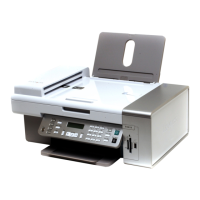
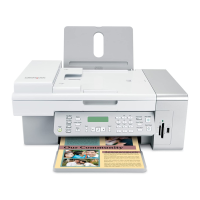
Lexmark X5450 - User Manual

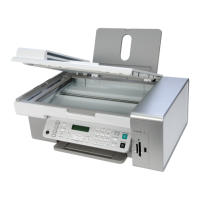
Lexmark X5450
155 pages
Print Icon
To Next Page IconTo Next Page
Loading...
Lexmark 5400 Series All-In-One
User Guide
January 2007 www.lexmark.com

Table of Contents

Questions and Answers

  • K
    Kelly StrongAug 15, 2025
    Why is the software not installing for my Lexmark X5450?
    • J
      Jacob BrownAug 15, 2025
      If the software for your Lexmark All in One Printer is not installing, check that your computer meets the minimum system requirements and that the operating system is supported (Windows 98/Me, Windows 2000, Windows XP, and Mac OS X). Also, the USB cable may not be connected properly. Check the USB cable for damage, and ensure the square end is firmly plugged into the back of the printer and the rectangular end into the computer's USB port, marked with the USB symbol. Try closing all open software applications, disabling any anti-virus programs, and restarting your computer before reinstalling the software from the CD.
  • C
    Christopher GreenAug 22, 2025
    Why can't my Lexmark All in One Printer send or receive faxes?
    • P
      pjenkinsAug 22, 2025
      If your Lexmark All in One Printer cannot send or receive faxes, ensure all cable connections for the power supply, telephone, handset, and answering machine are secure. Plug a telephone into the wall jack to check for a dial tone. If there's no dial tone, test with a different phone or wall jack. If an error message appears, follow the instructions provided in the message. If the light is not on, see “Power button is not lit” on page 121.
  • W
    wmooreAug 25, 2025
    What to do if scanner unit does not close on Lexmark X5450 All in One Printer?
    • M
      mendozadaleAug 26, 2025
      If the scanner unit on your Lexmark All in One Printer does not close, lift the scanner unit, remove any obstructions that are keeping it open, and then lower the scanner unit.
  • K
    Kimberly WelchAug 31, 2025
    How to change the language on Lexmark X5450?
    • L
      Lawrence McguireSep 1, 2025
      If an incorrect language appears on the display of your Lexmark All in One Printer, you can change it through the control panel. Press Copy Mode, then press . Navigate to Tools, then Device Setup, and finally Language. Select the correct language and press to save. Alternatively, if Language appears again after selection, press or repeatedly until the language you want appears, then press to save. If you cannot understand the language on the display, see “Resetting to factory default settings” on page 146.
  • M
    Michael GarciaSep 3, 2025
    What to do if the power button is not lit on Lexmark X5450 All in One Printer?
    • K
      kbakerSep 3, 2025
      If the power button on your Lexmark All in One Printer is not lit, disconnect the power cord from the wall outlet and the printer. Plug the cord fully into the power supply on the printer, then into an electrical outlet that other devices use. If the light remains off, press .
  • D
    Daniel CollinsSep 7, 2025
    Why is my Lexmark X5450 All in One Printer printing partial documents?
    • M
      Miss Melody PhamSep 7, 2025
      If your Lexmark All in One Printer is printing partial documents or photos, make sure the document or photo is loaded facedown on the scanner glass in the upper left-hand corner. Also, verify that the paper size being used matches the size you selected.
  • A
    Amber HoffmanSep 12, 2025
    How to prevent photo smudging on Lexmark All in One Printer?
    • P
      Peter WilliamsSep 12, 2025
      To prevent smudging when printing photos with your Lexmark All in One Printer, avoid touching the surface of the printed photo. Remove each printed sheet individually from the paper exit tray, and allow the prints to dry for at least 24 hours before stacking, displaying, or storing.
  • H
    Hailey RobinsonNov 17, 2025
    What to do if my Lexmark X5450 All in One Printer is not printing?
    • D
      Daniel NelsonNov 17, 2025
      If your Lexmark All in One Printer is not printing pages, make sure paper is loaded correctly. Check the ink levels and replace print cartridges if needed. Also, ensure that any tape or stickers have been removed from the cartridges before reinserting them. In the Finder desktop, choose Applications ? Utilities ? Print Center/Printer Setup Utility. From the Printer List dialog, select your printer and click the Make Default icon. To resume print jobs: From the Finder desktop, choose Applications ? Utilities ? Print Center/Printer Setup Utility. From the list of printers, double-click your printer. From the printer pop-up menu, click Start Jobs if you want to resume all print jobs in the queue; if you want to resume a particular print job, select the document name, and then click Resume. If...
  • P
    Patricia BellNov 27, 2025
    How to improve fax quality on my Lexmark All in One Printer?
    • S
      Stacey BryantNov 27, 2025
      If received faxes have poor print quality on your Lexmark All in One Printer, first ensure the original document's quality is satisfactory. Resend the fax, as the issue might be due to the telephone line connection. You can also increase the fax scan resolution. Check the ink levels and install a new print cartridge if necessary. To potentially improve the transmission, lower the fax transmission speed: From the control panel, press Fax Mode. 2 Press . 3 Press or repeatedly until Fax Setup appears. 4 Press . 5 Press or repeatedly until Dialing and Sending appears. 6 Press . 7 Press or repeatedly until Max Send Speed appears. 8 Press . 9 Press or to select a lower transmission speed. 10 Press to save the setting. 11 Resend the fax. 12 If the problem persists, repeat step 1 through step 11 t...

Lexmark X5450 Specifications

General IconGeneral
BrandLexmark
ModelX5450
CategoryAll in One Printer
LanguageEnglish

Related product manuals