21
ENGLISH
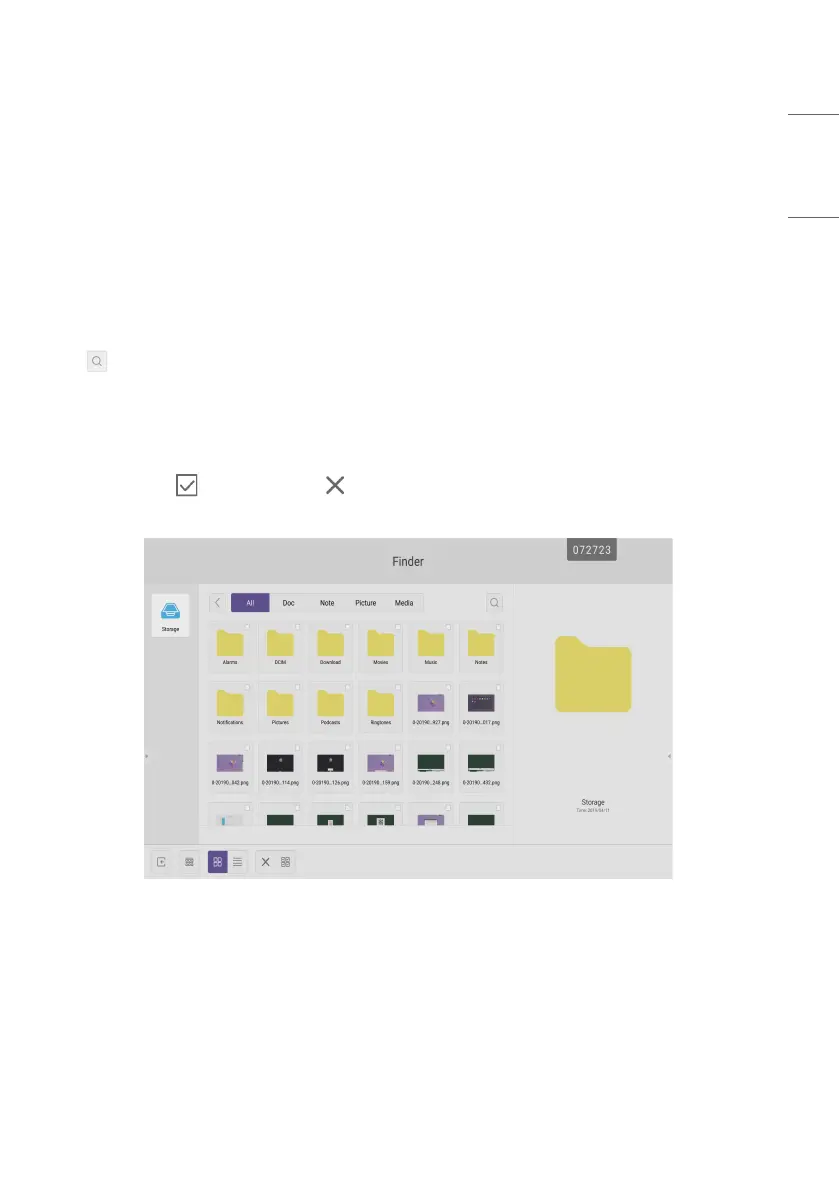
Browsing according to Category
Users can browse resources stored in the system according to category, including document, whiteboard writing (pages
saved by the whiteboard and quick screenshot), video, picture, and audio.
• [All]: When accessing internal storage module, all resources are displayed by default.
• [Doc]: Click Doc to browse PPT, Word, Excel, PDF documents.
• [Note]: Click Note to browse files and quick screenshot saved by the whiteboard.
• [Picture]: Click Picture to browse the stored pictures, formats like .jpg, .jpeg, .png, .bmp, and .gif are supported.
• [Media]: Click Media to browse the stored videos, formats like .avi, .asf, .wmv, .m2t, .mp4, .vob, .mkv, .divx, .xvid, .mov,
ssif, .mpeg, .mpe, and .m3u are supported.
• Search: In the input box on the right upper corner of the interface, enter the resource name you want to search, and
click to search for the resources. For example, by entering “word”, you can find resources whose name is “word”.
Resource operation
Users can edit the resources stored in the system, including creating, selecting, selecting all, cancelling selecting,
copying, pasting, cutting, deleting, renaming, and more.
• Selecting: Click the button to switch to , and a selecting box pops out on the right upper corner of the
resources. Then you can select resources as required.
Fig 4-2-1 Selecting interface



 To Next Page