48
ENGLISH
Desktop
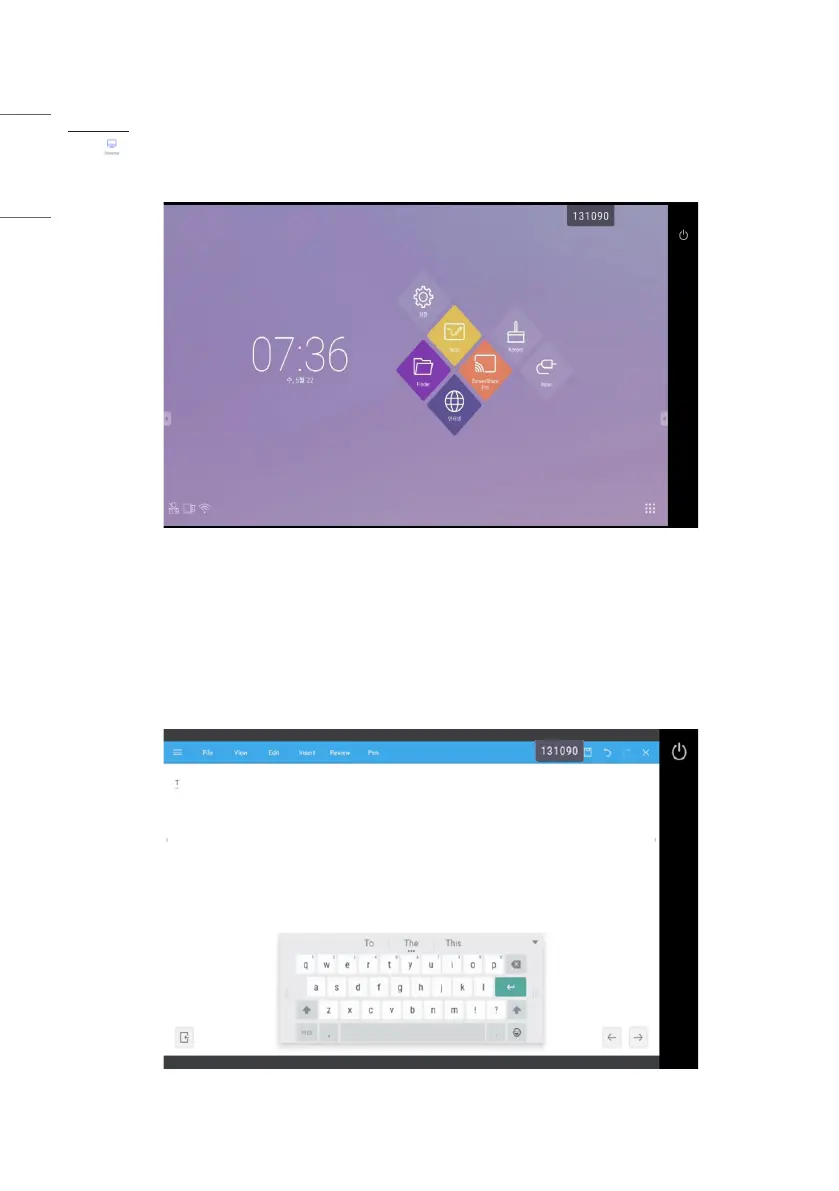
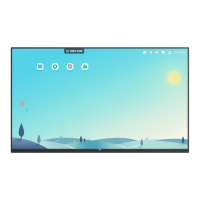
Click to enter desktop synchronization mode. In this mode, users can view IFP screen and remotely control IFP via
mobile devices.
Picture 4-1-8-1 Desktop Synchronization Mode
Supported touchpad gestures are as follows:
• One click to simulate mouse left-click button; long press to simulate mouse right-click button;
• Drag with one finger on the touchpad to move icons/windows;
• Place two fingers on the touchpad and pinch in to zoom out and stretch out to zoom in.
• Users could write on the mobile devices and send to IFP.
Picture 4-1-8-2 Desktop Synchronization



 To Next Page