4 Operating
Operating 23
Operating
4
General Playback
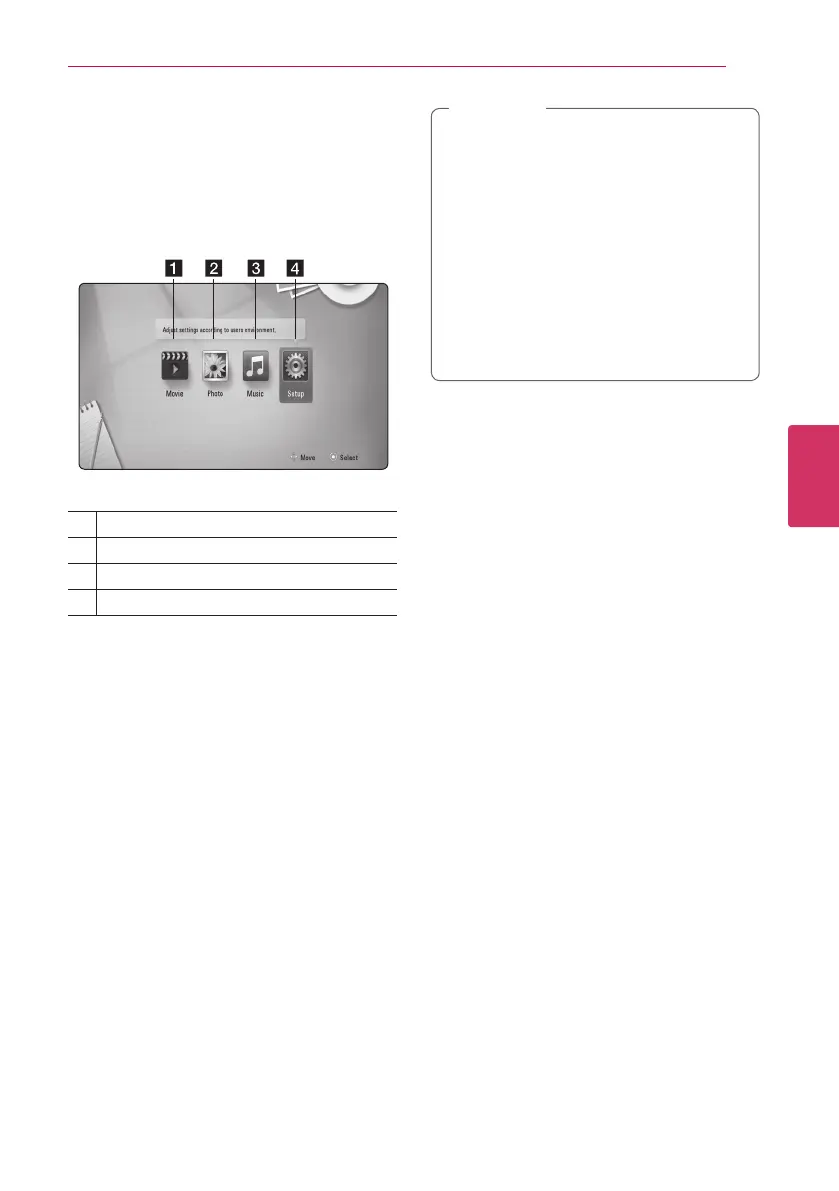
Using [HOME] menu
The home menu appears when you press HOME (
n
).
Use
a/d
to select a category and press ENTER (
b
).
a
[Movie] - Plays video contents.
b
[Photo] - Plays photo contents.
c
[Music] - Plays audio contents.
d
[Setup] - Adjusts the system settings.
Playing a Disc
ert
1. Press
B
(OPEN/CLOSE), and place a disc on the
disc tray.
2. Press
B
(OPEN/CLOSE) to close the disc tray.
For the most Audio CD, BD-ROM and
DVD-ROM discs, playback starts automatically.
3. Press HOME (
n
).
4. Select [Movie] or [Music] using
a/d
, and press
ENTER (
b
).
5. Select [Blu-ray Disc], [DVD], [VR] or [Audio]
option using
w/s
, and press ENTER (
b
).
y
Playback functions described in this manual
are not always available in every le and
media. Some functions can be restricted
depending on many factors.
y
Depending on the BD-ROM titles, a USB
device connection may be needed for the
proper playback.
y
Unnalized DVD-VR format discs may not
be played in this player.
y
Some DVD-VR discs are made with CPRM
data by DVD RECORDER. This unit cannot
support these kinds of discs.
,
Note
Playing a file on a disc/USB
device
yui
This player can play video, audio and photo les
contained in the disc or USB device.
1. Insert a data disc on the tray or connect a USB
device. ( When you insert the USB device, the
USB option menu will be appeared to select for
[Movie], [Photo] or [Music]. )
2. Select [Movie], [Photo] or [Music] using
a/d
,
and press ENTER (
b
).
3. Select [Data] or [USB] option using
w/s
, and
press ENTER (
b
).
4. Select a le using
w/s/a/d
, and press
d
(PLAY) or ENTER (
b
) to play the le.


 To Next Page