Operating 27
Operating
4
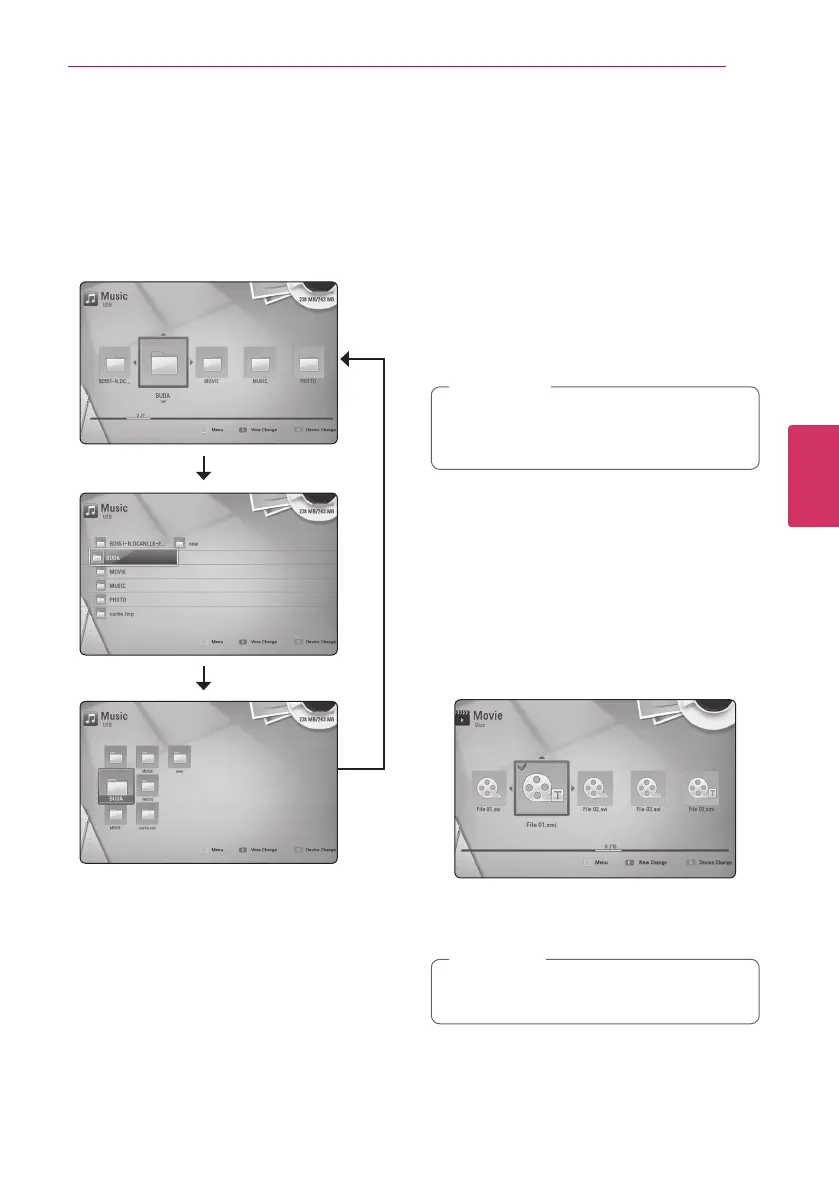
Changing content list view
yui
On the [Movie], [Music] or [Photo] menu, you can
change the content list view.
Method 1
Press red (R) coloured button repeatedly.
Method 2
1. On the content list, press INFO/DISPLAY (
m
) to
display the option menu.
2. Use
w/s
to select the [View Change] option.
3. Press ENTER (
b
) to change the content list
view.
Viewing content information
y
The player can display the content information.
1. Select a le using
w/s/a/d
.
2. Press INFO/DISPLAY (
m
) to display the option
menu.
3. Select the [Information] option using
w/s
, and
press ENTER (
b
).
The le information appears on the screen.
While movie playback, you can display the le
information by pressing TITLE/POP-UP.
The information displayed on the screen may
not be correct compared with actual content
information.
,
Note
Selecting a subtitle file
y
If the subtitle le name is dierent from the movie
le name, you need to select the subtitle le on the
[Movie] menu before playing the movie.
1. Use
w/s/a/d
to select the subtitle le you
wish to play in the [Movie] menu.
2. Press ENTER (
b
).
Press ENTER (
b
) again to deselect the subtitle
le. Selected subtitle le will be displayed when
you play the movie le.
If you press
Z
(STOP) while playback, the
subtitle selection is cancelled.
,
Note


 To Next Page