Connecting18
Connecting
2
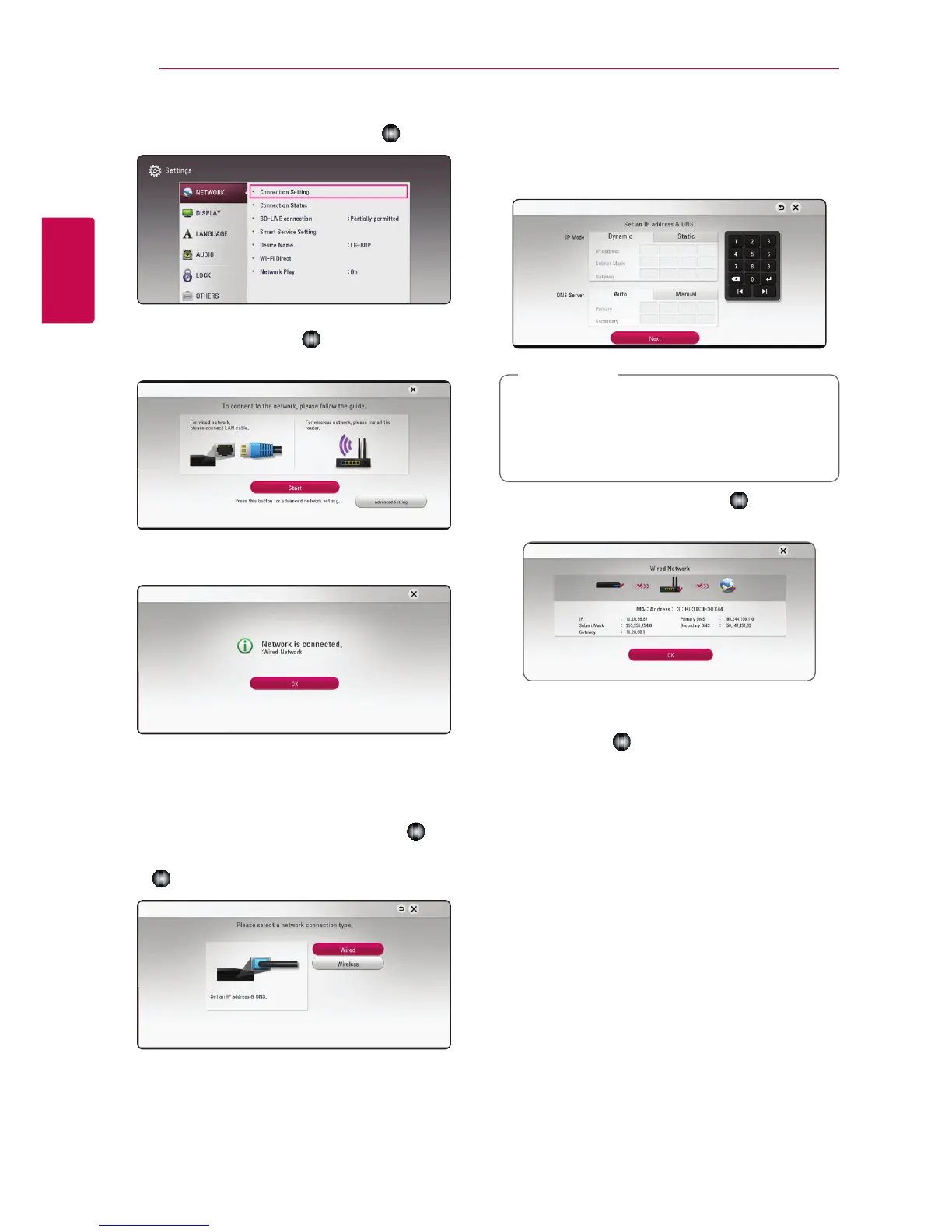
1. Select [Connection Setting] option in the
[Settings] menu then press Wheel (
).
2. Read the preparations for the network settings
and then press Wheel (
) while [Start] is
highlighted.
Network will automatically be connected to the
unit.
Advanced Setting
If you want to set the network settings manually,
use
w/s
to select [Advanced Setting] on the
[Network Setting] menu and press Wheel (
).
1. Use
w/s
to select [Wired] and press Wheel
(
).
2. Use
w/s/a/d
to select the IP mode
between [Dynamic] and [Static].
Normally, select [Dynamic] to allocate an IP
address automatically.
y
If there is no DHCP server on the network
and you want to set the IP address manually,
select [Manual Input] then set [IP Address],
[Subnet Mask], [Gateway] and [DNS Server].
,
Note
3. Select [Next] and press Wheel ( ) to apply
network settings.
Network connection status is displayed on the
screen.
4. Press Wheel (
) while [OK] is highlighted to
finish the wired network settings.


 To Next Page