Function
33
Establishing Serial Communication
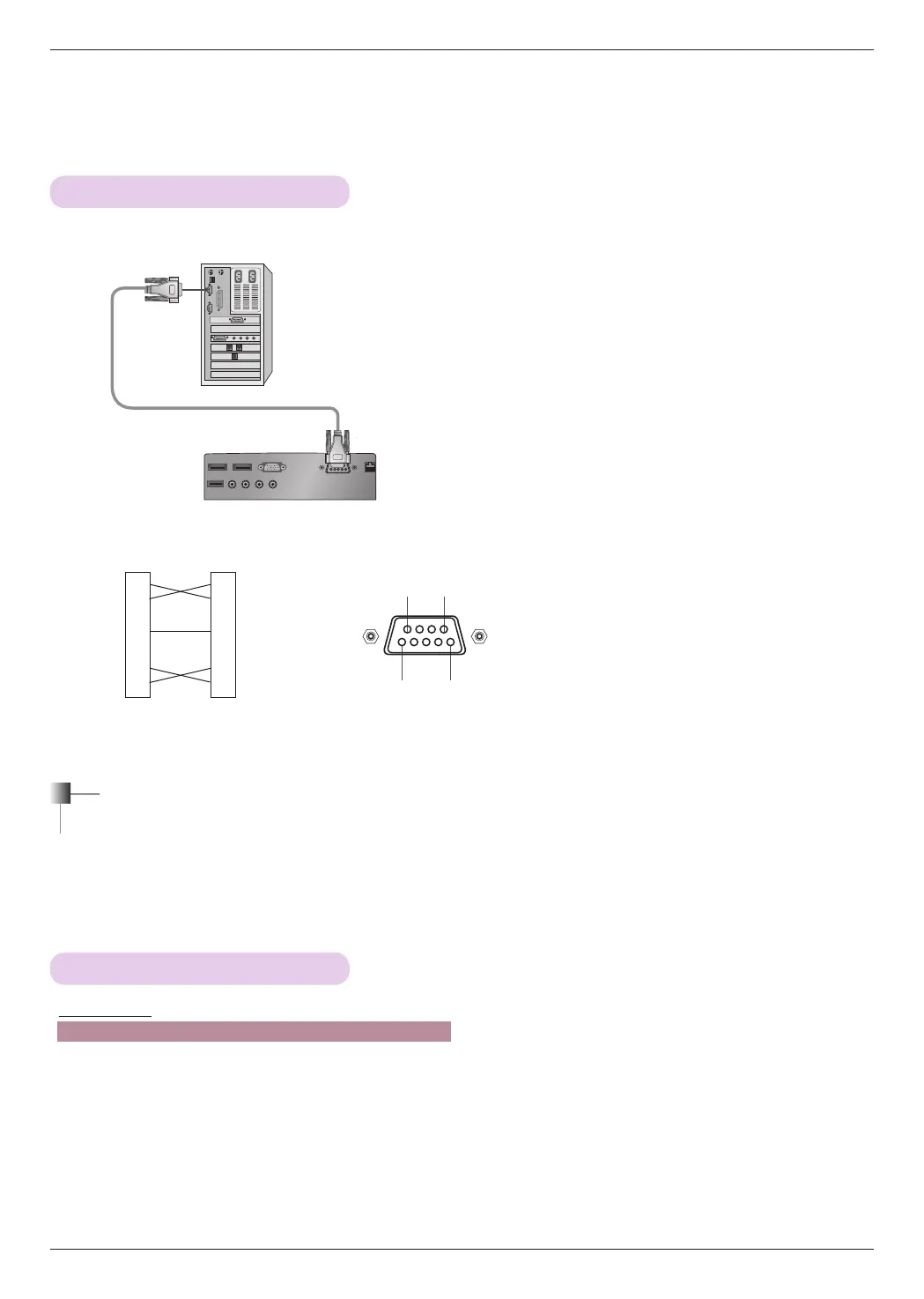
* Connect the RS-232C (serial connector) of the PC to the RS-232C connector on the back of the projector.
* You need to purchase a null modem cable to connect the RS-232C connectors as it is not provided as an accessory.
2
3
4
5
6
7
8
PC
RXD
TXD
DTR
GND
DSR
RTS
CTS
RXD
9 6
15
TXD
DTR
GND
DSR
RTS
CTS
Projector
* There is no connection to Pin 1 and Pin 9.
<Figure 1, RS-232 connection diagram>
2
3
4
5
6
7
8
• A RS-232C null modem cable is necessary for the remote control of the projector.<See Figure 1.>.
Communication Parameter Setup
•BaudRate:9600bps(UART)
•DataLength:8bit
•Parity:none
•Stopbit:1bit
•FlowControl:none
•Communicationcode:ASCIIcode
1. Transmission
[Command1] [Command2] [ ] [Set ID] [ ] [Data] [Cr]
* [Command1]: The first command to control the projector (k. j, x, ASCII code, 1 Character)
* [Command2]: The second command to control the projector (ASCII code, 1 Character)
* [Set ID]: An ID used to select a set to control; the ID is allocated to each set in the Special Menu in the range of ‘1~99’.
If Set ID is set to ‘0’, you can control all the sets.
* [Data]: Used to send data necessary to the commands mentioned above. If it is in ASCII code, 2 characters are sent.
* If the data is ‘FF’, it means data read mode.
* [Cr]: Carriage Return
It means ASCII code ‘0x0D’.
* [ ]: ASCII code character corresponding to “Space Bar” separating command, Set ID, and data.
Communication Protocol
Serial Communication Function
* If the projector is connected to a PC through an RS-232C cable, you can use a PC to control functions of the projector
such as power On/Off or input selection, etc.
* You cannot use RJ45 simultaneously. For serial communication, use LAN Off in the Network Settings.



 To Next Page