EasyManua.ls Logo

LG D2342P - User Manual

LG D2342P
24 pages
Print Icon
To Next Page IconTo Next Page
Loading...
www.lg.com
OWNER’S MANUAL
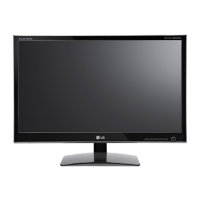
CINEMA 3D MONITOR
D2342P
Please read this manual carefully before operating
your set and retain it for future reference.
CINEMA 3D MONITOR MODEL
ENGLISH
ENG.indd 1 2011-04-05 �� 1:20:32

Other manuals for LG D2342P

Questions and Answers

  • Z
    zhorneAug 16, 2025
    How to fix no image on my LG D2342P?
    • A
      Alyssa WilliamsAug 17, 2025
      If no image appears on your LG Monitor, ensure the power cord is properly connected to the outlet and that the monitor is turned on by pressing the Power button. Also, adjust the brightness and contrast settings. If the monitor is in power saving mode, try moving the mouse or pressing a key on the keyboard. Make sure your PC is turned on. If you see a message about frequency range, consult the 'Specifications' section of the manual to configure your display. Finally, check the signal cable between your PC and the monitor to ensure it is properly connected.
  • A
    Amy LoweryAug 19, 2025
    What to do if no image appears on my LG D2342P?
    • L
      lyonscoleAug 20, 2025
      If your LG Monitor displays no image, try these steps: Ensure the power cord is properly connected to the outlet. Press the Power button. Adjust the brightness and contrast settings. If the display is in power saving mode, move the mouse or press a key. Also, ensure your PC is turned on. If a message appears about the signal being out of range, consult the 'Specifications' section to reconfigure your display. Finally, check the signal cable connection.
  • J
    Jennifer TaylorAug 22, 2025
    Why is the screen color on my LG D2342P mono or abnormal?
    • J
      John ChenAug 22, 2025
      If the screen color on your LG Monitor is mono or abnormal, check the signal cable connection, tightening it with a screwdriver if necessary. Ensure the video card is properly inserted. Also, set the color setting higher than 24 bits (Color Quality) in Control Panel ? Settings.
  • J
    Jessica WolfAug 25, 2025
    How to fix horizontal noise appearing on my LG Monitor?
    • G
      gnelsonAug 26, 2025
      To address horizontal noise or unclear characters on your LG Monitor, first, press the AUTO/SET button for automatic adjustment. If that doesn't work, decrease horizontal bars using the PHASE icon in the on-screen display. Check Control Panel ? Display ? Settings to adjust the display to the recommended resolution, and ensure the color setting is higher than 24 bits (Color Quality).
  • J
    James MccannAug 27, 2025
    How to correct incorrect display position on my LG D2342P Monitor?
    • A
      Adam CannonAug 27, 2025
      To correct an incorrect display position on your LG Monitor, press the AUTO/SET button for automatic adjustment. Alternatively, adjust the image position manually using the H position and V position icons in the on-screen display.
  • K
    Katie WelchAug 30, 2025
    What does "OSD LOCKED" mean on LG D2342P Monitor and how to unlock it?
    • B
      Brandon WalkerAug 30, 2025
      If you see an "OSD LOCKED" message on your LG Monitor, you can unlock the OSD controls by pushing the MENU button for several seconds until the message “OSD UNLOCKED” appears.
  • T
    Tara KempSep 2, 2025
    How to remove vertical bars or stripes on LG D2342P screen?
    • S
      Sandra ChapmanSep 2, 2025
      If you see vertical bars or stripes on your LG Monitor screen, first, press the AUTO/SET button to automatically adjust the display image. If the issue persists, decrease the vertical bars or stripes using the CLOCK icon in the on-screen display.
  • R
    rpriceSep 4, 2025
    What to do if the display image is incorrect on my LG D2342P?
    • A
      allen27Sep 4, 2025
      If the display image on your LG Monitor is incorrect, press the AUTO button to automatically adjust the image to the ideal setting. Also, check your computer's Control Panel under Display Settings to adjust the display to the recommended resolution and ensure the color setting is higher than 24 bits (true color).
  • K
    Kristina WilliamsSep 7, 2025
    Why is the screen color mono or abnormal on my LG Monitor?
    • K
      Kyle KimSep 8, 2025
      If the screen color on your LG Monitor is mono or abnormal, check that the signal cable is properly connected, tightening it with a screwdriver if necessary. Also, ensure the video card is correctly inserted in its slot. Finally, verify that the color setting is set higher than 24 bits (true color) in your computer's Control Panel settings.
  • D
    Donald HenrySep 10, 2025
    How to fix 'Unrecognized monitor, Plug&Play (VESA DDC) monitor found' message on LG D2342P Monitor?
    • J
      Jamie CruzSep 12, 2025
      If you see an 'Unrecognized monitor, Plug&Play (VESA DDC) monitor found' message on your LG Monitor, install the display driver from the CD or diskette that came with your display. Also, make sure your video card supports the Plug&Play function.

Summary

ASSEMBLING AND PREPARING

Unpacking

Lists the items included in the product box.

Parts and buttons

Identifies the monitor's buttons and indicators.

Button descriptions

Explains the functions of various monitor buttons.

Attaching the Stand Base

Instructions for attaching the monitor stand base.

Detaching the Stand Base and Body

Instructions for detaching the monitor stand base.

Mounting on a table

Steps for placing the monitor on a table and connecting power.

Kensington security system

How to use the Kensington security system.

Mounting on a wall

Instructions for mounting the monitor on a wall.

VESA Mounting Specifications

Details VESA mounting standards for the monitor.

USING THE MONITOR SET

Connecting to a PC

Instructions for connecting the monitor to a PC.

D-SUB connection

How to connect the monitor using a D-SUB cable.

DVI-D connection

How to connect the monitor using a DVI-D cable.

HDMI connection

How to connect the monitor using an HDMI cable.

Self Image Setting Function

Explains the automatic image adjustment feature.

AUTO Function

Details the AUTO function for resolution adjustment.

CUSTOMIZING SETTINGS

Accessing The Main Menus

How to navigate and access the monitor's OSD menus.

Menu Settings

Detailed explanation of available menu options and settings.

3 D Settings

Configuration options specific to 3D viewing mode.

Volume Settings

How to adjust volume when using HDMI connection.

SUPER ENERGY SAVING Settings

Settings to optimize energy consumption.

TROUBLESHOOTING

No image appears

Troubleshooting steps for when the screen shows no image.

OSD LOCKED message

Resolving the "OSD LOCKED" message issue.

Display image incorrect

Steps to fix incorrect display images or positioning.

Display image issues

Further troubleshooting for color issues and screen blinking.

Unrecognized monitor message

Resolving issues with unrecognized monitor messages.

TROUBLESHOOTING WHEN USING 3 D MODE

Cannot see 3 D image properly

Solutions for not seeing 3D images correctly.

Cannot see 3 D but only 2 D images

Explains 2D/3D compatibility and image quality.

TriDef 3 D troubleshooting

System requirements and issues with TriDef 3D software.

SPECIFICATIONS

Display Specifications

Technical details about the monitor's display features.

Sync Input and Video Input

Information on sync and video input types.

Resolution and Plug & Play

Details on supported resolutions and Plug & Play.

Power Consumption and Input

Power usage details and AC input specifications.

Dimensions, Weight, Tilt Range

Physical specifications of the monitor.

Environmental Conditions and Stand Base

Operating environment and stand base information.

Preset Modes (Resolution)

Table of supported display resolutions and frequencies.

HDMI 3 D TIMING

Timing specifications for HDMI 3D formats.

Indicator

Explains the LED indicator colors for different modes.

PRECAUTIONS TO TAKE WHEN VIEWING 3 D IMAGES

General Precautions

Recommendations for comfortable and safe 3D viewing.

Warning about photosensitivity seizures

Warnings and symptoms related to photosensitivity seizures.

PROPER POSTURE

Proper posture for using the Monitor set

Guidelines for maintaining good posture while using the monitor.

Precautions for 3 D viewing

Specific precautions for viewing 3D content.

Safety Precautions

Model and Serial Number

ENERGY STAR Information

LG D2342P Specifications

General IconGeneral
3DYes
Aspect ratio16:9
Display diagonal23 \
Vertical scan range56 - 75 Hz
Horizontal scan range30 - 83 kHz
Viewing angle, vertical160 °
Contrast ratio (dynamic)5000000:1
Display number of colors16.78 million colors
Viewing angle, horizontal170 °
Display brightness (typical)250 cd/m²
Supported graphics resolutions1920 x 1080 (HD 1080)
DVI-I ports quantity0
Product colorBlack
Market positioning-
Tilt angle range-5 - 15 °
Panel mounting interface75 x 75 mm
AC input voltage100 - 240 V
AC input frequency50 - 60 Hz
Power consumption (standby)0.5 W
Power consumption (typical)39 W
Package weight5200 g
Cables includedAC, VGA
Weight and Dimensions IconWeight and Dimensions
Depth (with stand)179 mm
Width (with stand)569 mm
Height (with stand)419 mm
Weight (with stand)3500 g
Depth (without stand)57 mm
Width (without stand)546 mm
Height (without stand)342 mm
Weight (without stand)3200 g

Related product manuals