4 Choose LG Mobile USB Modem and
select OK. It will now appear on screen.
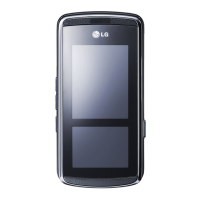
5 Click Connect and your PC will connect
through your KF700.
Note: For more information on
synchronising using the LG PC Suite see
page 115.
Using Bluetooth:
1 Ensure Bluetooth is switched On and
Visible for both your PC and KF700.
2 Pair your PC and KF700 so that a
passcode is required for connection.
3 Use the Connection wizard on
your LG PC Suite to create an active
Bluetooth connection.
4 Click Communication on your PC.
Then click Setting.
5 Click Modem.
6 Choose Standard Modem over
Bluetooth link and click OK. It will now
appear on screen.
7 Click Connect and your PC will connect
through your KF700.
Note: For more information on Bluetooth
see page 112.
Google
You can access Google and use the
followings; Search, Maps, Blogger and
YouTube.
Search
You can search the web-pages in this
menu.
Mail
You can receive or send e-mail. For
details, please contact your service
provider.
Maps
Find Business
You can search the specific place such as
hote, coffee shop, restaurant in a map.
Find Location
You can move the place you want to
find out.


 To Next Page