15
Getting to know your phone
4.Ifyouhavesetapatternlock,enterthepatternlockandtouchErase
everything.
NOTE
Ifthereiscontentonyourmemorycard,thefolderstructuremaybedifferentafter
formattingasalltheleswillbedeleted.
Locking and unlocking the screen
Ifyoudonotusethephoneforawhile,thescreenisturnedoffandlocked
automatically.Thishelpstopreventaccidentaltouchesandsavesbattery
power.
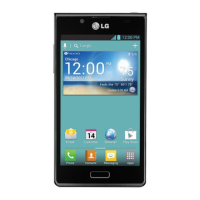
WhenyouarenotusingtheLGUS780,pressthePower/Lock Key
to
lockyourphone.
Ifthereareanyprogramsrunningwhenyousetlockscreen,theymaybe
stillrunninginLockmode.Itisrecommendedthatyouexitallprograms
beforeenteringLockmodetoavoidunnecessarycharges(e.g.phonecalls,
webaccessanddatacommunications).
Towakeupyourphone,pressthePower/Lock Key
.Thelockscreen
willappear.Touchandslidethelockscreeninanydirectiontounlockyour
Homescreen.Thelastscreenyouviewedwillopen.
Secure your lock screen
You canlockyourscreensothatonlyyoucanunlockittoaccessyour
phone.
To set Swipe, Face Unlock, Pattern, PIN or Password for the first
time:
• OntheHomescreen,touch >Appstab>Settings > Lock screen
> Select screen lock > Swipe, Face Unlock, Pattern, PIN or Password.
NOTE Precautions to take when using pattern lock.
Itisveryimportanttoremembertheunlockpatternyouset.You willnotbeableto
accessyourphoneifyouuseanincorrectpattern5times.Youhave5opportunitiesto
enteryourunlockpattern,PINorpassword.Ifyouhaveusedall5opportunities,youcan
tryagainafter30seconds.
NOTE
TheFace UnlockoptionisonlyavailableaftersettingupyourGoogleaccount.



 To Next Page