Reservation Operation
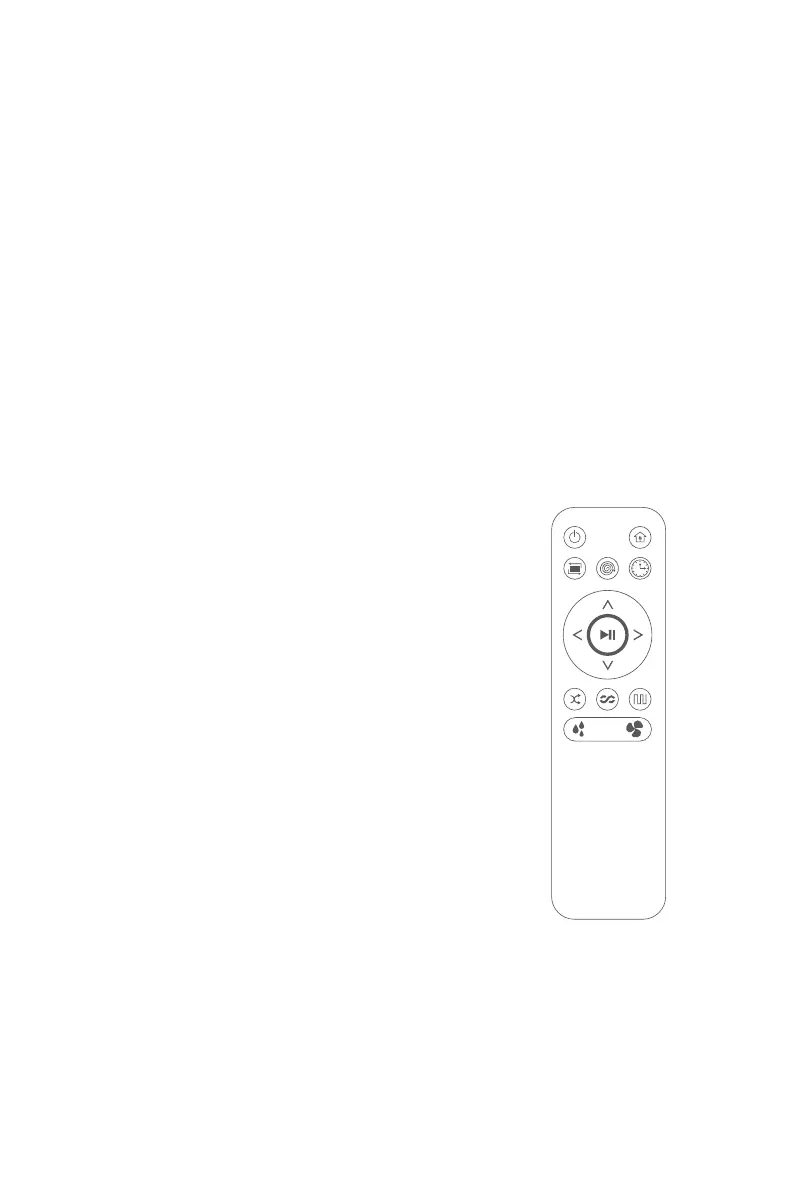
In order for easy cleaning, the product is configured with the "Schedule" feature, and the user can send instructions to
the robot via the remote controller. After the reservation, the robot will clean automatically every day according to the
set time.
1. Hold the reservation key for three seconds to set reservation.
2. Hold the reservation key for three seconds to cancel reservation.
3. Upon the reservation, the time after one hour is the scheduled cleaning time.
Examples:
If you make the reservation at 8:00 a.m., the robot begins to enter the reservation mode and
starts to work at 9:00 a.m. It will start working at 9:00 a.m. every day; if you power off, the
reservation deems to be cancelled by default.
Fixed-time Reservation
Operation:
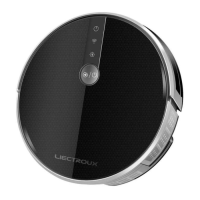
1. Aim the remote controller at the robot to set reservation (make sure the power switch on the side is on).
2. Make sure the green light of the robot's start key is on and the robot is now awakened. If the robot is not awakened, quickly press the start key or start/pause
key on the remote controller to awaken it.
Tips:
If the power switch is off, the reservation will be cancelled. You need to reset the reservation.
12


 To Next Page