10
2022-07-19
1 2
Spring Return
3 Point
0-10VDC
VAV
0-10VDC
From Zone
Smoke
PT 1000
PT 1000
Serial number
Slave number to
address: 30
Start adding: No_
Status: Running
Slave number to
address: 30
Start adding: Yes_
Status: Running
Slave number to
address: 30
Start adding: Yes_
Status: Running
Slave number to
address: 30
Start adding: No_
Status: Running
Slave number to
address: 30
Start adding: No
Status: Idle
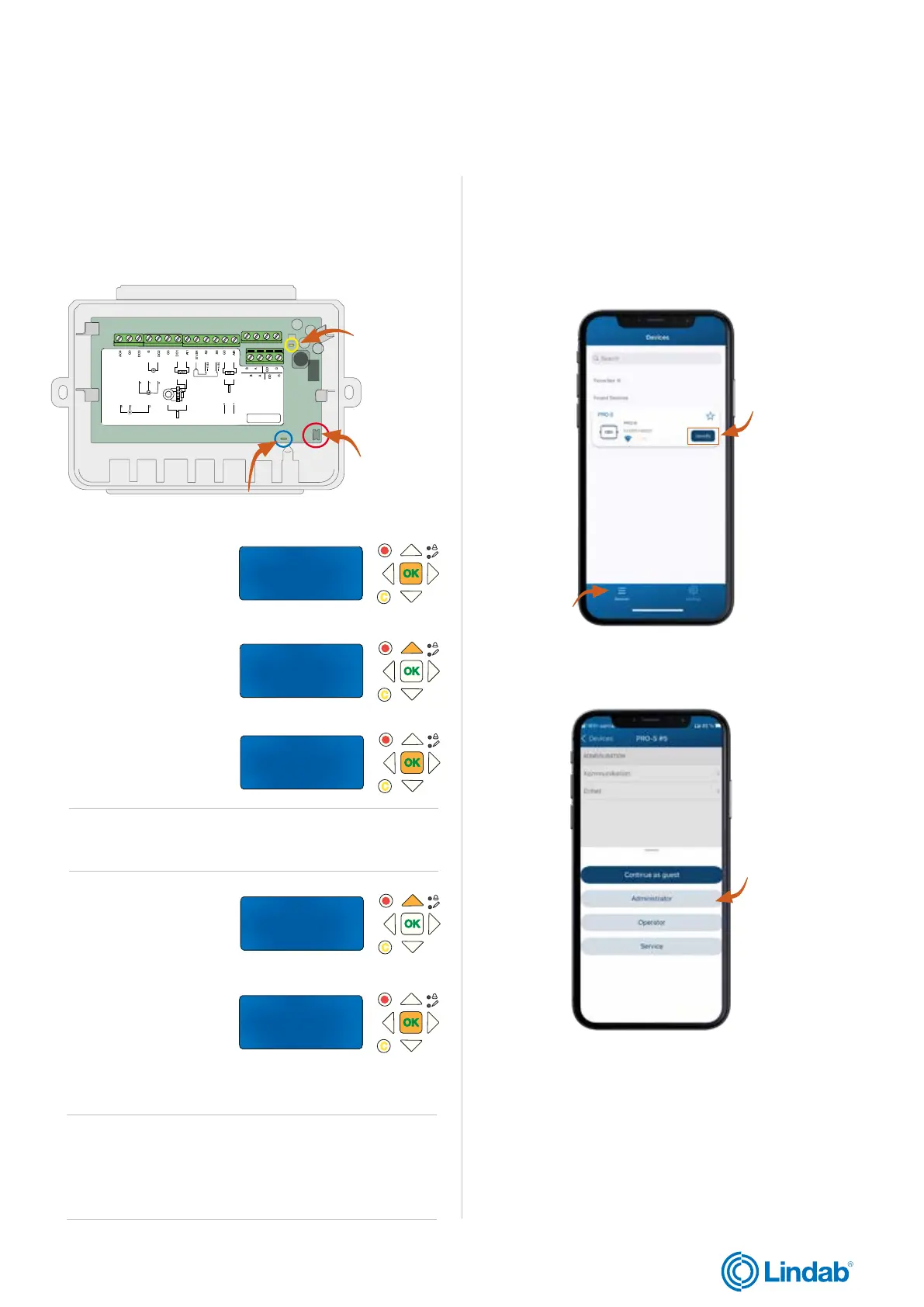
1. Open Lindab ProLink
TM
application
3. Log in with the given credentials
2. Click ”devices” and identify one of the PRO-S damper units
lindab | commissioning guide
FireSystemPro
We reserve the right to make changes without prior notice
Add PRO-S damper units (cont.)
10. Start running by pressing the ”push-button” on all
suitable damper units (PRO-S). LED lights up in color
”Magenta” meaning that the unit is still offline.
11. After running damper
units, press ”OK” to edit
”Start adding”
15. Press ”OK” to confirm
status
Note! The ”Start slave number” on the screen should have
increased accordingly with the number of PRO-S that
have been added. In the example above, we have added
26 damper units (up to address 29) meaning that the next
available adress is number 30.
2.6 Add PRO-S damper units via ProLink
TM
app
Push-button
LED light for identification
LED light for
communication
All PRO-S damper units should now be added
13. Press ”OK” to confirm.
12. Press ”up” to change
value to Yes
Note! PRO-S LED light should light up in color green to
identify that that the damper unit is connected.
14. When all damper
units are connected,
press ”up” to change start
adding value to NO
Continue with next step on following page


 To Next Page