5
Step 5
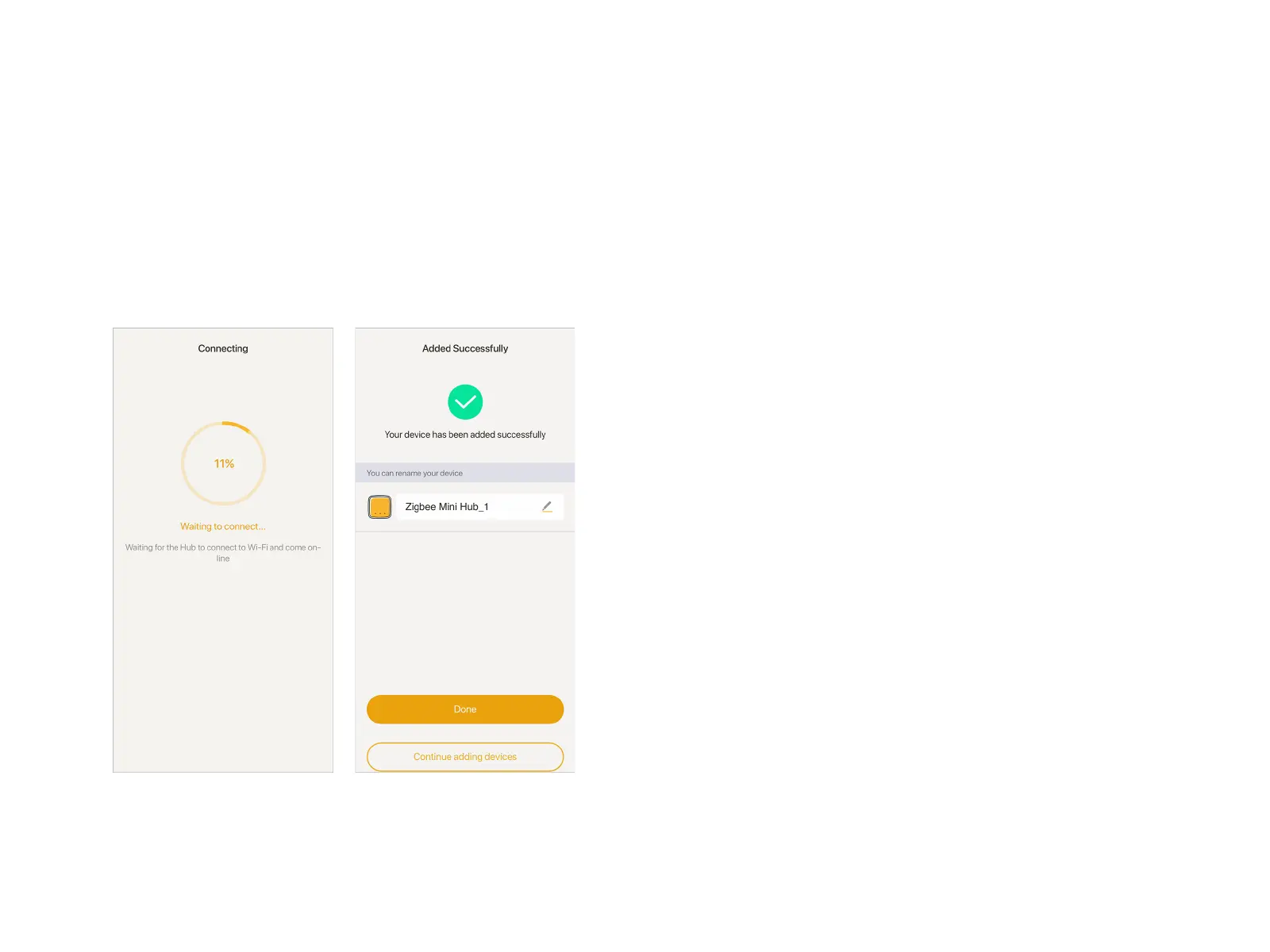
Wait for about 1 minute, the APP will add the Smart Bulb kit
automatically, no need to add the bulbs one by one. Tap "Done"
to return to the Home page, the Mini Hub and the LED Bulbs will
appear.
Warm Tips:
If failed to add the Smart Bulb kit, please check if you have
followed the below requirements:
1. Ensure the Wi-Fi network you connect is able to access
Internet, and the Wi-Fi network is 2.4GHz.
2. Ensure you have entered the correct Wi-Fi password.
3. Ensure the Smart Bulb kit not added to another Linkind
account.
4. Make sure you have allow all the APP access. If you're
uncertain about it, please go to the Permission Settings of
the APP and check.
Reset the Mini Hub and the Smart Bulbs
If still failed after followed above requirements, you can consider
to reset both the Mini Hub and the Smart Bulbs.
Attention: After the resetting, the Mini Hub and Smart Bulbs
cannot be added as a whole kit in the APP again. You should
add the Mini Hub first, then each Smart Bulb separately. For
details, please check "Add Mini Hub and Smart Bulb Separately".
Reset the Mini Hub: long press the reset button for 10 seconds,
then wait for the indicator on the right end of the Mini Hub to
flash once per second in green.
Reset the Smart Bulb: power on and off the bulb consecutively
for 6 times, will blink twice showing it restores to factory default.
Add Smart LED Bulb Kit


 To Next Page