15
Note: to perform IFTTT, make sure there is a motion sensor, or
door/window sensor added on the APP.
IFTTT is a feature used to have automation over your lights with
sensors. You can customize the brightness, working period etc.
of the lights responding to the detection of the sensor based on
your needs.
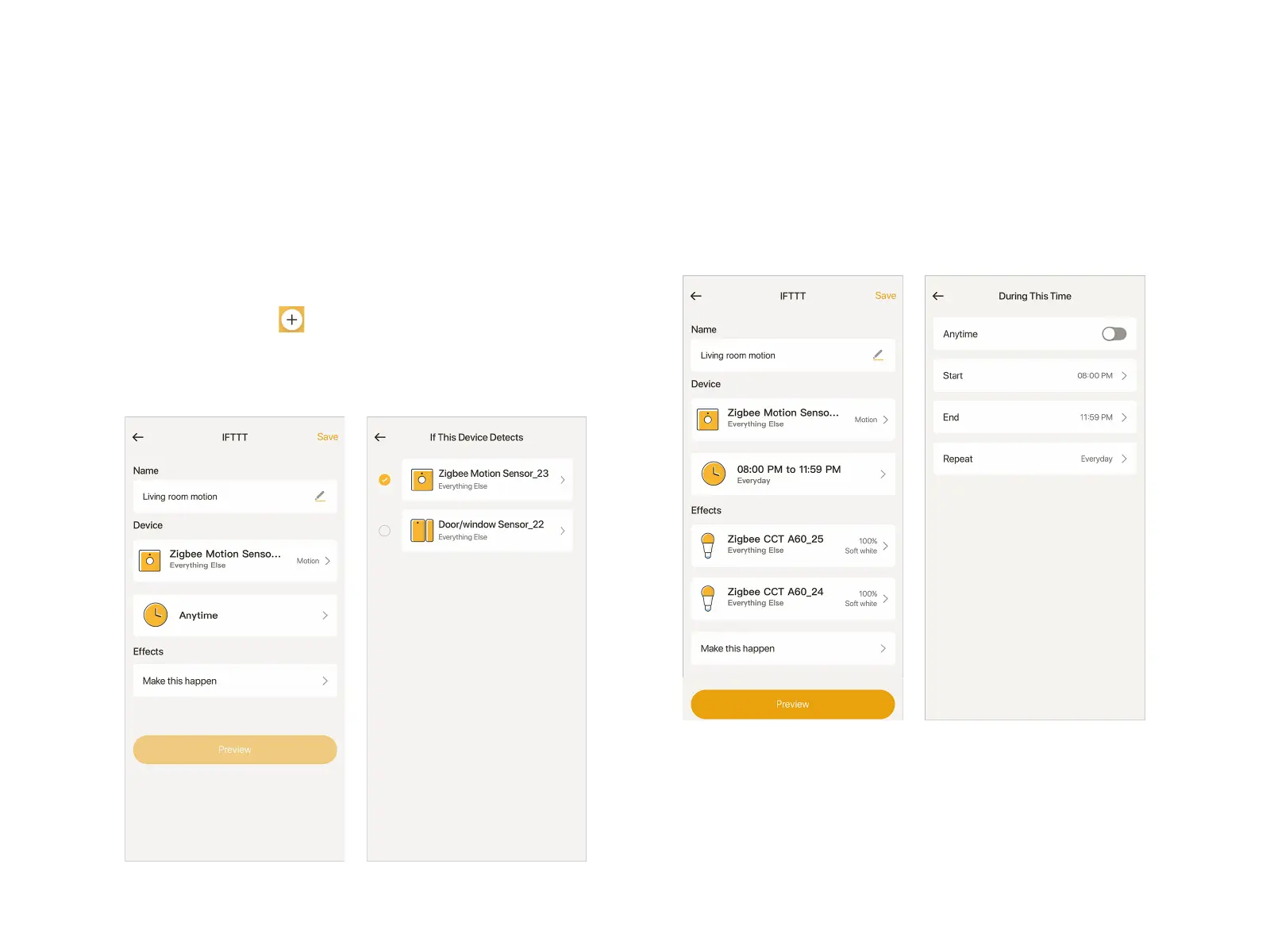
At "Smart" page, tap , select "IFTTT". Name it, then tap
"Choose a device", select a sensor you need. Continue to set
the trigger. For motion sensor, the light can be triggered either
by "motion" or "idle". The triggers become "open" or "close" for
door/window sensor.
Return to previous page, tap "Anytime" to set the period when
the trigger is taken into effect. Then, tap "Make this happen" to
choose the light to be triggered. Tap the light selected, you can
adjust its trigger state.
Note: If you select two sensors in the "Device", either of them
meets the condition will trigger this "smart".
After all settings are done, you can tap "Preview" to see how will
the light look like when it is triggered. At last, tap "Save" at the
top right corner.
IFTTT


 To Next Page