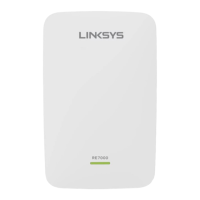
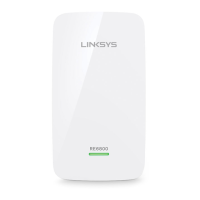
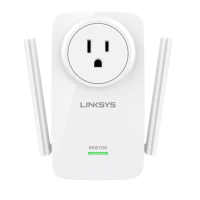
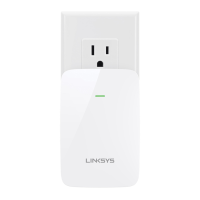
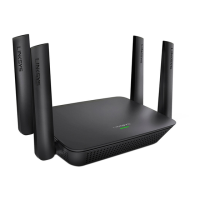
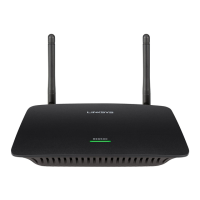
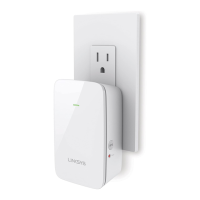
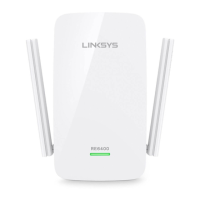
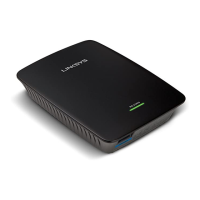
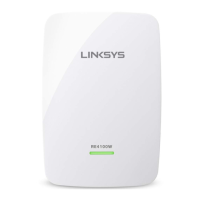
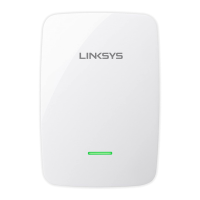
The Linksys AX1800 MAX-STREAM® WiFi Range Extender, model RE7310, is designed to extend your existing Wi-Fi network, providing broader coverage and improved signal strength. It can operate as a wireless range extender, repeating existing Wi-Fi signals, or as a wired range extender (access point), creating new Wi-Fi hotspots when connected to a router or access point via an Ethernet cable. Both configurations require a router with a working internet connection.
Function Description:
The primary function of the RE7310 is to boost and extend your Wi-Fi signal, eliminating dead zones and providing seamless connectivity throughout your home or office. It supports both 2.4 GHz and 5 GHz networks, ensuring compatibility with a wide range of devices and offering flexibility for different network demands. The device leverages Wi-Fi Protected Setup (WPS) for easy, one-touch connection to compatible routers, simplifying the setup process for users. For routers without WPS or for more detailed configuration, a browser-based setup is also available. The extender supports WMM (Wi-Fi Multimedia) for Quality of Service (QoS), prioritizing data packets for applications like voice, video, and gaming, ensuring a smoother experience. Its Cross-Band feature allows simultaneous use of both 2.4 GHz and 5 GHz bands for high-speed data transfer and uninterrupted streaming. Additionally, the Access Control feature enables users to restrict network access for specific devices based on their MAC addresses, enhancing network security.
Important Technical Specifications:
- Description: AX1800 WiFi Range Extender
- Standards: IEEE 802.11ax/ac/a/n/g/b, 802.3ab/u
- Buttons: Reset, WPS
- Light: Front: 1 multicolor light for power, system status
- Wireless Security: WPA2, WPA3/WPA2-mixed, WPA3-Personal, Wi-Fi Protected Setup™
- Dimensions: 135 mm x 101 mm x 50.5 mm (5.31 in x 3.98 in x 1.99 in)
- Weight: .472 kg (1.04 lb)
- Power: Internal AC/DC power supply: 100-240V, 12V/1.5A, 50/60 Hz
- Certification: FCC, ICES-003, RSS-247, Wi-Fi (IEEE 802.11ax/ac/a/b/g/n)
- Operating Temperature: 32 to 104°F (0 to 40°C)
- Storage Temperature: -4 to 140°F (-20 to 60°C)
- Operating Humidity: 10% to 80% non-condensing
- Storage Humidity: 5% to 90% non-condensing
Usage Features:
- Easy Setup: The RE7310 offers two primary setup methods. For WPS-enabled routers, a simple push of the WPS button on both the router and the extender establishes a secure connection. The front light on the extender provides visual feedback on the connection status (blinking blue for pairing, solid blue for successful connection, blinking orange for failure). For non-WPS routers or more control, a browser-based setup guides users through the process via a web interface (http://extender.linksys.com or http://192.168.1.1).
- Optimal Placement Guidance: During setup, the device helps users find the ideal location for the extender. It's recommended to place it midway between the router and the Wi-Fi dead zone, ensuring at least two bars (around 50%) of the router's Wi-Fi signal. The extender's light also indicates connection quality after relocation (solid blue for ready, solid orange for weak connection, blinking orange for not connected).
- Seamless Roaming: For routers that support seamless roaming, the extended Wi-Fi network shares the same network name and password as the main network, allowing devices to automatically switch between the main and extended networks as you move around. For routers without seamless roaming, extended networks are identified by "_Ext" appended to the main network names, using the same passwords.
- Dual-Band Extension: The extender can extend both 2.4 GHz and 5 GHz networks, providing flexibility and optimal performance for various devices.
- Site Survey: The Site Survey feature in the extender's settings interface provides a snapshot of all nearby access points and wireless routers, displaying their SSIDs, GHz bands, signal strength, and security types. This helps users identify the best network to extend and monitor surrounding Wi-Fi environments. Signal strength is visually represented by dots and waves, with 50-100% signal strength recommended for best performance.
- Management Interface: Users can access the extender's settings through a web browser to configure various options, including changing the admin password, managing wireless settings, and setting up access control. The default admin password is "admin," and it's highly recommended to change it for security.
Maintenance Features:
- Firmware Upgrades: The management interface includes an option for firmware upgrades, ensuring the device stays updated with the latest features and security patches.
- Factory Defaults Reset: The Reset button on the side of the extender allows users to restore the device to its factory default settings. This can also be done through the Administration > Factory Defaults screen in the extender's settings interface.
- Troubleshooting Tools: The user guide provides comprehensive troubleshooting steps for common issues such as connection problems and inability to access the extender's settings. It advises on optimal placement, avoiding signal obstructions, and resolving intermittent connection issues by checking signal strength through the WLAN Statistics page.
- Technical Support: Linksys offers award-winning 24/7 technical support for the RE7310, accessible via Linksys.com/support/RE7310.
- License Information: Information regarding third-party software licenses and GPL source code requests is available at http://support.Linksys.com/en-us/license and http://support.Linksys.com/en-us/gplcodecenter, respectively.

 Need help?

 To Next Page
 General