13
Chapter 4: Setting up and Connecting the Wireless-G Notebook Adapter
Setting up the Adapter
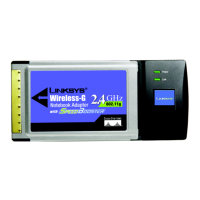
Wireless-G Notebook Adapter or Wirless-G Notebook Adapter with SpeedBooster
4. If you chose Infrastructure Mode, go to Step 5 now. If you chose Ad-Hoc Mode, the Ad-Hoc Mode Settings
screen will appear.
Select the correct operating channel for your wireless network. The channel you choose should match the
channel set on the other devices in your wireless network. If you are unsure about which channel to use, keep
the default setting.
Click the Next button. Click the Back button to change any settings.
5. If your wireless network doesn’t have wireless security, select Disabled and then click the Next button to
continue. Proceed to Step 6.
If your wireless network has wireless security, select the method of security used: WEP, WPA-Personal,
WPA2-Personal, WPA-Enterprise, WPA2-Enterprise, RADIUS, or LEAP. WEP stands for Wired Equivalent
Privacy, and WPA stands for Wi-Fi Protected Access. WPA is a stronger security method than WEP. WPA2 is a
stronger version of WPA. RADIUS stands for Remote Authentication Dial-In User Service, and LEAP stands for
Lightweight Extensible Authentication Protocol. Click the Next button to continue or the Back button to return
to the previous screen.
Proceed to the appropriate section for your security method: WEP, WPA-Personal, WPA2-Personal, WPA-
Enterprise, WPA2-Enterprise, RADIUS, or LEAP.
Figure 4-18: Ad-Hoc Mode Settings
Figure 4-19: Wireless Security - Disabled
NOTE: Channels 12 and 13 are not available for Adapters sold in North, Central, and South
America. If you set the Adapter to channel 12 or 13, it will use channel 1 or 11 instead.



 To Next Page
 Loading...