43
Appendix A: Troubleshooting
Common Problems and Solutions
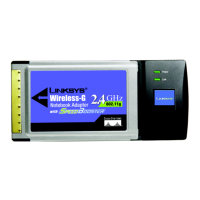
Wireless-G Notebook Adapter or Wirless-G Notebook Adapter with SpeedBooster
Appendix A: Troubleshooting
This appendix consists of two parts: “Common Problems and Solutions” and “Frequently Asked Questions.” This
appendix provides solutions to problems that may occur during the installation and operation of the Wireless-G
Notebook Adapter. Read the description below to solve your problems. If you can't find an answer here, check the
Linksys website at www.linksys.com/international.
Common Problems and Solutions
1. My computer does not recognize the Wireless-G Notebook Adapter.
Make sure that the Wireless-G Notebook Adapter is properly inserted into the CardBus slot.
2. The Wireless-G Notebook Adapter does not work properly.
Reinsert the Wireless-G Notebook Adapter into the notebook’s CardBus port.
For Windows 98SE or Me, right-click on My Computer, and select Properties. Select the Device Manager
tab, and click on the Network Adapter. You will find the Wireless-G Notebook Adapter if it is installed
successfully. If you see a yellow exclamation mark, the resources may be conflicting and you must follow the
steps below:
• Uninstall the driver software from your PC.
• Restart your PC and repeat the hardware and software installation as specified in this User Guide.
3. I cannot communicate with the other computers linked via Ethernet in the Infrastructure
configuration.
Make sure that the notebook is powered on.
Make sure that the Wireless-G Notebook Adapter is configured with the same SSID and security settings as
the other computers in the Infrastructure configuration.



 To Next Page