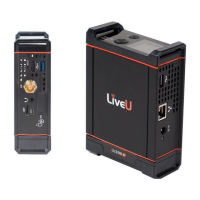
USB port on the left panel, and R/A to indicate that it is connected to the USB port on the
right panel.
The modem on the left panel is identied as 1. The modem on the right panel is identied
as 2.
To connect to a mobile network:
1. In the Interfaces menu, turn the JOG to select one of the mobile network options, then
press the JOG.
2. Make sure that Mobile Networks is selected, then press the JOG.
3. Do one of the following:
▪ Press the JOG to scan the area for a network. Select a mobile operator from the
list and press the JOG.
▪ Turn the JOG to select Select Automatically, then press the JOG.
You are now connected to a mobile network.
To disable a mobile network:
• Turn the JOG to select Disable Modem and press the JOG. Turn the JOG to Disable and
press the JOG to disconnect from the mobile network.
Conguring an Ethernet network
The LAN adapter included in Solo PRO is congured to use DHCP, a network protocol that
automatically congures the Solo PRO to communicate on an IP network. If required, you
can disable DHCP in the Solo PRO portal (see Managing network connections).
To connect to an Ethernet network:
• Connect a LAN cable to the unit's Ethernet connector on the left side of the unit.
You are now connected to a Local Area Network. The IP address is displayed
immediately on the Interfaces screen.
You disconnect from the LAN when you remove the cable.
To disable an Ethernet network:
• Turn the JOG to select Disable Ethernet and press the JOG. Turn the JOG to Disable and
press the JOG.
Conguring
internet interfaces
Solo PRO User guide 21


 To Next Page