Page 15
User Guide MeeBox NAS
Performing initial setup
If you have a Windows computer on the same network as your MeeBox, you can use the
Setup Wizard to perform initial setup of the MeeBox. Otherwise, you will use the browser-
based admin interface. (You can use the browser-based interface on Windows, too.)
Using the Setup Wizard (Windows only)
The MeeBox Setup Wizard is a Windows application that facilitates configuring the
MeeBox’s IP address and a few other settings before you start using your MeeBox. The
wizard is included on the Setup CD that came with your MeeBox.
To run the Setup Wizard, insert the Setup CD in a computer that is connected to the same
network as your MeeBox. If the wizard does not start automatically, do the following:
1. Click the Start button on your Windows task bar.
2. Click Run.
3. Enter D:\SetupUtil.exe and press Enter. (Substitute your CD-ROM drive’s actual drive
letter if it is not D.)
4. In the Setup Wizard window, click Setup.
The Setup Wizard has four steps.
Step 1
If you have more than one MeeBox on the network, select the MeeBox you want to
configure, then click Setup. Otherwise, just click Setup.
You will be prompted to enter the admin password. Enter the default password, which is
―meebox‖ (without quotes).
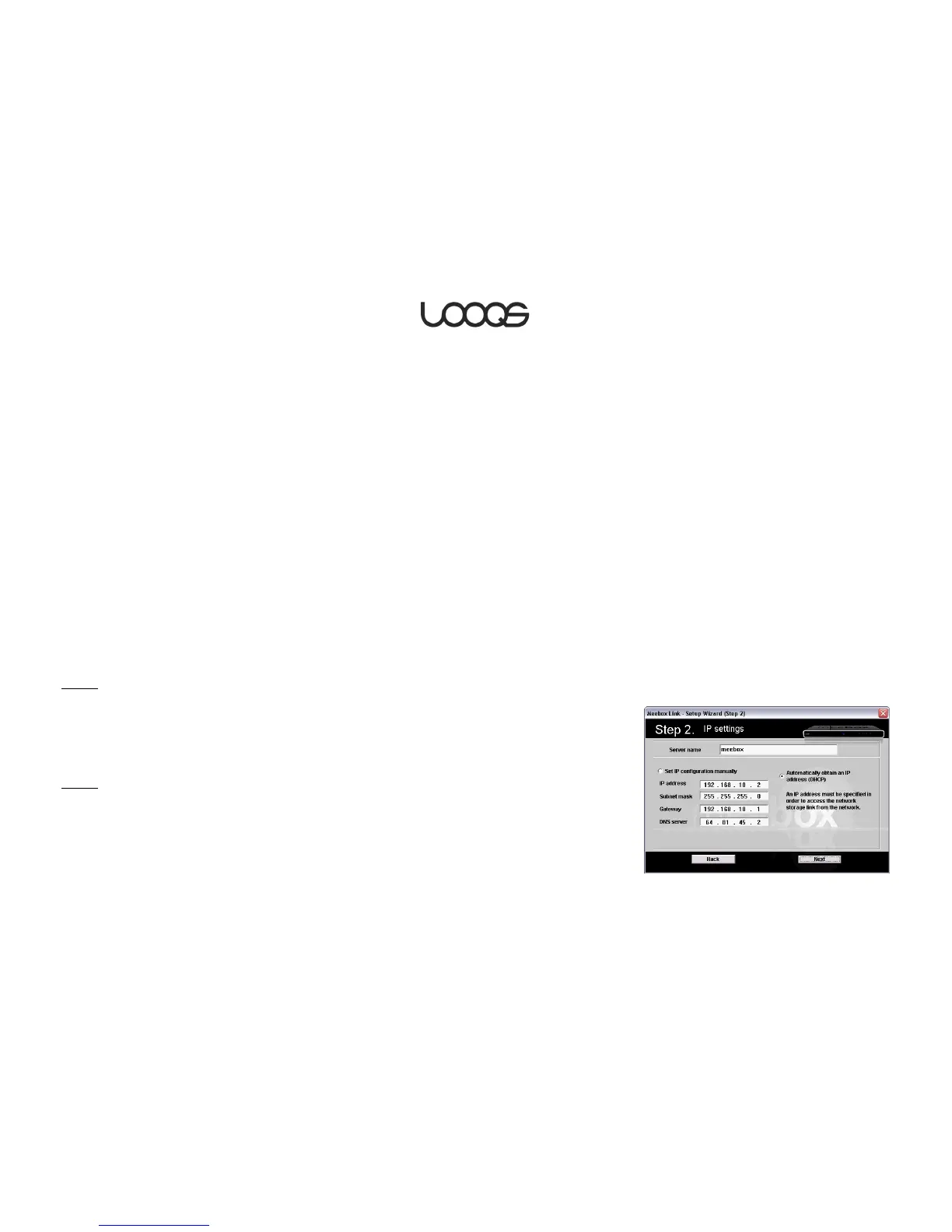
Step 2
In the Server name box, enter the network name you want to use for your MeeBox. (You
can just use the default name ―meebox‖, unless you already have another MeeBox on
the same network using the default name. Please note that this user guide assumes your
MeeBox will use the default name ―meebox‖.)


 To Next Page