Page 16
User Guide MeeBox NAS
Next, decide whether you want to have your MeeBox obtain an IP address automatically
from your router, or use a static IP address that you specify. Select the appropriate option
button.
If you choose to use a static IP address, enter the IP address, subnet mask, gateway
address, and DNS server address in the provided boxes.
Step 3
Select your time zone from the drop-down menu, and then enter the current date and
time in the boxes.
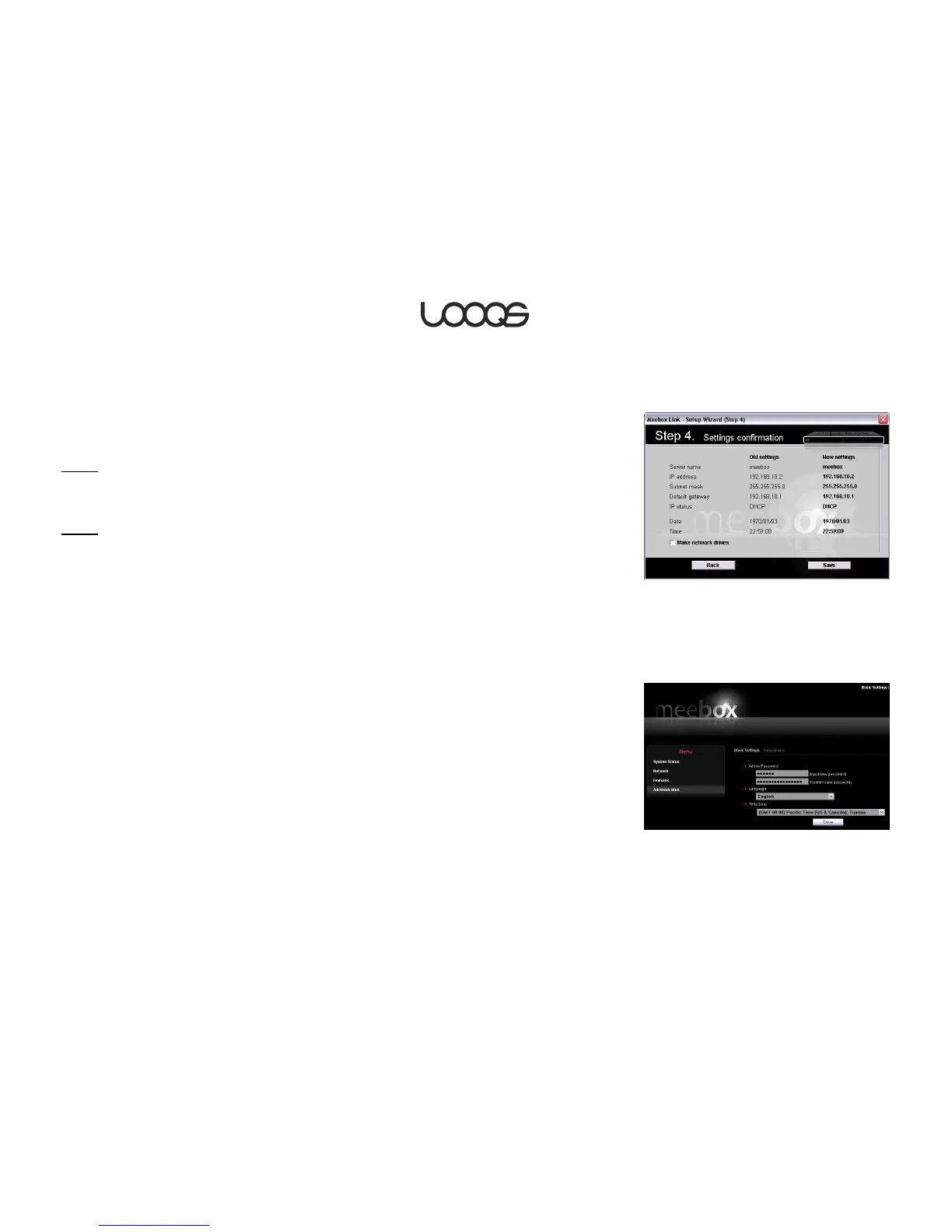
Step 4
Confirm that the settings shown are the ones you want. If you need to make any changes,
click Back.
Select the Make network drives check box to have the Setup Wizard automatically assign
drive letters to the default admin and public shares on your MeeBox. (SeeUsing your
MeeBox as a network storage device for an explanation of these default shares.)
When you are satisfied with the settings, click Save.
Using the browser-based admin interface (all operating systems)
1. In your web browser, go to http://meebox:8090/ and log in with the username ―admin‖
and the default password ―meebox‖.
2. You will be prompted to change the admin password. (See Figure 1.) Under the
heading Admin Password, enter the desired admin password in both boxes. (If you do
not change the admin password now, you will be prompted to do so each time you
log in.)
3. Select the desired language for the admin interface, select your time zone, and click
Save.
4. In the menu on the left side of the window, click Network.


 To Next Page