Page 57
User Guide MeeBox NAS
Each connected storage device is listed in the Disk Utility, along with some basic
information about the device and buttons for available actions.
For internal hard drives, you can:
Format the drive to various file systems—FAT32, ext2, ext3, and XFS
Scan the drive for errors (and fix them if found)
Display SMART (Self-Monitoring Analysis and Reporting Technology) drive health
information
Note
Formatting a drive erases ALL content on the drive. If the drive contains files you want to
keep, please make sure to back them up to another drive or to your computer before you
format. Also, please note that if you format the primary internal hard drive, you will need
to reinstall your MeeBox’s hard disk image after formatting. (For instructions on installing a
hard disk image, see Installing a disk image.)
For external storage devices, the available actions include formatting and error-scanning,
but not displaying SMART information. In addition, you can unmount an external drive.
Unmounting removes the shared folder corresponding to the drive, making the drive
unavailable for use. You must unmount an external drive before formatting it.
Managing a RAID array
Replacing a failed drive of a RAID 1 array
If one drive of a RAID 1 array fails, your MeeBox will signal the failure by blinking its power
button/indicator in alternating colors. If this happens, you should first determine which
drive has failed, and then replace it with a drive of the same or larger capacity.
26. In your web browser, go to http://meebox:8090/, log in, and click MeeBox Settings.
27. Click Advanced Settings, then click Management, and then click RAID.
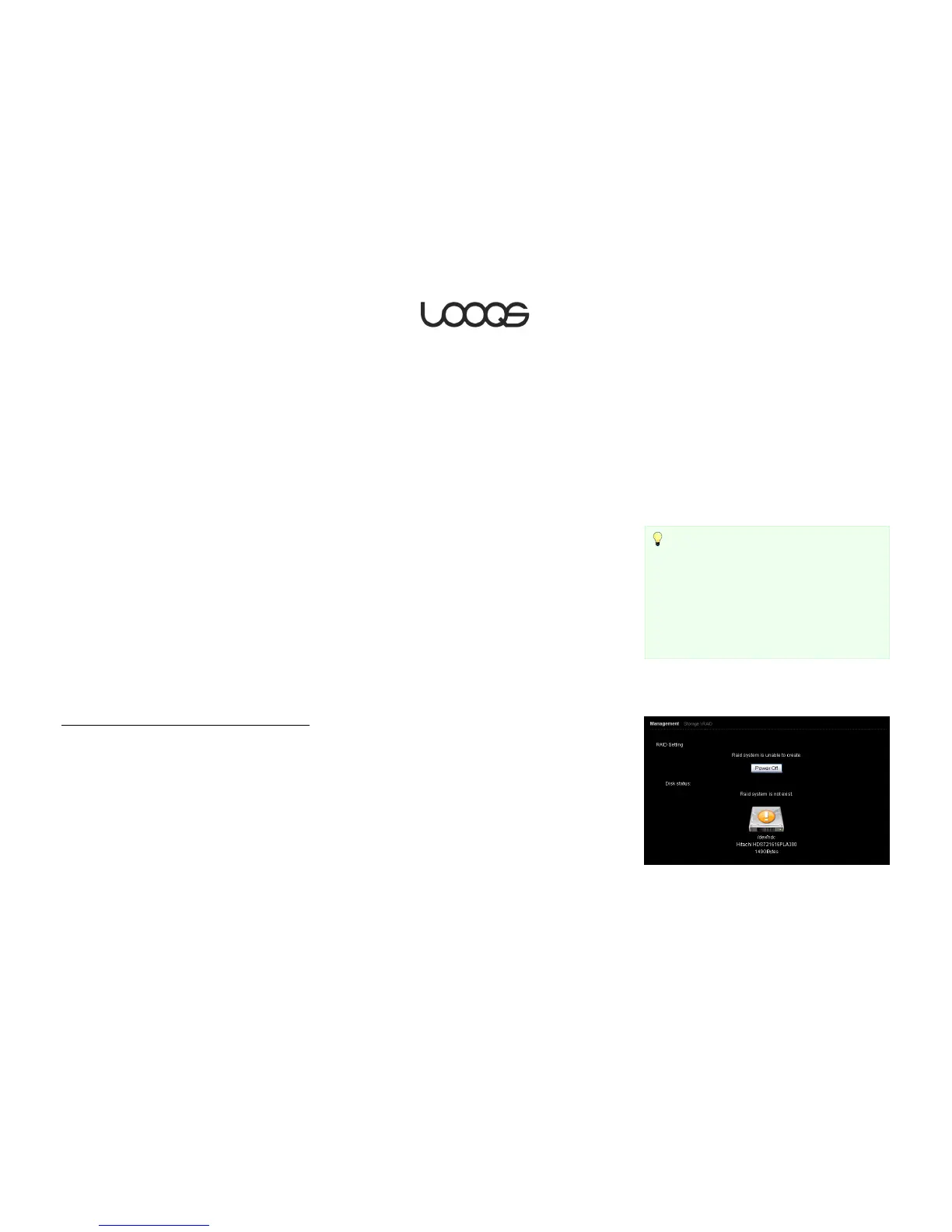
28. You will see only one drive icon on the RAID management page, indicating that the
other drive is not operational. (See Figure 19 for an example.) The drive that is shown is
the one that is still working.
Tip
When formatting an external drive, if you plan to
connect the drive to a Windows PC at some point,
you should select FAT32 as the file system, since
Windows does not support ext2, ext3, or XFS. If
you plan to use the drive only with your Personal
Server, or with Linux computers but not
Windows, then you can choose any file system.


 To Next Page