Page 37
User Guide MeeBox NAS
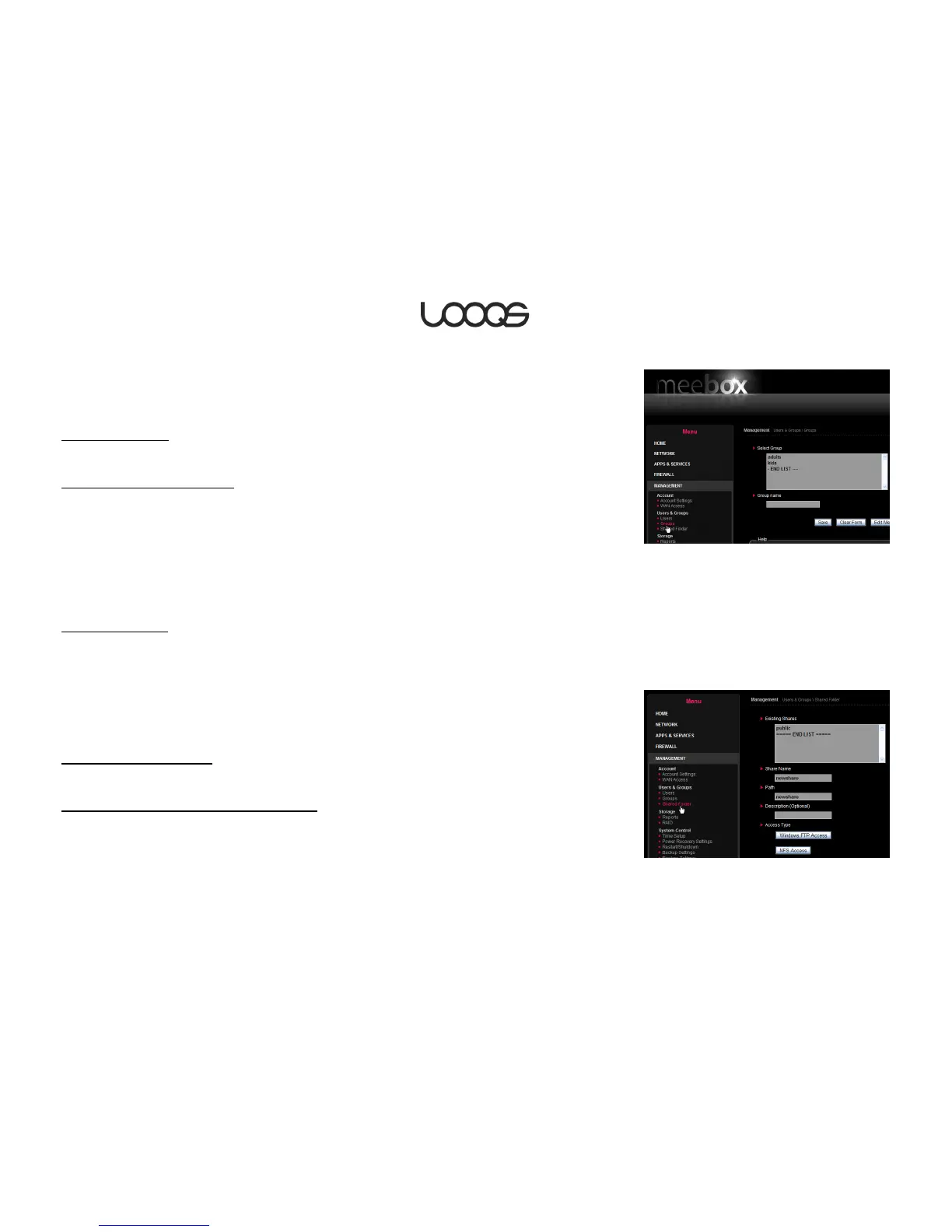
Creating, modifying, and deleting groups
To create, modify, or delete a group, open your MeeBox’s admin interface
(http://meebox:8090) and click Management > Users & Groups > Groups (see Figure 14).
To create a group
Enter a name for the new group and click Save.
To edit a group’s member list
1. Select the group in the Groups list box, and then click Edit Members.
2. To add a user or users to the group, select the user(s) in the Non-Members list box, and
click << Add.
3. To remove a user or users from the group, select the user(s) in the Members list box, and
click Remove >>.
4. When you are finished, click Save.
To delete a group
Select the group in the Groups list box and click Delete Group.
Creating, modifying, and deleting shared folders
To create, modify, or delete a shared folder, open your MeeBox’s admin interface
(http://meebox:8090) and click Management > Users & Groups > Shared Folders (see
Figure 15).
To create a shared folder
Enter a name for the new share and click Save.
To control who can access a shared folder
1. Select the desired share in the Existing shares list box, and then click Manage Access.
2. To grant read-only access for a user or a group (or several of them), select the user(s)
or group(s) in the No Access list box, and click << Read Only.


 To Next Page