Page 46
User Guide MeeBox NAS
Using the web file browser
Your MeeBox comes with a web-based file manager called Extplorer preinstalled on the
hard drive. You can use Extplorer to work with files in your MeeBox’s public shared folder
(\\meebox\public) from any computer with an Internet connection.
To use Extplorer, go to http://ip_address/extplorer/ (where ip_address is your public IP
address) and log in with username ―admin‖, password ―meebox‖. If you are accessing
your MeeBox from the local network, you can just click Web File Browser on the MeeBox
home page.
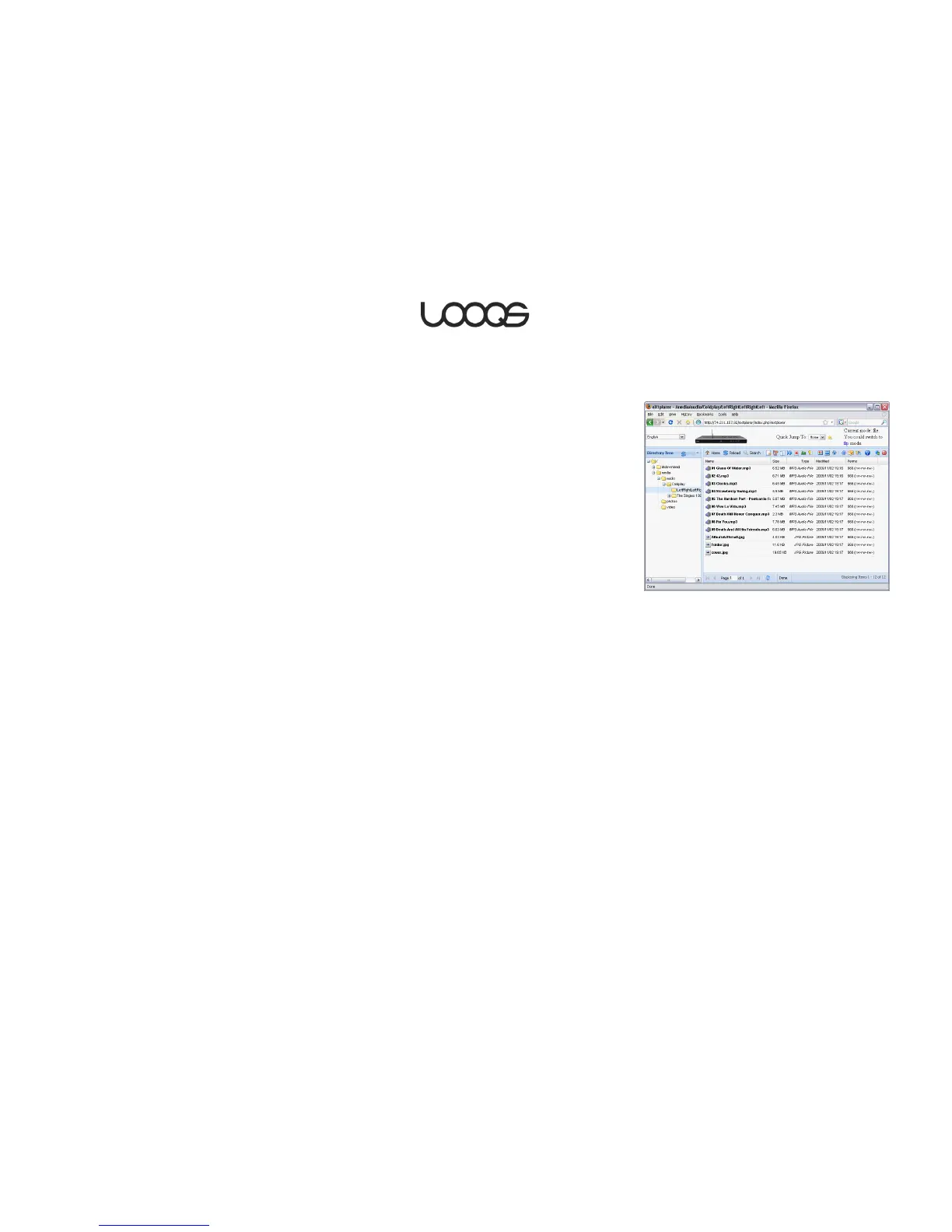
An example directory listing in Extplorer is shown in Figure 17.
Using Extplorer, you can perform various operations with files in the public shared folder,
including:
Download files from the shared folder to your computer.
Upload files to the shared folder from your computer.
Copy or move files within the share.
Search for files in the share.
View photos in the share.
Delete files in the share.
Create and edit text files in the share.
Additional documentation for Extplorer is provided on the product’s home page at
http://extplorer.sourceforge.net/.
Accessing files on your MeeBox remotely using FTP
Using Extplorer to remotely access files on your MeeBox is convenient, but it has some
limitations. Most importantly, Extplorer does not support accessing MeeBox folders or
shares other than the public share. Also, Extplorer is awkward when you need to
download or upload large numbers of files.
To overcome these limitations, you can access your MeeBox remotely using an FTP client
program, thanks to your MeeBox’s built-in FTP server. The FTP service is disabled by default;
you need to enable it before you can access your MeeBox through FTP.


 To Next Page