68
EN
69
EN
• Return to Previous Level
To go back to the previous level in the directory,
click on the "<
>" icon.
• Delete Music Files
To delete a music file, slide the filename from
right to left to reveal the delete option. Click on
"Delete" to permanently remove the le.
• Play All Files in the Folder:
Enter the folder containing the music files you
want to play. Click on any of the files to start
playing all the les in that folder.
• Add Music or Whole Folder to Playlist
To add a specic music le or an entire folder to
the playlist, slide the lename or folder from right
to left and select "Add to Playlist.
Notice:
• Please note that the File Browser will only display supported
audio les. Other le types will not be shown in the browser.
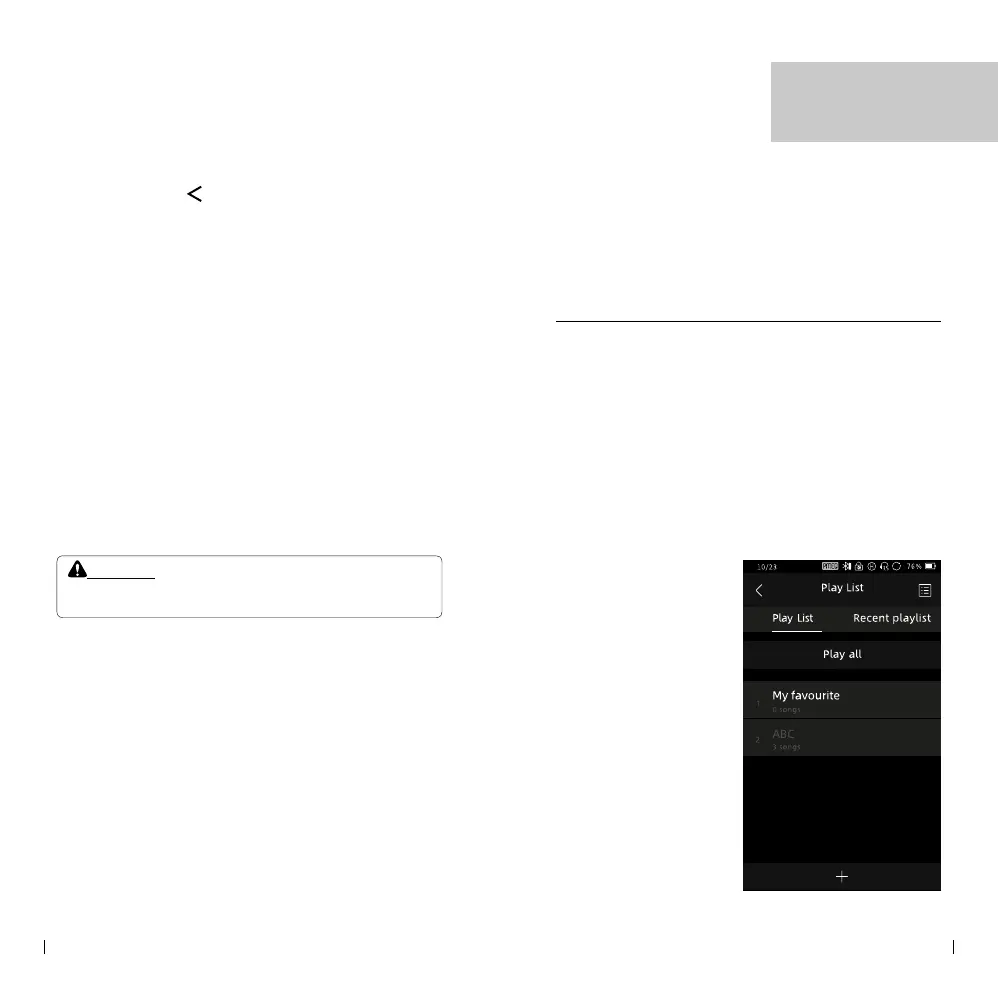
Play List
The player provides three editable playlists: "My
favorite," "Recent," and "All songs." Here's a
breakdown of each playlist and additional features:
• My Favorite
This playlist is intended for adding your favorite
songs. You can manually add your preferred songs
to this playlist for quick access.
• Recent Playlist
The Recent playlist
automatically
includes the songs
you have recently
played. It allows you
to easily revisit and
listen to the tracks
you've listened to
most recently.
• All Songs
The All Songs playlist
displays all the songs
available on the SD
card. It provides a
comprehensive view
of your entire music
collection.
Play List



 To Next Page