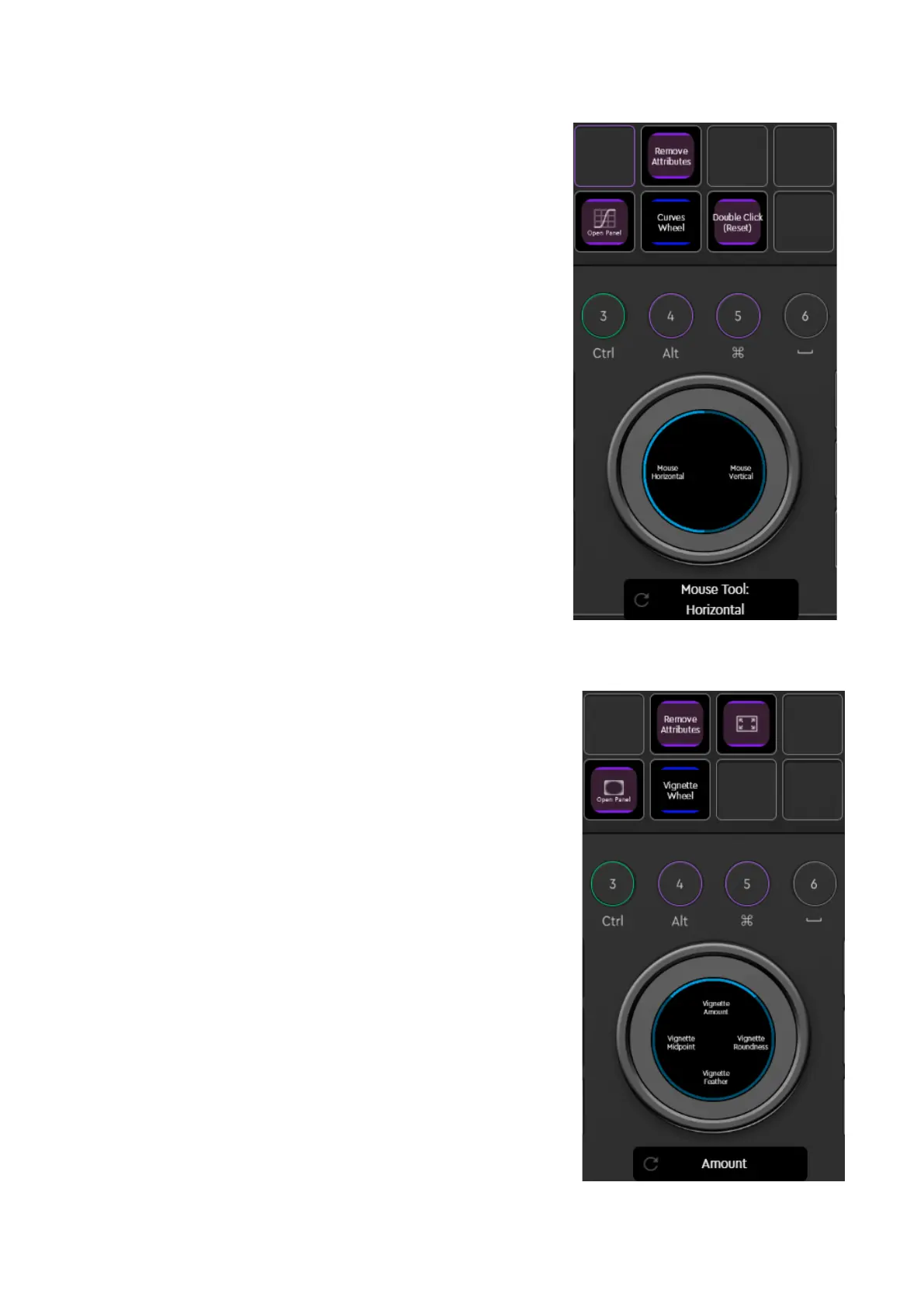
CURVES
Accessing Curves inside Premiere is fast and easy, as
rotating the wheel automatically sets a point on the
curve when you have navigated the cursor close enough
to the curve.
Inside the Curves Page, open the Curves Wheel Page
with one click, and the Curves Panel inside Premiere with
another click. Start rotating the wheel, and you will find
out how smoothly and precisely it works, as there are
separate controls for horizontal and vertical movements.
No wobbly movements anymore! You can add as many
points to a curve as you want.
“Double Click” action resets the curve.
Vignette
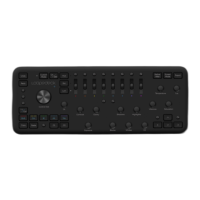
Applying a Vignette has never been faster. Inside the
Vignette Page, open the Vignette Wheel Page with one
click and start rotating the wheel.
Additional Vignette controls can be activated with a tap
on the wheel or by pressing Fn and rotating the wheel. The
adjustments work also on Full Frame Mode. If you want to
reset your Vignette, make sure you double-tap on the
wheel on the area of the action you want to reset.
Tip: Pressing Fn and rotating the wheel jumps to the next
action on wheel pages with several actions (list, cake
layout etc.)



 To Next Page