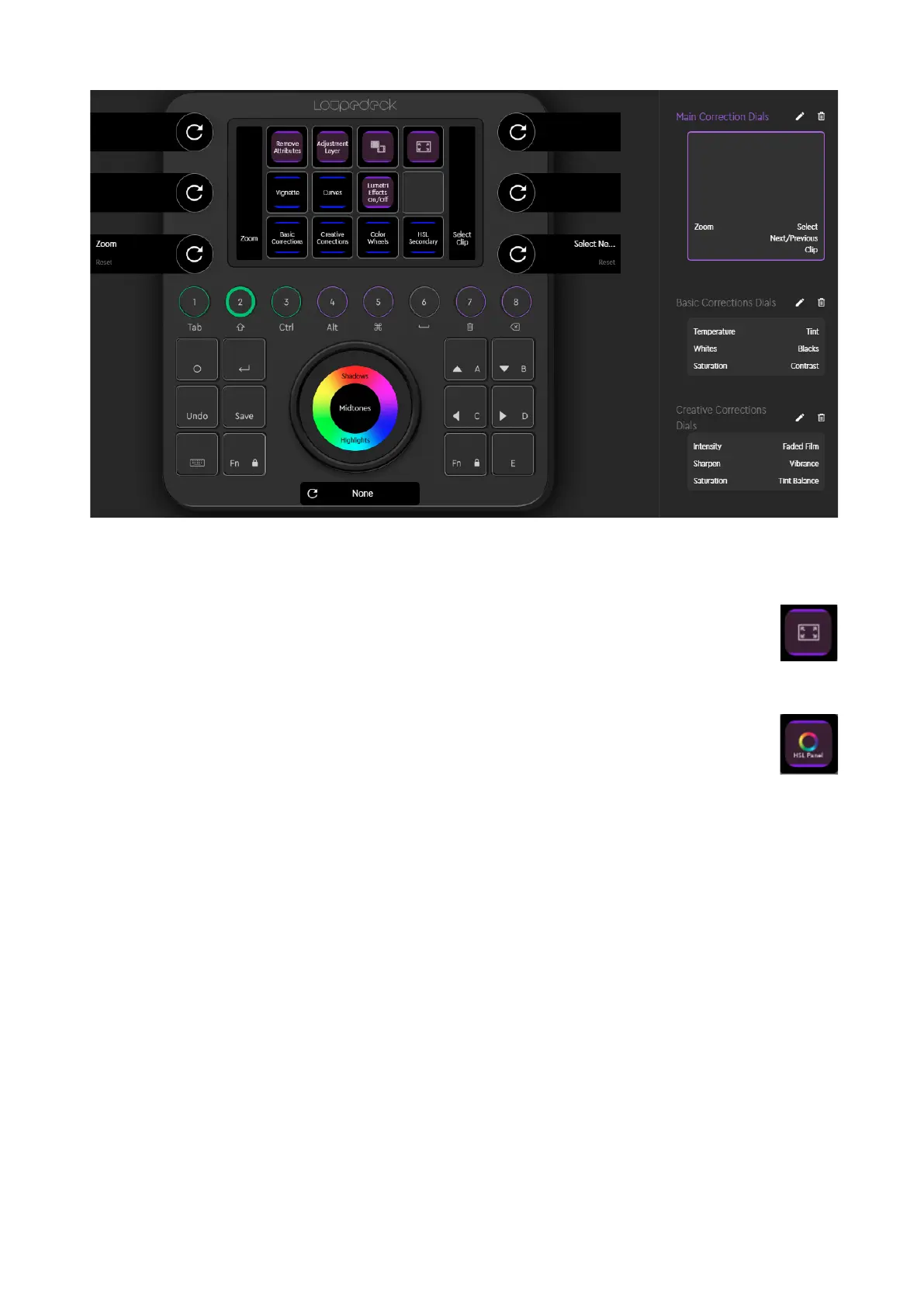
COLOR AND TINT WHEELS:
As for Color Wheels (Color Wheels Panel) and Tint Wheels (Creative Corrections
Panel), you can SWIPE with your finger on the wheel display and ROTATE the wheel
to adjust Brightness. Yo u ca n even m ake col or ad ju stm en ts on F ul l Fra me M ode.
However, if you prefer to see your adjustments visualised in corresponding number
changes, just open Adobe Premiere Pro Panel with a click on the dedicated touch
button on CT display, e.g., Open HSL Panel.
You c an
UNDO
your changes by pressing the dial, double-tapping on wheel, or removing
the whole effect by pressing the touch button “Remove Attributes”.
Tip!:
For
Fn + wheel rotation of color and tint wheels
, we have pre-defined "5 Frames"
Navigation, so you can quickly check applied adjustments throughout the whole clip, or
copy and paste Attributes with the round buttons 7 and Fn + 8 to another clip.


 To Next Page