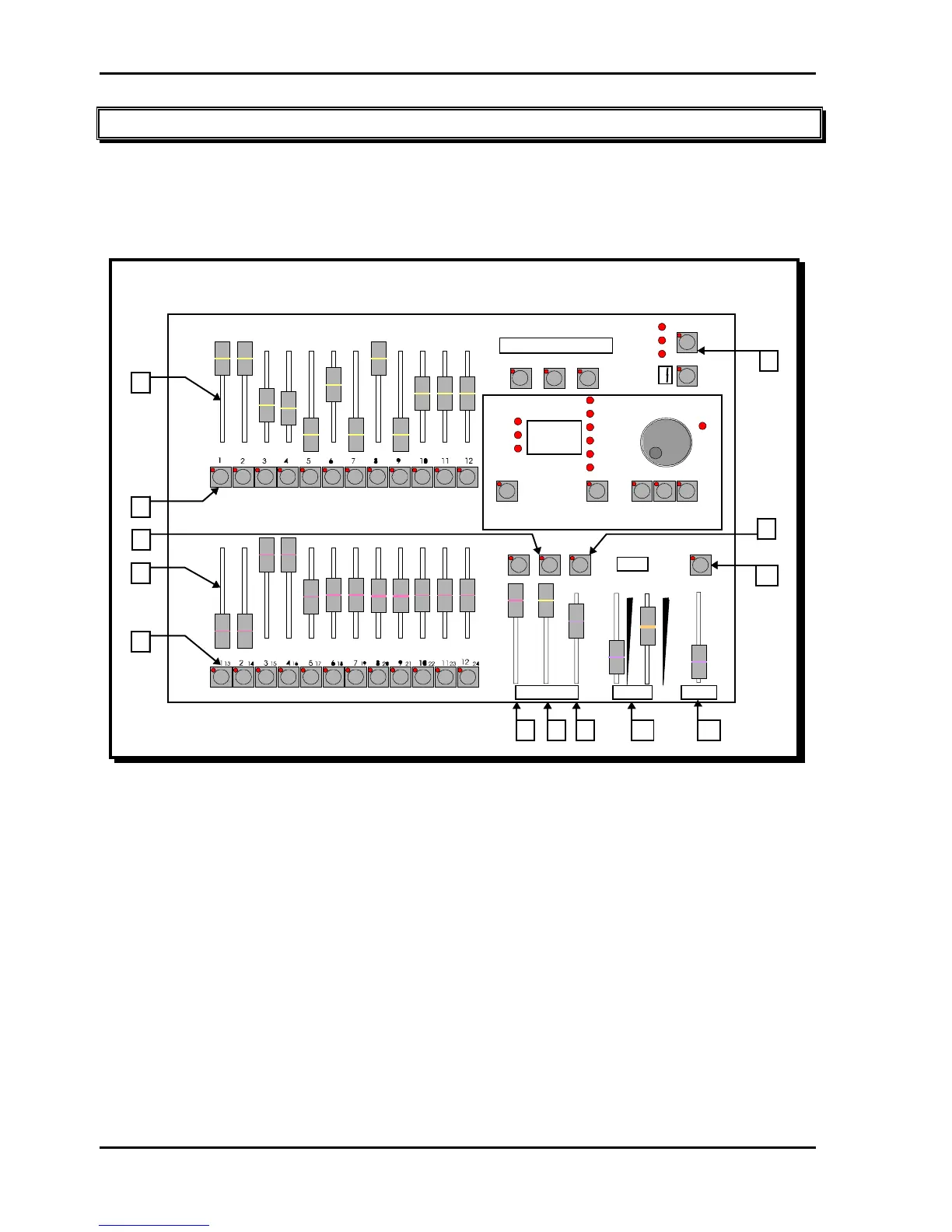
Atom Operator Manual Layout
LSC Lighting Systems (Aust) Pty. Ltd. 6
3.0 LAYOUT
The front panel of the Atom is divided into two main areas;
• The fader section on the left.
• The mastering and recording section on the right.
Note: The size of the fader bank area varies depending upon the model, as it provides a fader for every
channel (24 or 48). The mastering and programming section is identical for both models.
FUNCTION STOP
STEP
SOLO
ASSIGN
(YES) (NO)
EDIT
SCENE CHASE COPY
RECORD
SCENE
CHANNEL
CHASE
DIMMER
STEP
RATE (BPM)
OUT(S)
IN(S)
LEVEL
(ADD STEP) (DELETE STEP)(END CHASE)
PAGE
MODE
PRESET
WIDE
SCENE
FREEZE
><
SOLO
ASSIGN
PREVIEW
EDIT
MASTERS
SECS LEVEL
TIME
O
ADD
KILL
GRABR Y
FUNCTION: PRINT 1:1
PATCH
SOFT
PATCH
CLEAR
PATCH
HELP
DISK PREFS RESET BASS
LEVEL
IN OUT
120 120
00
1
2
3
4
5
6
6
8
7
9
10 11
12
Front panel layout of an Atom 12/24.
Many of the keys listed below perform more than one function. The current function depends upon what the
operator is doing at the time. Each of these different functions is described under the relevant key below.
1. YELLOW PRESET FADERS
Control the levels of channels 1 to 12 (24) respectively.
2. YELLOW PRESET MASTER
• Controls the overall level of the Yellow preset faders (the low channels).
• In WIDE Preset mode, it controls the overall level of the single wide preset consisting of the Yellow preset
faders (the low channels) and the Red preset faders (the high channels).
3. MODE KEY
Selects the current function for the RED preset faders. The choices are;
• PRESET mode.
• WIDE Preset mode.
• SCENE mode.
Note; In WIDE Preset mode, both the WIDE and PRESET indicators are lit.
4. RED PRESET FADERS
The Red bank of faders have different functions depending upon the current “MODE” of the Atom as selected
by the MODE key.



 To Next Page