1 2 3 4
1 2 3 4
5
1 2 3
[ 48 ] [ 49 ]
NOTE: Use the Shade detail
screen to modify name and to jog
shade.
NOTE: Once discovered,
the Repeater will stop
flashing.
NOTE: The Repeater
will flash amber.
NOTE: Once discovered,
the Repeater will stop
flashing.
NOTE: The Repeater
will flash amber.
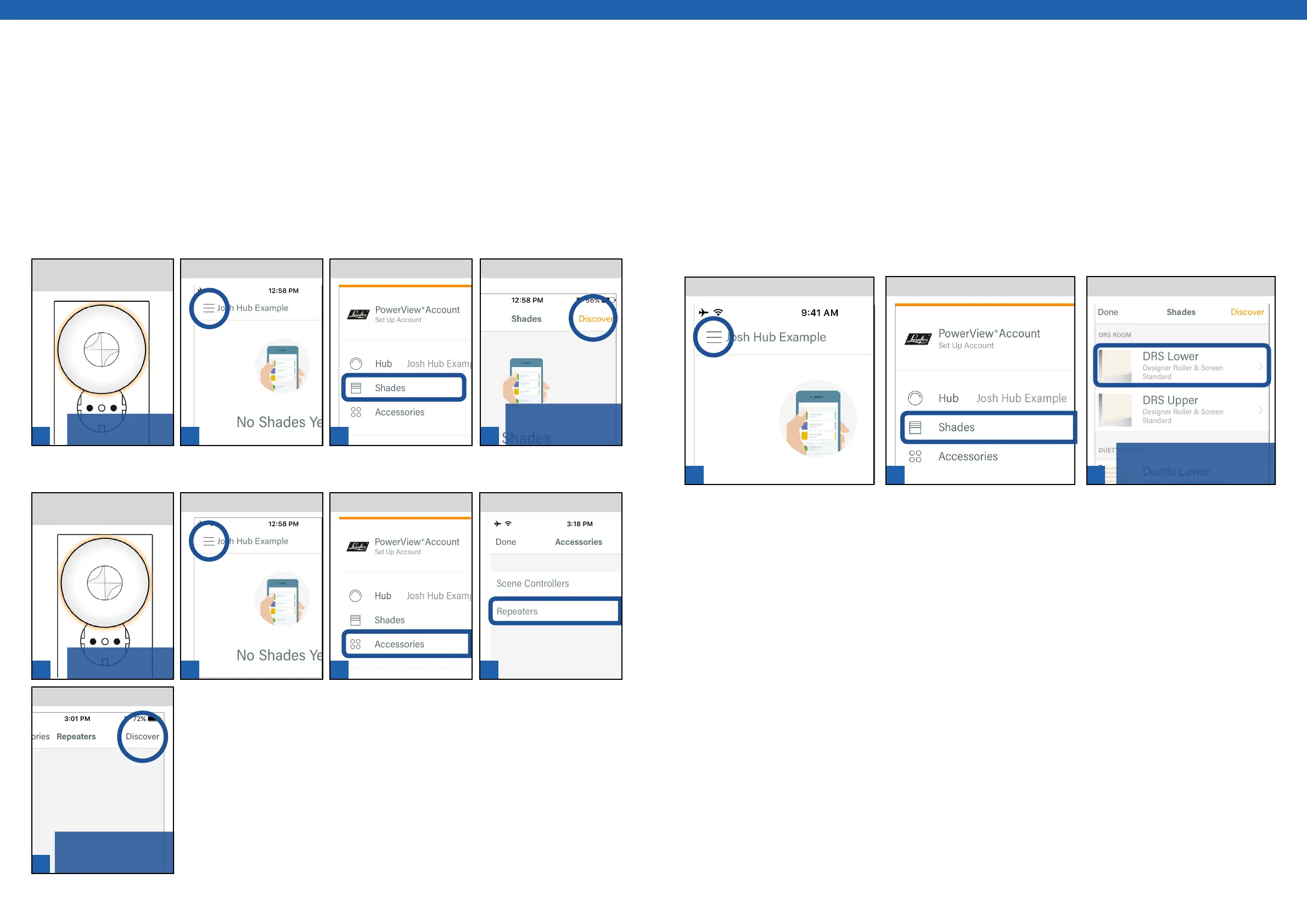
Discover Repeaters
There are two methods to Discover a Generation 2 Repeater in the PowerView® App. Once a Generation 2 Repeater
is discovered by the App, the App will automatically generate a single Room comprised of every discovered
Generation 2 Repeater.
Via Shades
PLUG the Repeater into an
electrical outlet.
TAP Discover.TAP Shades.TAP Menu.
Via Accessories Details
TAP Repeater.
TAP Accessories.
TAP Menu.
TAP Discover.
PLUG the Repeater into an
electrical outlet.
Editing Shade Details
In the Menu you will find a list of all the PowerView® Shades Discovered by the Hub. Each Shade has its own Shade
Details screen. The Shade Details screen allows you to do the following: give a shade a custom name; jog a shade
to identify and establish the shade’s physical location within the home; assign a shade to a Room; refresh a shade’s
battery status; check the strength of a shade’s radio frequency status; and add a shade to Favorites.
NOTE: Consult with a Luxaflex® professional installer or Customer Service Representative before using the Advance
Features options in Shade Details.
TAP Shades.
TAP Menu.
SELECT desired shade.


 To Next Page
 Loading...