1
2
3
[ 56 ] [ 57 ]
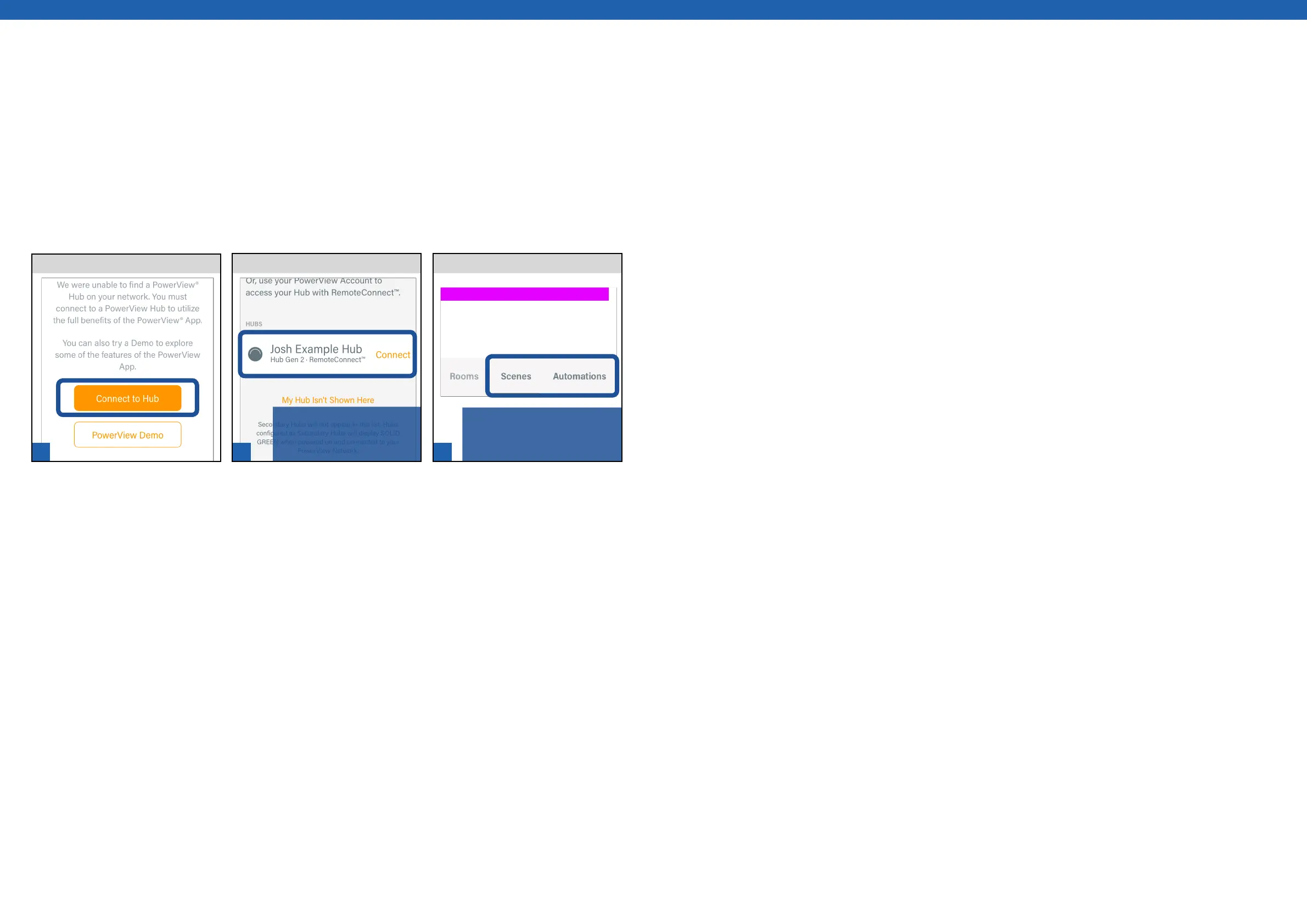
NOTE: RemoteConnect will be
labeled below the Hub’s name
near menu. Dashboard and
Rooms will be unavailable.
NOTE: RemoteConnect will be
labeled below the Hub’s name.
If Hub is not found, sign in to
your account.
Using RemoteConnect™
RemoteConnect™ is a standard feature of your PowerView® account and is automatically enabled with the creation
of a PowerView® account. Use RemoteConnect when you’re away from home to remotely access and activate Scenes
and Automations in the PowerView® App on your smart device.
NOTE: A registered Hub and verified PowerView® Account are required to use RemoteConnect.
Access Scenes and Automations
SELECT Scene or Automation.Select Hub.
TAP Connect to Hub.


 To Next Page
 Loading...