30
d.4 Pro DJ Production Console
d.4 Pro 4-channel DJ Production Console
Console (PC only)
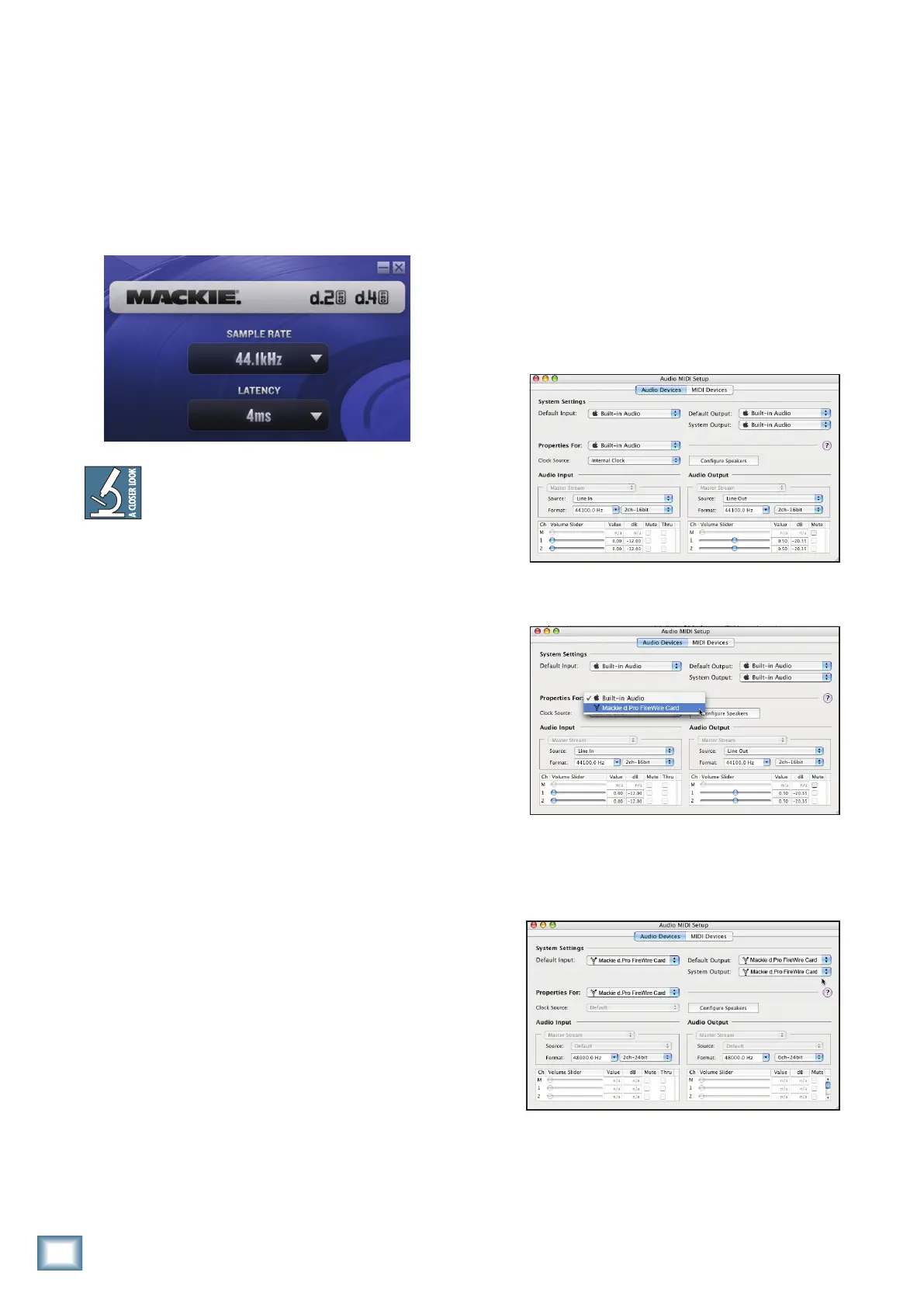
You can use the Console to change the sample rate
and latency for your d.Pro.
The sample rate and latency value (also known as
buffersize)mayalsobesetinyourDJperformance
softwareapplication’s“Settings”window.Makesurethe
same value appears in both places.
For timecode vinyl/CD work, the latency typi-
cally needs to be set between 4 mS and 15 mS.
For the Mac:
Macintosh OS X Audio MIDI Setup (ver-
sion 10.3.9 or later):
MacintoshOSXdoesnotrequireFireWiredrivers
tobeinstalled.OSXprovidesadedicatedsetuputility
for audio and MIDI. You can use the Audio MIDI Setup
utility to change the default audio input and output and
general system settings on your Macintosh.
1. Go to the Applications folder and open the
Utilities folder.
2. Double-click“AudioMIDISetup.”
3. Click the Audio Devices tab, and select Mackie
d.Prointhe“PropertiesFor”drop-downbox.
4. HereyoucanseethesettingsfortheMackie
d.Pro. You can also choose to use the d.Pro as
your default input or output, as well as desig-
nate it to be used for system sound output.
5. You’rereadytogowithanyMacOSXCore
Audio host application (i.e., Tracktion, Logic,
Cubase, Nuendo, Live, Digital Performer, etc.).


 To Next Page