64 Chapter 3: Writing and Debugging Scripts
To specify settings for automatic code hints, do one of the following:
• Select Edit > Preferences, and then enable or disable Code Hints on the ActionScript tab.
• In the Actions panel, select Preferences from the Options pop-up menu (at the upper right of
the panel) and enable or disable Code Hints on the ActionScript tab.
If you enable code hints, you can also specify a delay in seconds before the code hints should
appear. For example, if you are new to ActionScript, you might prefer no delay so that code hints
always appear immediately. However, if you usually know what you want to type and only need
hints when you use unfamiliar language elements, you can specify a delay so that code hints don’t
appear when you don’t plan to use them.
To work with tooltip-style code hints:
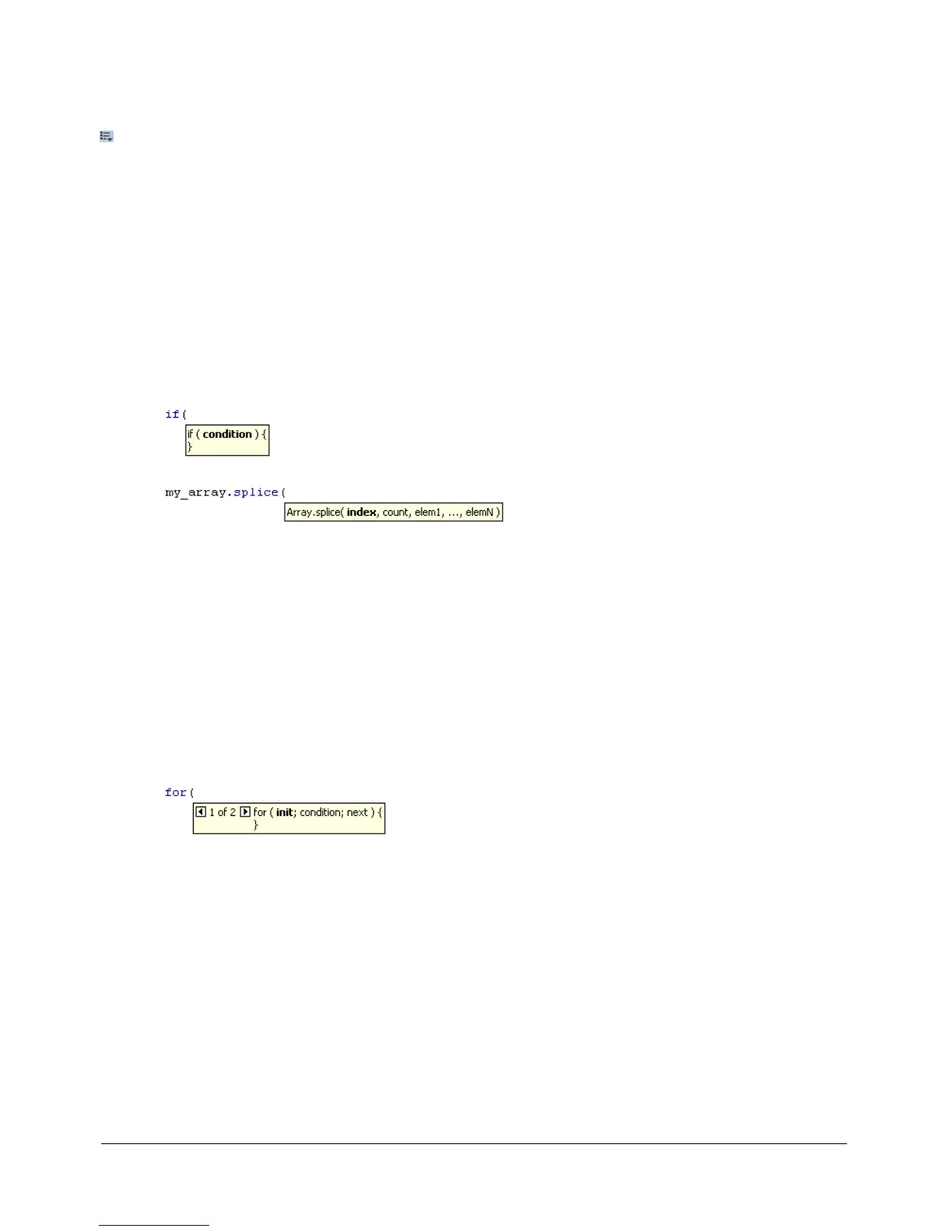
1 Display the code hint by typing an open parenthesis [(] after an element that requires
parentheses, such as a method name, a command such as
if or do while, and so on.
The code hint appears.
Note: If a code hint doesn’t appear, make sure you haven’t disabled code hints on the ActionScript
tab. If you want to display code hints for a variable or object you created, make sure that you have
named your variable or object correctly (see “Using suffixes to trigger code hints” on page 62) or
that you have strictly typed your variable or object (see “Strictly typing objects to trigger code
hints” on page 62).
2 Enter a value for the parameter. If there is more than one parameter, separate the values
with commas.
Overloaded commands such as
gotoAndPlay() or for (that is, functions or methods that can
be invoked with different sets of parameters) display an indicator that allows you to select the
parameter you want to set. Click the small arrow buttons or press Control+Left Arrow and
Control+Right Arrow to select the parameter.
3 To dismiss the code hint, do one of the following:
■ Type a closing parenthesis [)].
■ Click outside the statement.
■ Press Escape.



 To Next Page