Using the ActionScript editor 65
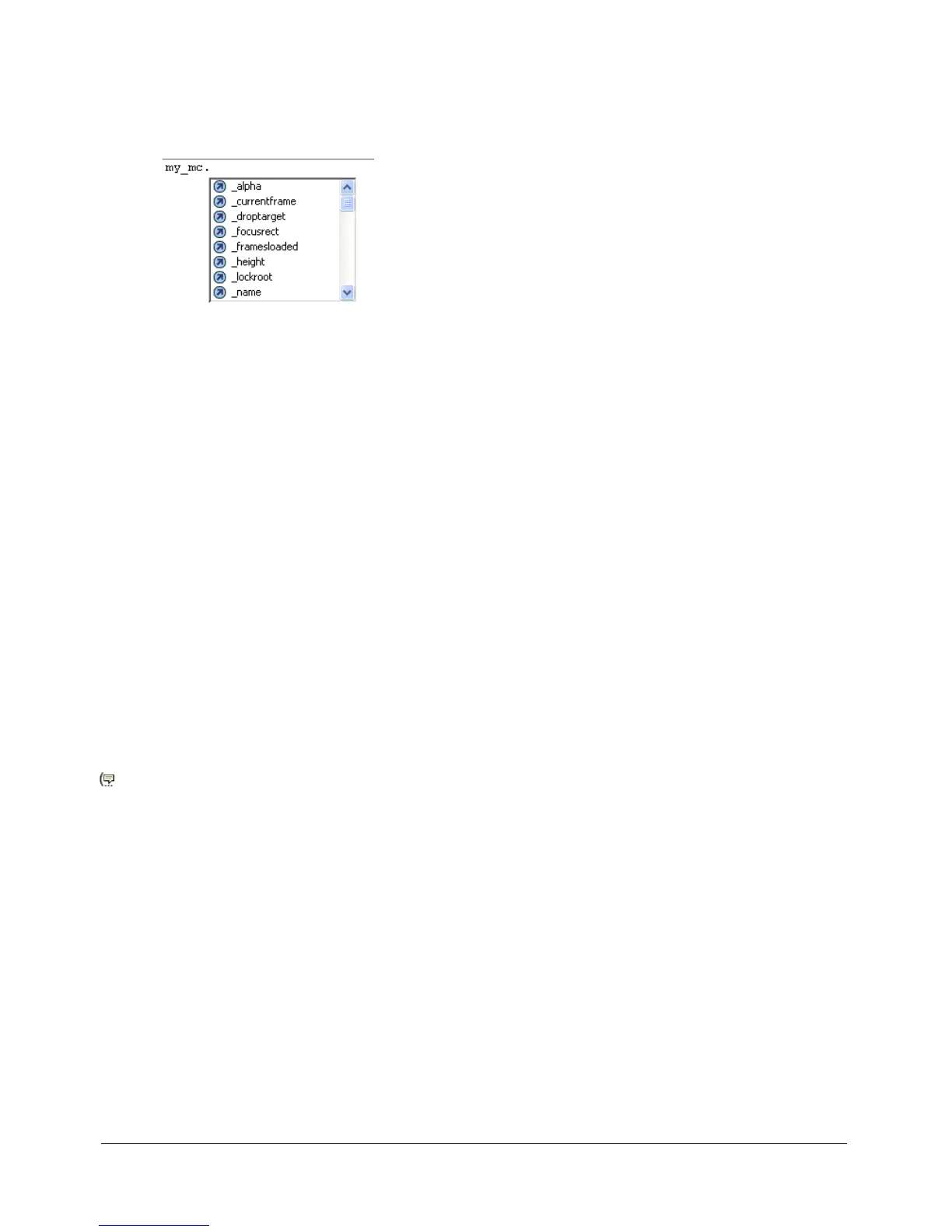
To work with menu-style code hints:
1 Display the code hint by typing a period after the variable or object name.
The code hint menu appears.
Note: If a code hint doesn’t appear, make sure you haven’t disabled code hints on the ActionScript
tab. If you want to display code hints for a variable or object you created, make sure that you have
named your variable or object correctly (see “Using suffixes to trigger code hints” on page 62) or
that you have strictly typed your variable or object (see “Strictly typing objects to trigger code
hints” on page 62).
2 To navigate through the code hints, use the Up and Down Arrow keys.
3 To select an item in the menu, press Return or Tab, or double-click the item.
4 To dismiss the code hint, do one of the following:
■ Select one of the menu items.
■ Click outside the statement.
■ Type a closing parenthesis [)] if you’ve already typed an open parenthesis.
■ Press Escape.
To manually display a code hint:
1 Click in a code location where code hints can appear. Here are some examples:
■ After the dot following a statement or command, where a property or method must
be entered
■ Between parentheses in a method name
2 Do one of the following:
■ Click the Show Code Hint button above the Script pane.
■ Press Control+Spacebar (Windows) or Command+Spacebar (Macintosh).
■ If you are working in the Actions panel, open the pop-up menu (at the right side of the title
bar), and select Show Code Hint.
Using Escape shortcut keys
You can add many elements to a script by using shortcut keys—pressing the Escape key and then
two other keys. (These shortcuts are different from the keyboard shortcuts that initiate certain
menu commands.) For example, if you are working in the Script pane and type Escape+d+o, the
following code is placed in your script, and the insertion point is placed immediately following
the word
while, so you can begin typing your condition:
do {
} while ();



 To Next Page