74 Chapter 3: Writing and Debugging Scripts
Displaying movie clip properties and changing editable properties
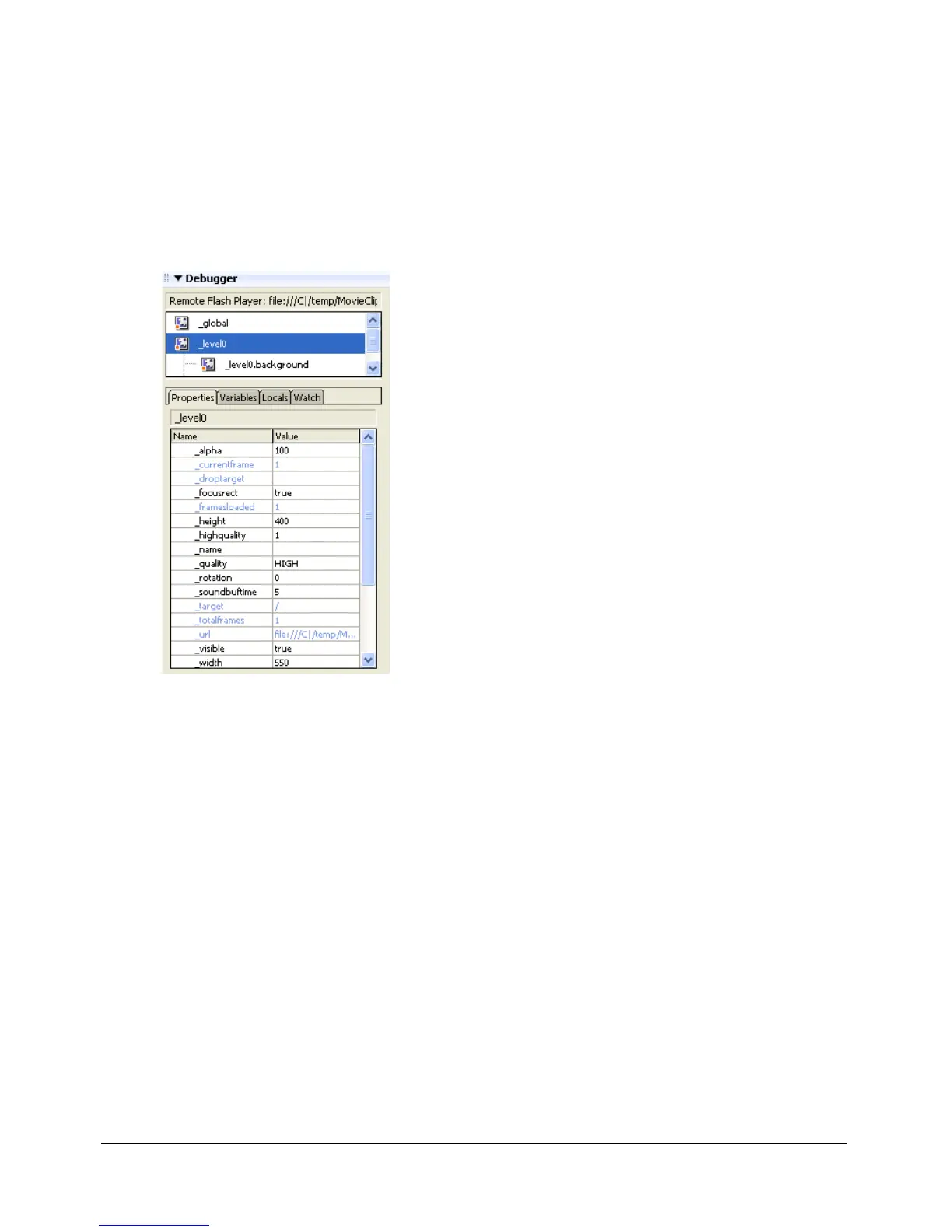
The Debugger’s Properties tab displays all the property values of any movie clip on the Stage. You
can change a value and see its effect in the SWF file while it runs. Some movie clip properties are
read-only and cannot be changed.
To display a movie clip’s properties in the Debugger:
1 Select a movie clip from the display list.
2 Click the Properties tab in the Debugger.
To modify a property value:
• Double-click the value, and enter a new value.
The value cannot be an expression. For example, you can enter
50 or "clearwater", but you
cannot enter
x + 50. The value can be a string (any value surrounded by quotation marks), a
number, or a Boolean value (true or false). You can’t enter object or array values (for example,
{id: "rogue"} or [1, 2, 3]) in the Debugger.
For more information, see “String operators” on page 46 and “Using operators to manipulate
values in expressions” on page 45.
Note: To write the value of an expression to the Output panel in test mode, use the trace statement.
See “Using the trace statement” on page 79.
Setting and removing breakpoints
A breakpoint lets you stop a SWF file running in Flash Player at a specific line of ActionScript.
You can use breakpoints to test possible trouble spots in your code. For example, if you’ve written
a set of
if..else if statements and can’t determine which one is executing, you can add a
breakpoint before the statements and step through them one by one in the Debugger.



 To Next Page