Magellan eXplorist Points of Interest Waypoints
Magellan eXplorist 510 / 610 / 710 User Manual 28
Finding a POI Using Search by Name
1. Tap the Map screen to bring up the Four
Corner Menu screen.
2. Tap the Main Menu icon in the lower left
corner.
3. Tap the POI icon.
4. Tap on Search by Name.
5. Use the keyboard to enter the rst few
characters in the name of the POI you are
searching for.
6. A list of POIs is displayed, beginning with the
characters entered in step 5.
Note that this search is not case sensitive.
Creating a Route to a POI
1. Access the list of POIs by category or
searching by name.
2. Tap on the orange Go button on the right side
of the POI button.
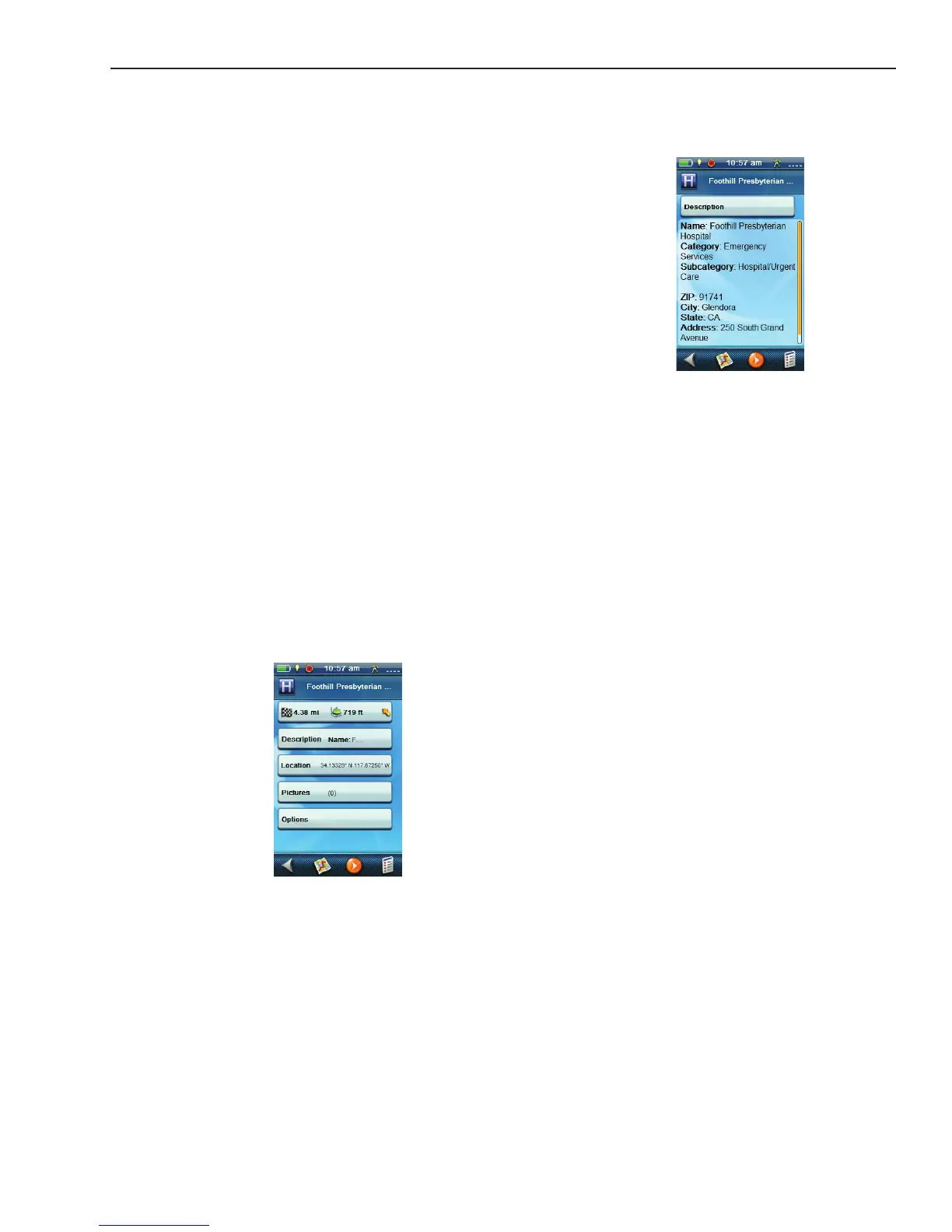
Viewing POI Details
1. Access the list of POIs by category or
searching by name.
2. Tap on the left side of the POI button in the list.
3. POIs are not editable however you can view
more detailed information by tapping on one of
the buttons in the details list.











 To Next Page