English
10
Establishing a Connection with your PC
Using Microsoft ActiveSync, you can connect a desktop com-
puter to your MobileMapper CX handheld via the USB data ca-
ble. This allows you to install software and transfer files to/
from MobileMapper CX. Magellan recommends you always use
the lastest version of ActiveSync.
Prerequisite: Make sure the USB device switcher is set to “Se-
rial for ActiveSync”. See Setting the Mini-USB Port (I/O Mod-
ule) on page 5.
To connect to a PC:
1. Install ActiveSync on the desktop computer. (Microsoft
ActiveSync is included on the MobileMapper CX Compan-
ion CD). You may also download the latest version by going
to the Microsoft web site at www.microsoft.com/windows-
mobile/default.mspx and clicking on the ActiveSync link.
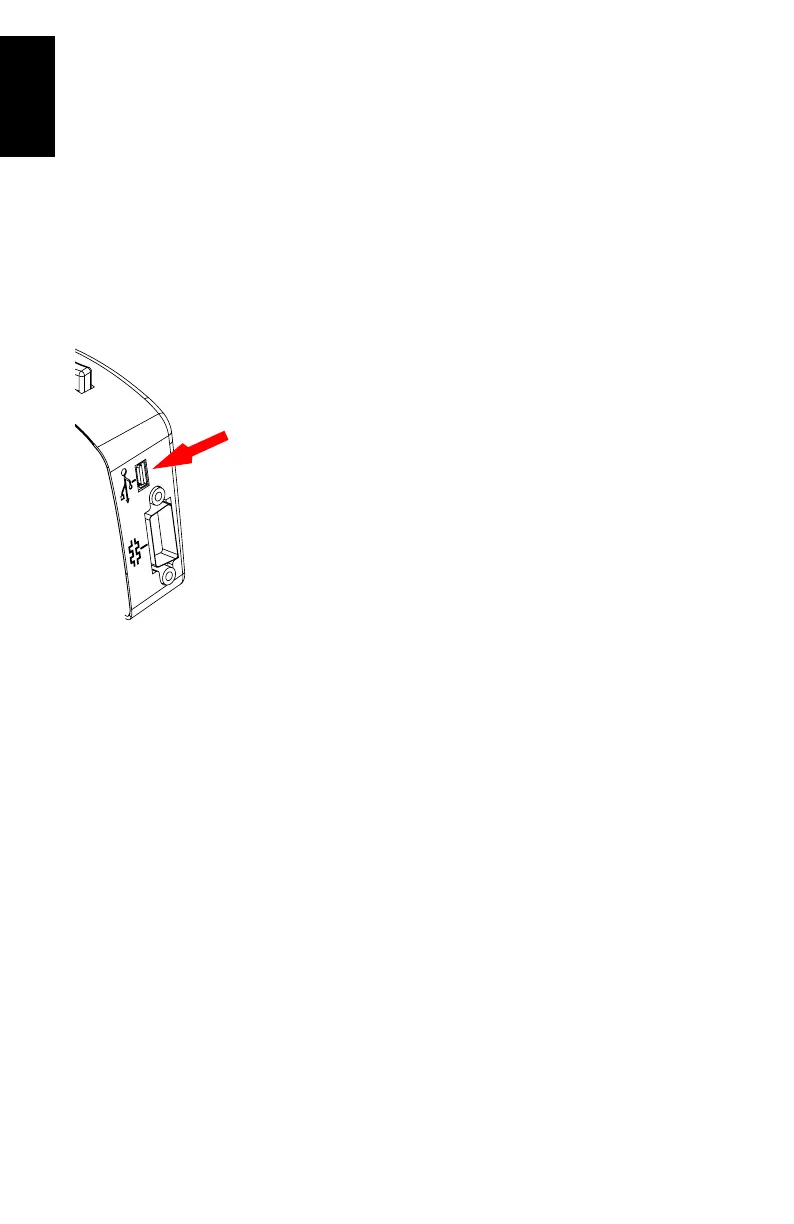
2. Attach the I/O module to the MobileMapper CX handheld.
Connect the USB data cable to the USB port (the mini-
connector) on the I/O module (see opposite).
3. Connect the other end of the USB data cable to a USB
port on the desktop computer.
4. Follow the ActiveSync instructions to establish a connec-
tion.
Installing Software
Once the connection is established with a PC using Active-
Sync, you may install any supported software you need. It is
very important to make sure you install your program in the
non-volatile memory, under “MyDevice” or on an SD card.
Installing off-the-shelf Windows CE software: Please refer to
the software documentation for more information and detailed
instructions.






 To Next Page