English
12
The keyboard default is lower-case alphanumeric letters.
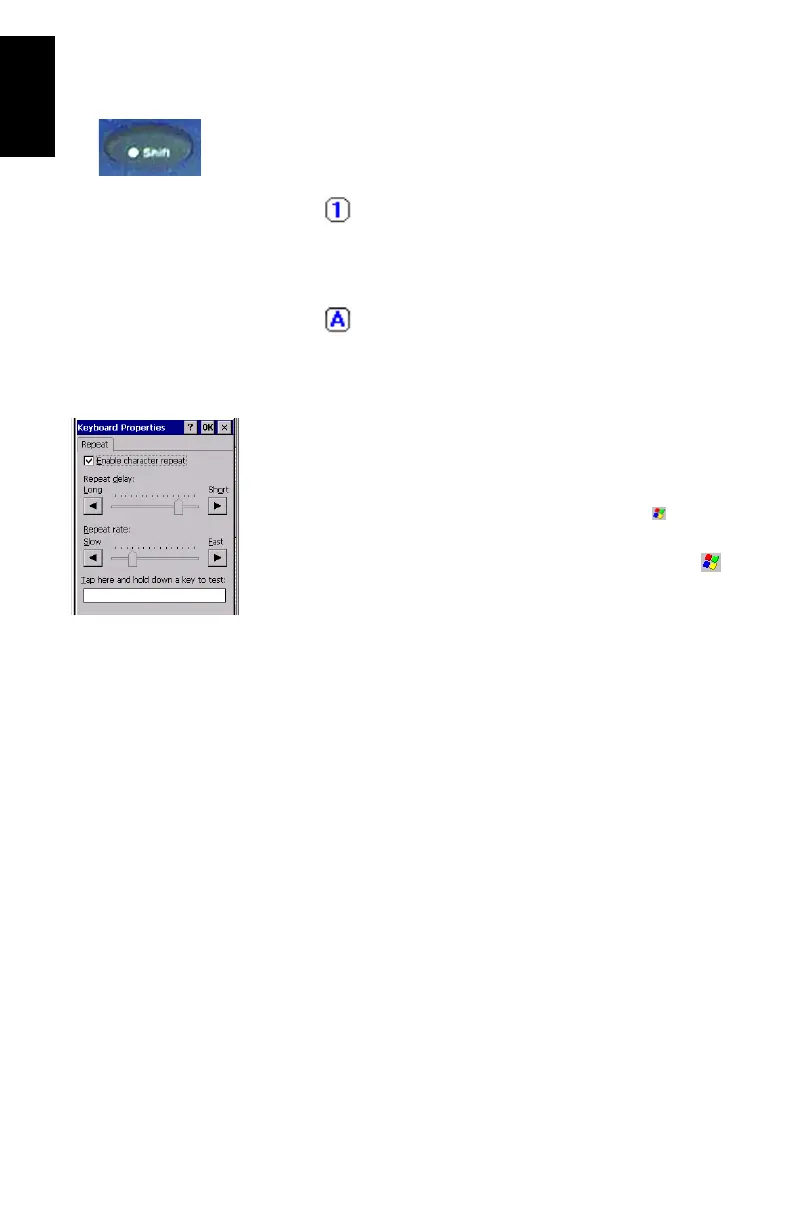
-Press the Dot-Shift key to toggle from numeric lock to
caps lock and default mode.
-Press the Dot-Shift key twice to lock the keypad in
numeric mode.
The icon appears in the task bar indicating that the
numeric lock mode is enabled.
-Press the Dot-Shift key three times to activate the upper-
case lock.
The icon appears in the task bar indicating that the
caps lock mode is enabled.
-Press the Dot-Shift key four times to bring it back to the
default lower-case alphanumeric mode.
NOTE: You can repeat letters by holding the button down
for a certain length of time. To adjust the amount of time
it takes the keyboard to recognize the Repeat command
and the speed with which it repeats letters, tap
, Settings,
Control Panel, Keyboard.
An easy way to practice using the keyboard is to tap ,
Programs, Microsoft WordPad and write your address.
Using the Stylus
The stylus is used for menu selection or data input on the
touch-screen.
- Tap: Touch the screen once with the stylus to select the
item, tap twice to open the selected item.
- Drag: Hold the stylus on the screen and drag it across to
select text and images. Drag in a list to select multiple
items.
- Tap and hold: Tap and hold the stylus on an item to see a
list of functions available for that item. On the pop-up
menu that appears, tap the function you want to perform.
In Bluetooth Manager, the “Tap and Hold” action is
slightly different: you must remove the stylus to let the
menu pop up.
Dot-Shift Key






 To Next Page