Modify User Password
Set Password in the following ways.
1. Modify user password logged-in via drop-list beside your avatar at the top
right
2. Modify a specified user password in User Admin tab with admin account
Modify current logged-in user password
1. Log in Web UI.
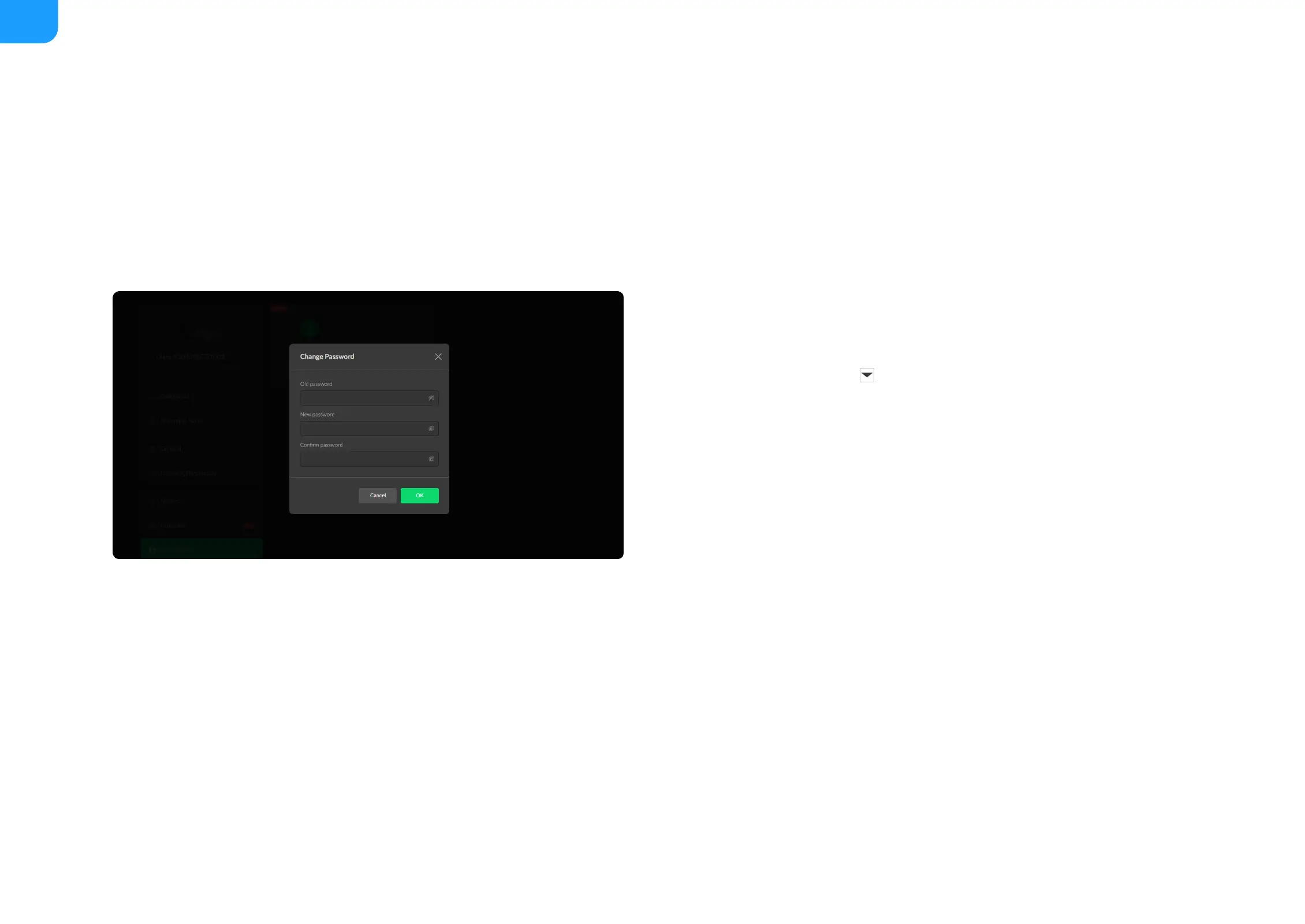
2. Click the drop-list icon beside your avatar icon, and click Change
password.
3. In the pop up window, type in your old password, the new password, and
confirm your new password.
The password is a string of 1 to 32 characters, which contains letters A-Z,
a-z, numbers 0-9 and special characters _~!@#$%^&*-+=.
4. Click OK.


 To Next Page