www.magicard.com
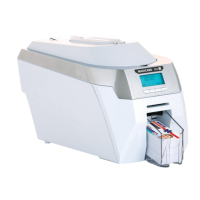
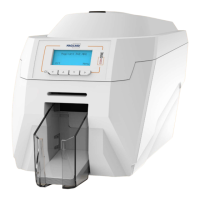
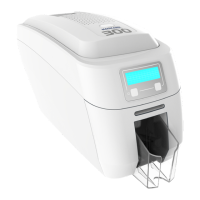
RIO 2e, TANGO 2e & TANGO +L Printers USER MANUAL
Page 8 of 33
Installing to Parallel (LPT)
1. Load the driver CD ROM into the PC you have connected to the printer.
If the CD does not run automatically, click the start button, then click on
“run”. Type “D:\autorun” (where D is the drive letter for your CD drive),
then press the return key.
The driver CD ‘Splash Screen’ will appear.
Select your printer model – Rio 2e or Tango 2e.
2. Select the “I
nstall Software” option
3. Then select the “Install Driver” option
The driver installation will begin and the driver installation
window will open
4. Ensure that the “Install driver ready for USB” option is
NOT
selected, then press ‘Next >’
5. Select the desired port (usually LPT1), then press ‘Next >’
Now wait while the parallel driver files are installed and
registered.
6. On successful installation, select “Finish”
• It is recommended that you test the new driver installation
by printing a Windows Test Page from the ‘General’ tab of
the Printer Driver Properties – the Windows Logo should
be printed in the centre of the card.
(Please see Section 11 – Printer Driver Settings – for a
detailed explanation of each setting).



 To Next Page