10
Getting to know your phone
Handset display
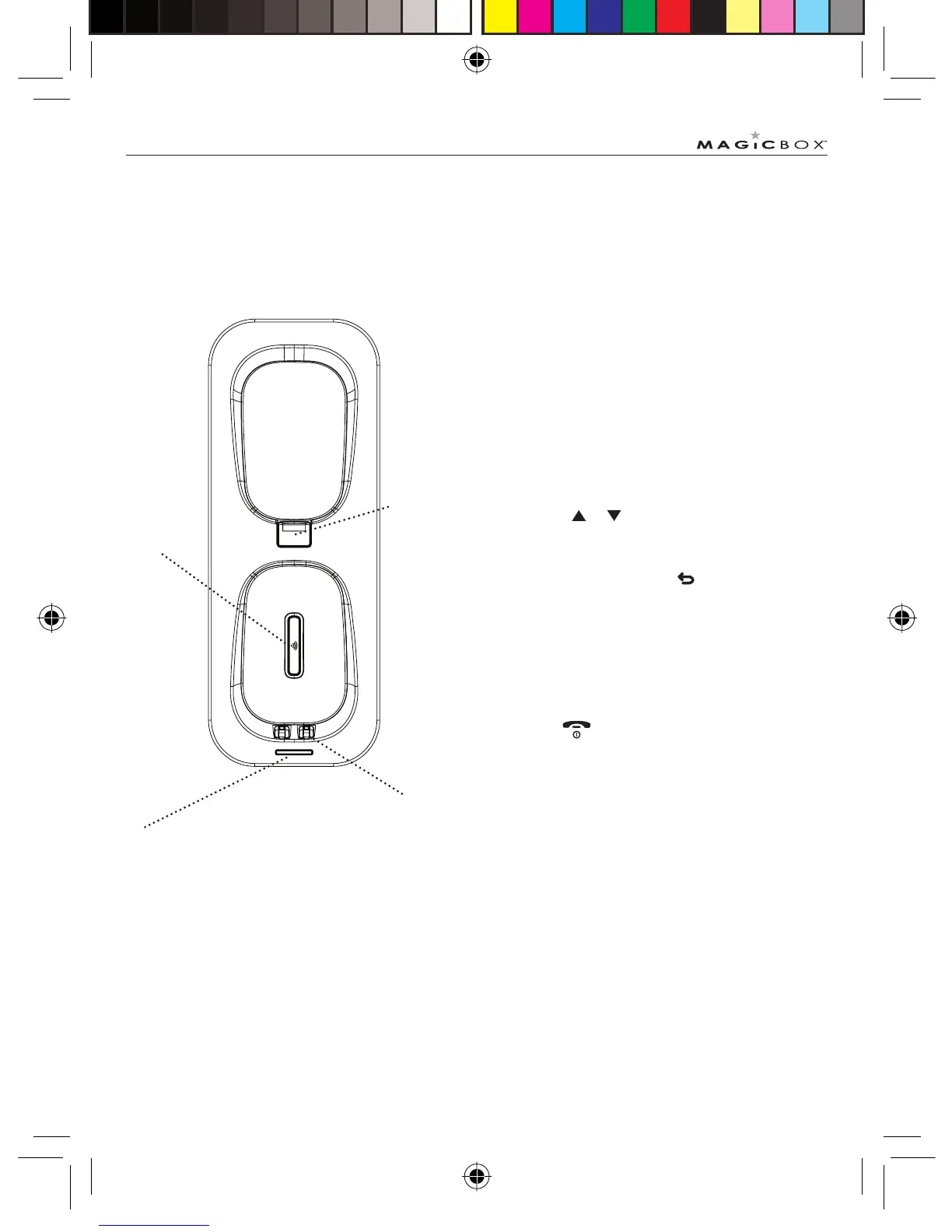
Overview of the base
* Page button
In standby, press to ring the handset/s.
Press and hold to enter registration mode when
registering handsets.
Navigating the menu
The basic steps of navigating through the menu and
on-screen options.
1. From the standby screen, press ‘menu/ok’. The
main menu is opened.
2. Use the
or keys to scroll through the
menu.
3. Soft key options OK and are displayed.
Press ‘menu/ok’ to select OK and open a sub-
menu or validate an option.
4. Press ‘c’ to go back to the previous menu level,
correct a character or cancel an action.
5. Press
to return to standby.
If you do not press any button on the handset for 15 seconds
the display will automatically return to standby. It will also
return to standby when the handset is placed on the base
or charger.
Charging and Answering Machine (TAM) LED
Orange: Handset down and charging, TAM on
Flashing Orange: New messages received, Handset
down and charging, TAM on.
Green: TAM on (Handset not on base)
Flashing Green: New messages received, TAM on
(Handset not on base)
Red: Handset down and charging, TAM off
Charging contacts
Page button*
Wall
mount
clip
Colombo UG.indd Sec8:10Colombo UG.indd Sec8:10 24/7/08 17:27:1124/7/08 17:27:11



 To Next Page