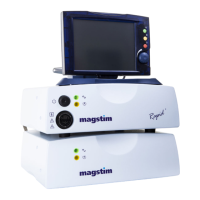
Magstim Rapid²
Operating Manual
© The Magstim Company Limited 40 MOP03-EN-03
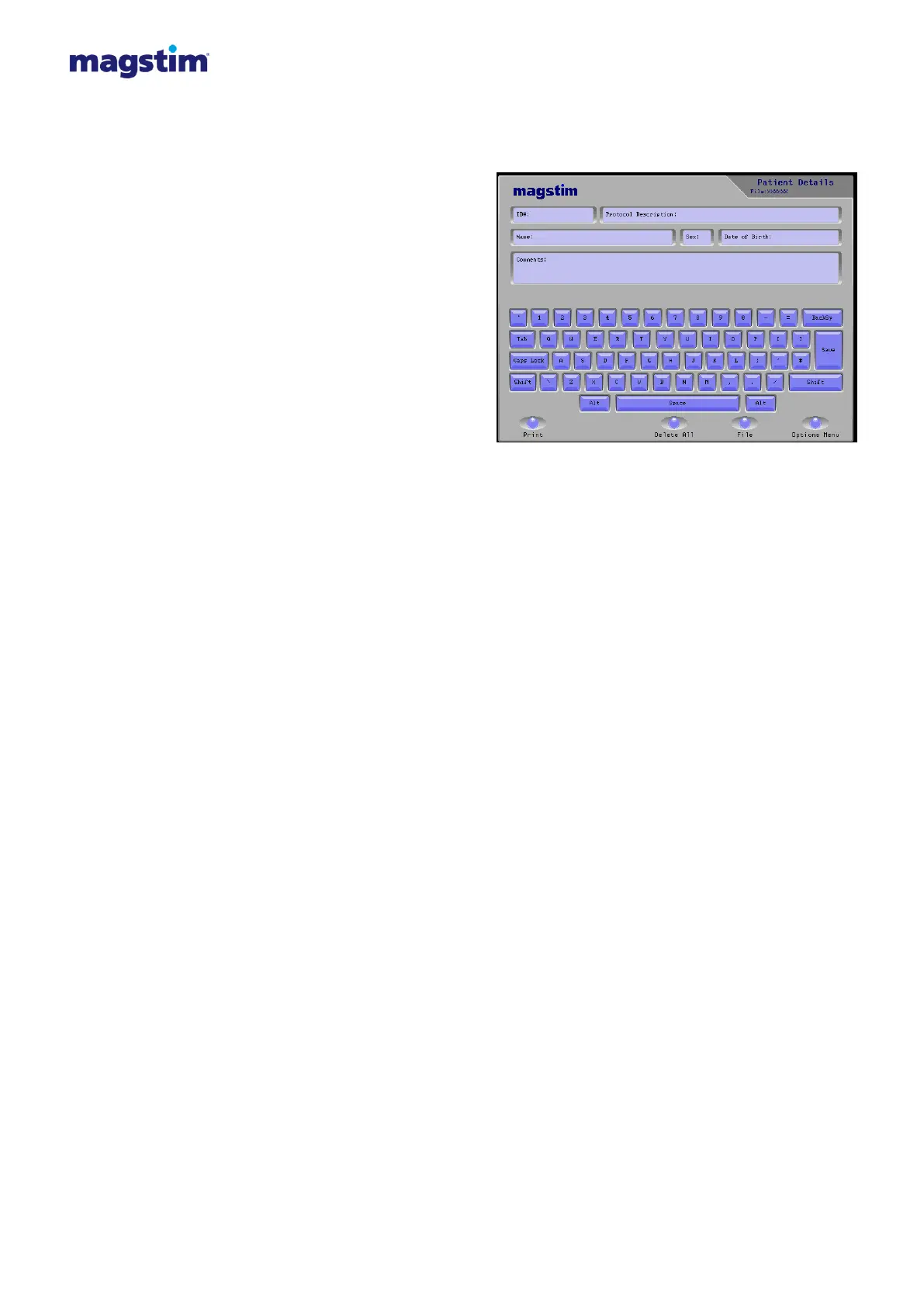
4.4.6.1 Patient Details
Press File at any time to return to File
Maintenance.
Keyboard: The Keyboard is touch sensitive.
To enter details into a field, first select the
required field window so that it becomes
active, showing a dark blue line around the
window.
Save: The ‘Save’ key on the keyboard de-
selects the active window and saves the
information is saved in the current window.
Name: Press the window to select. The
Patient ‘Name’ window can accept up to 40
characters. Enter details using the on-screen
keyboard
Sex: Press the window to select. The Patient ‘Sex’ window can accept only 1 character. Enter details
using the on-screen keyboard
ID#: Press the window to select. The Patient ‘ID’ window can accept up to 18 characters. Enter
details using the on-screen keyboard
Date of Birth: Press the window to select. The Patient ‘Date of Birth’ window can accept up to 18
characters. Enter details using the on-screen keyboard
Protocol Description: Press the window to select. Enter details using the on-screen keyboard.
Comments: Press the window to select. The ‘Comments’ window can accept up to 273 characters.
Enter details using the on-screen keyboard.
Once the details have been entered into a window, further selection of the window will produce a
‘Save changes in the last window?’ box. The changes made can be saved by selecting ‘Yes.’ To
disregard the information entered, press ‘No.’
Print: For Print Operations See Section 4.4.8
Delete All: Selection of this option will clear the contents of all the patient details windows, after a
‘Yes’ been entered. If a patient file is open, the patient details will be removed from the file.
File: Selection of this option will call up the File Maintenance screen.
Options Menu: Selection of this option will return the user to the Options Menu Screen.
Figure 4.29: Patient Details Window


 To Next Page
 Loading...